
Application
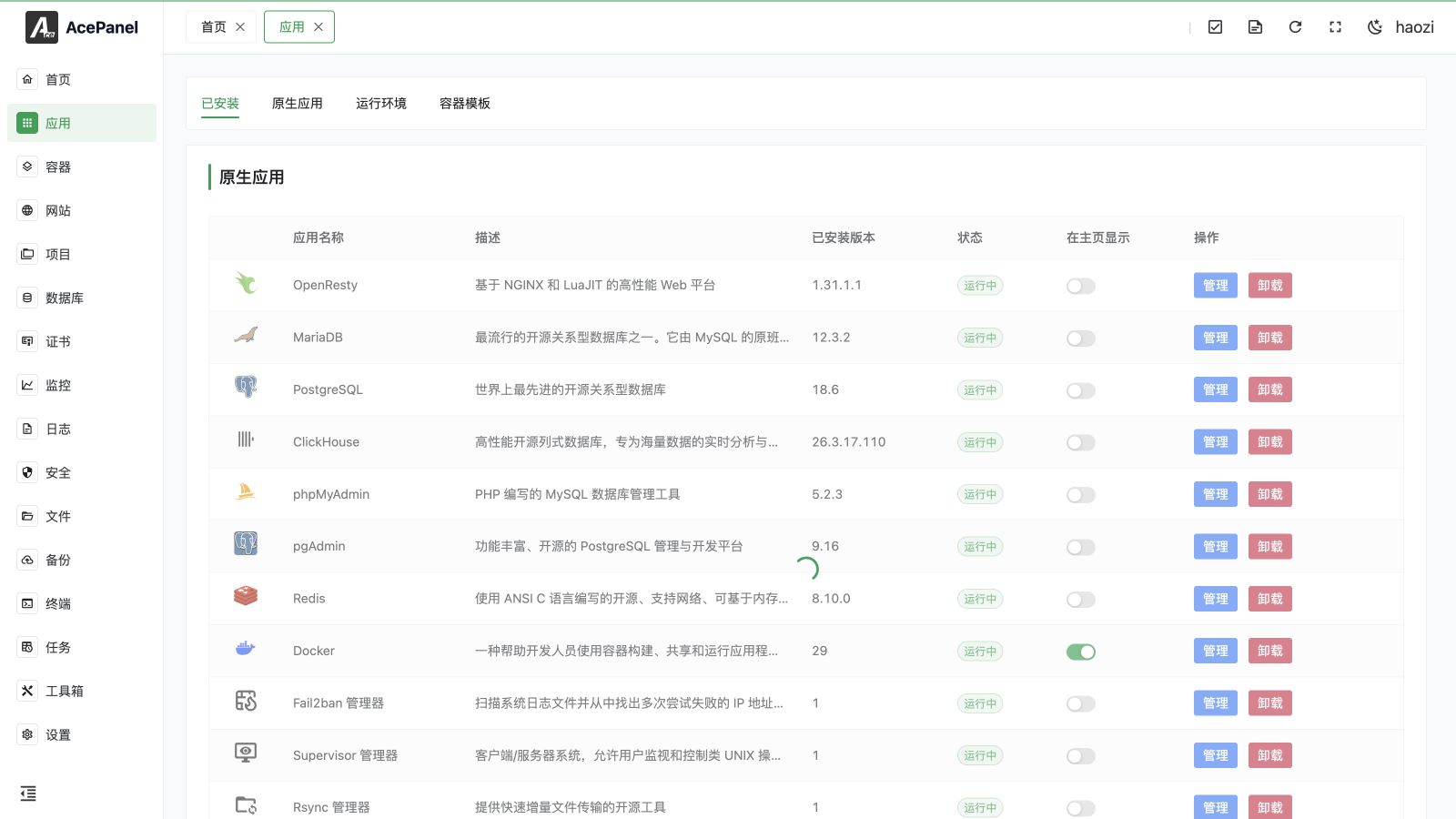
The application module is one of the core features of AcePanel, used to manage various software on the server. Through the application module, you can conveniently install, configure, and manage common software such as Web servers, databases, runtime environments, etc.
Feature Categories
The Apps page has four tabs:
- Installed: Native applications and runtimes already installed on the server, with their current status and management actions.
- Native Applications: Software installed directly on the system, such as Nginx, MySQL, Redis, etc.
- Runtime Environments: Runtime environments for various programming languages, such as PHP, Node.js, Python, Go, Java, and .NET
- Container Templates: One-click deployment templates based on Docker, for quickly deploying various applications
Native Application vs Container Template
| Feature | Native Application | Container Template |
|---|---|---|
| Performance | Higher | Slight overhead |
| Isolation | Shared system environment | Fully isolated |
| Deployment Difficulty | Requires configuration | One-click deployment |
| Resource Usage | Lower | Higher |
| Use Cases | Production environment, high performance needs | Quick testing, multiple version coexistence |
Application Categories
Native applications are preset with multiple categories by function, including but not limited to:
- Web Servers: Nginx, OpenResty, Apache, OpenLiteSpeed, Caddy
- Databases: MySQL, MariaDB, PostgreSQL, Percona, MongoDB, ClickHouse
- Search Engines: Elasticsearch, OpenSearch
- Containers: Docker, Podman
- Middleware: Redis, Valkey, Memcached, Kafka, RocketMQ
- Monitoring: Prometheus, Grafana
- Storage: MinIO, S3fs
- Tools: phpMyAdmin, Pure-FTPd, Supervisor, Rsync, Frp, Fail2ban, Gitea, Code Server
Update Cache
The category, native application, runtime environment, and container template lists are fetched from the AcePanel app store and cached locally. When you switch to the Native App, Operating Environment, or Container Template tab, an Update Cache button appears at the top of the page. Clicking it refreshes all four cached lists at once (categories, applications, runtime environments, and templates), which is useful when a list is incomplete or you want to pull the latest available software.
The button is hidden on the Installed tab, and the operation is unavailable when Offline Mode is enabled.
Next Steps
- Native Applications - Learn how to install and manage native applications
- Runtime Environments - Learn how to install programming language runtime environments
- Container Templates - Learn how to use container templates to quickly deploy applications
- FRP Manager - Configure Frps, Frpc, proxies, and Visitors
- Fail2ban Manager - Manage jails, bans, and allowlists
- Rsync Manager - Publish authenticated rsync modules
- Supervisor Manager - Manage long-running processes