
Migration
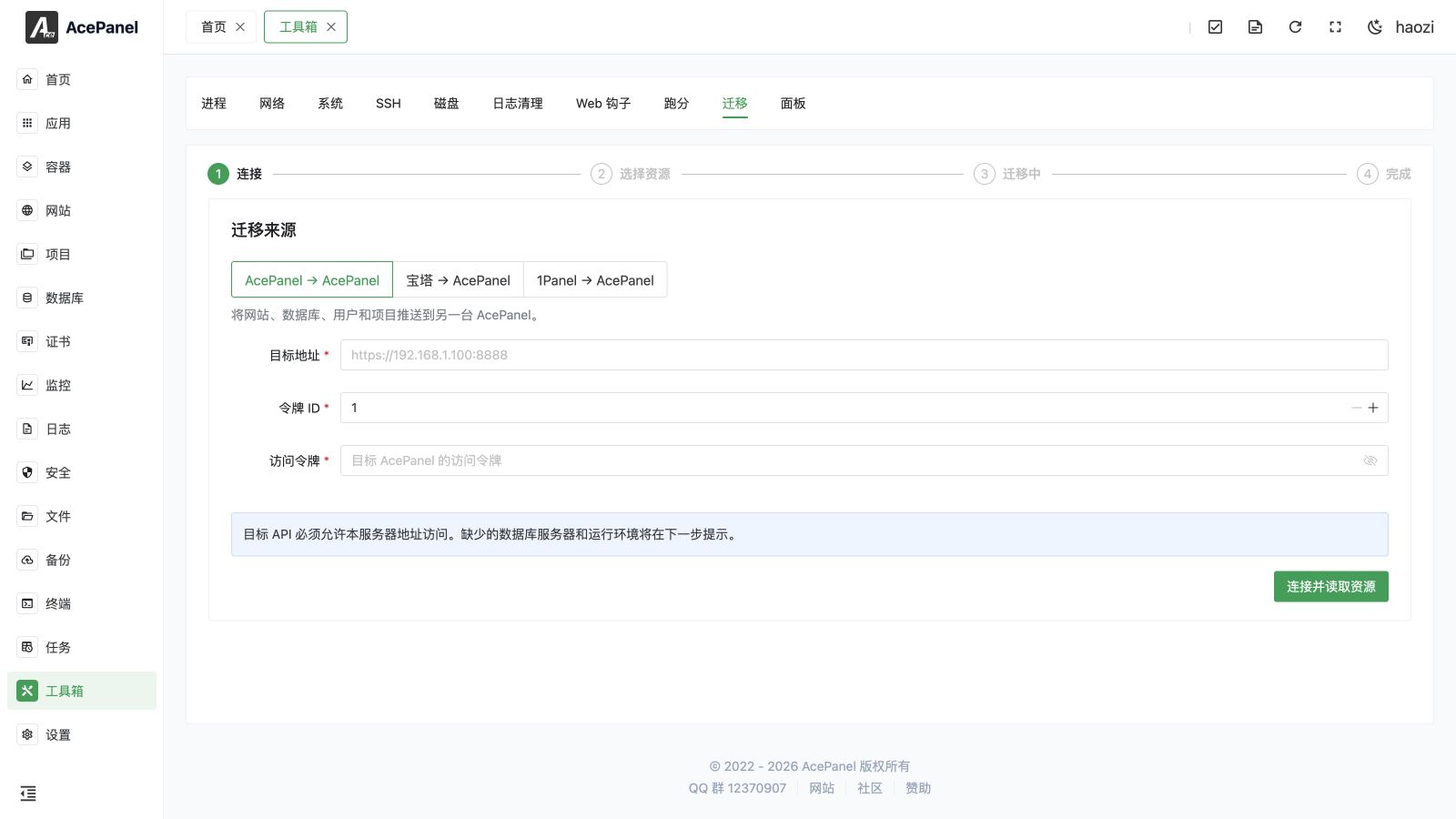
Use Toolbox > Migration to move websites, databases, database users, and projects to AcePanel. The page guides you through four steps: connect to the source, select resources, follow the migration, and review the result.
Before you start
Back up both servers, make sure you can access them through SSH, and install the required Web server, database engines, and runtimes on the destination. Do not restart or update either panel during a migration.
Connect to the Source
Choose the panel that contains the resources you want to move.
Another AcePanel Server
In this direction, the AcePanel page you are using is the source and it sends resources to the destination AcePanel server.
Enter the destination panel address, Token ID, and access token. Create the token on the destination under Settings > User > Access Tokens, and allow the source server's outbound IP address in the token allowlist.
BaoTa
AcePanel connects to BaoTa and downloads the selected resources from it. Enter the BaoTa panel address and API key. Before connecting, enable the panel API and add the AcePanel server's IP address to the API allowlist. See the BaoTa Panel API configuration guide.
1Panel
AcePanel connects to 1Panel and downloads the selected resources from it. Enter the 1Panel address and API Key, then check the key's expiry time and IP allowlist. See the 1Panel API manual.
Enter only the panel address. AcePanel detects whether the source uses the v1 or v2 API; do not append /api/v1 or /api/v2 yourself.
Protect credentials
Do not include access tokens, API keys, database passwords, or real server addresses in screenshots and diagnostic logs shared with other people. Delete temporary migration credentials when the work is complete.
What Can Be Migrated
| Source | Websites | Databases and users | Projects |
|---|---|---|---|
| AcePanel | Reverse proxy, PHP, and static websites, including complete website settings, certificates, and enabled state | MySQL, PostgreSQL, and ClickHouse; matching users, hosts, and privileges | General, Go, Java, Node.js, PHP, Python, and .NET projects |
| BaoTa | Static, PHP, and reverse-proxy websites; directories, domains, listeners, run directory, rewrites, proxies, redirects, certificates, and enabled state | Local MySQL and MariaDB databases and users whose password is available to the BaoTa API | Node.js, Python, Go, .NET, Spring Boot, and General projects |
| 1Panel | Static, reverse-proxy, and PHP Runtime websites | Local MySQL, MariaDB, and PostgreSQL databases and users whose password is available to the 1Panel API | — |
The following resources need to be moved or rebuilt separately:
- Redis and Valkey data in an AcePanel-to-AcePanel migration;
- remote databases from BaoTa or 1Panel;
- BaoTa Tomcat projects;
- 1Panel non-PHP Runtime websites, app-store websites, and projects;
- containers and Compose stacks from BaoTa or 1Panel.
Step 1: Connect
After you submit the address and credentials, AcePanel verifies the panel type and version and loads its resource inventory.
If the connection fails, check the exact panel address and entrance path, network reachability, firewall and security-group rules, credential expiry, IP allowlist, and time on both servers.
Step 2: Select Resources
The resource list shows the type, name, current state, estimated size, destination, dependencies, warnings, and anything that blocks the import. Select the resources you want to move. For a project, you can change its destination directory and run user before starting.
Conflicts That Must Be Fixed First
A resource cannot be selected for import when:
- a website, database, or project with the same name already exists on the destination;
- the name is reserved, such as
defaultorphpmyadmin, or is not a valid AcePanel resource name; - the destination website or project directory is not empty;
- no compatible database server is available;
- an AcePanel database cannot find a destination server with the same name and type;
- the source PostgreSQL major version is newer than the destination version;
- a project has no compatible runtime or valid run user.
Skip blocked resources marks these resources as Skipped and continues with the remaining selection. It does not ignore the underlying conflict.
Compatibility Adjustments
- A MariaDB database imported into an AcePanel MySQL server finishes with a warning.
- If the same PHP version is not installed, AcePanel uses the closest installed version. If there is no PHP runtime, the website is created without PHP enabled and the result contains a warning.
- Project users named
www-data,nginx, orapacheare mapped towww. - Node.js dependencies under
node_modulesand Python virtual environments are not reused on the destination. Reinstall project dependencies before starting the service.
Dependencies and Import Order
Database users are imported before databases, databases before projects, and projects before websites. This is important when a BaoTa website and project use a database with the same name. Select related resources together and resolve any warning shown beside them.
Step 3: Migrating
The page shows the overall percentage, the current resource and stage, and a live log. The stages are backup, transfer, import, and done. Each resource is marked Pending, Running, Success, Completed with warnings, Failed, or Skipped.
When Stop running services while creating backups is enabled, AcePanel briefly stops a running website or project, creates its archive, and immediately restores its previous state. Databases are exported online and are not stopped.
You may leave the page while the migration continues. When you return, AcePanel restores the progress kept by the running panel process. If the live connection drops, the page reconnects every three seconds.
There is no cancel button. Closing the page does not cancel the migration. Do not restart AcePanel: migration progress is kept in the panel process and cannot be recovered after that process exits. A migration can run for up to 24 hours, so move unusually large resources in smaller batches.
Transfer Behavior
Between two AcePanel servers, files are uploaded in 10 MiB chunks. Each chunk is verified by its hash, and already uploaded chunks are checked before transfer continues.
BaoTa and 1Panel migrations download an archive from the source panel and do not use the AcePanel-to-AcePanel chunk-resume flow.
Only one migration can run in an AcePanel process at a time.
Step 4: Done
The result page groups resources into Success, Completed with warnings, Failed, and Skipped, and shows the duration and details for each resource. Download the log before starting another migration.
Start new migration becomes available after the task ends. It clears the connection, selection, results, and current log.
Verify the Destination
Do not remove the source data until all of the following checks pass:
- Open every website over HTTP and HTTPS. Check domains, listeners, redirects, rewrites, proxy targets, PHP version, certificate, and enabled state.
- Connect to each database with the migrated account. Check tables, row counts, character set, privileges, and the application's connection settings.
- For projects, check the rewritten directory, command, environment, run user, and service status. Reinstall Node.js or Python dependencies where required.
- Read every warning and download the migration log.
- Run an application-level test before changing DNS or sending production traffic to the new server.
If a transferred resource fails during import, check free disk space, directory ownership, the database server name and version, installed runtimes, and the error for that resource in the live log.