
Static Website
Static websites are used to host HTML, CSS, JavaScript, and other static files, suitable for deploying frontend project build outputs, documentation sites, etc.
Create Static Website
- Go to the Website page
- Click the Pure Static tab
- Click Create Website
Configuration Items
- Name: Website identifier, must be unique and only supports letters, numbers, hyphens, and underscores, e.g.,
docs - Domain: Bound domain, e.g.,
docs.example.com - Port: Listening port, default 80
- Directory: Website root directory. If left empty, it defaults to
website directory/website name/public - Remark: Optional remark
Edit Static Website
Click the Edit button in the website list to enter the edit page.
You can change this website to reverse proxy or PHP from its basic settings. Domains, listeners, files, and other shared fields are kept, while static-specific Web-server settings are removed and the selected type's configuration is generated. Back up the site before converting.
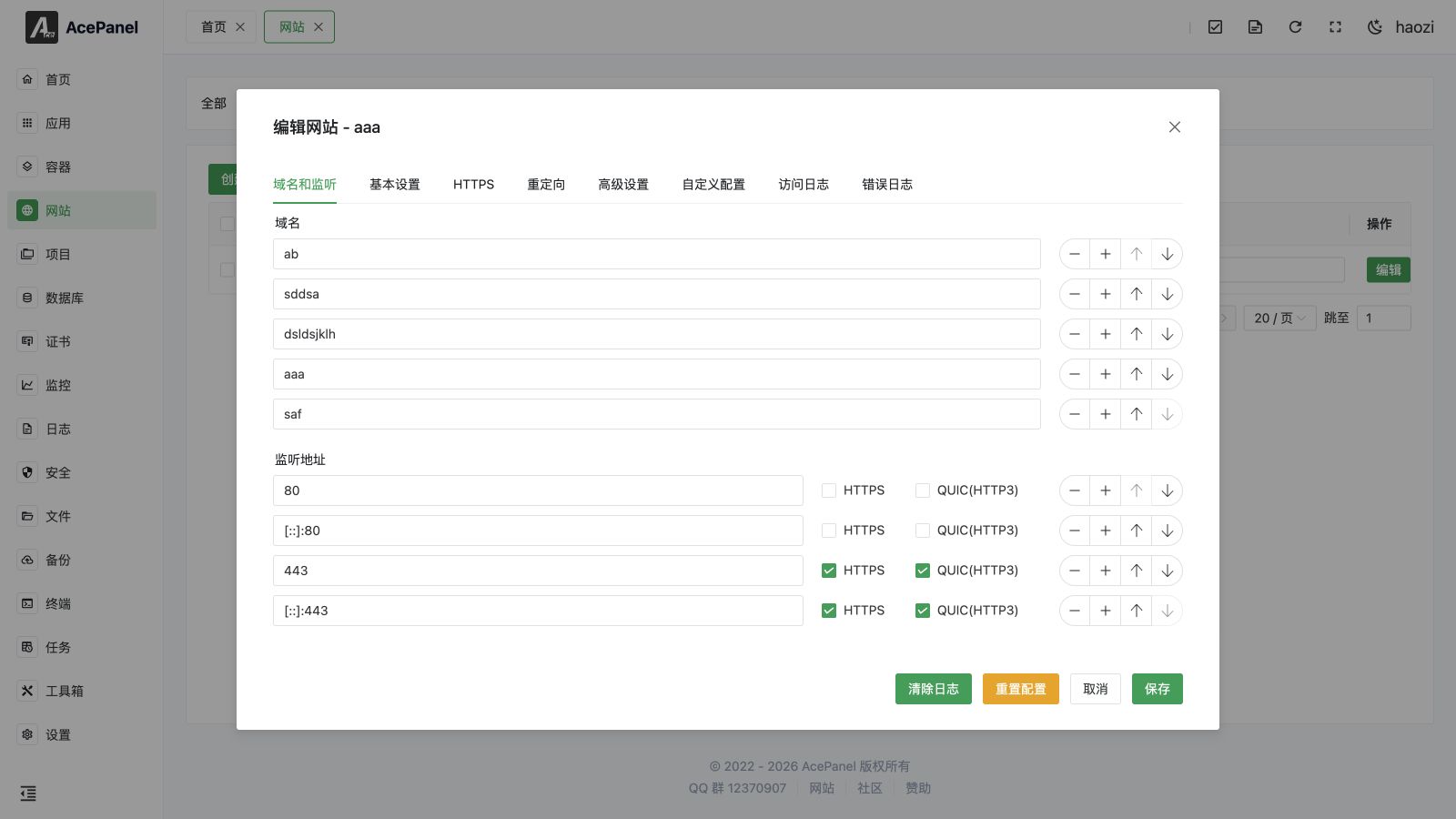
Domain & Listening
Configure the website's domain and listening address. Each listening address can individually enable HTTPS and QUIC (HTTP/3).
Basic Settings
Configure the website directory and default document.
- Website Directory: Absolute path where static files are stored
- Running Directory: Absolute path to the running directory (rarely needed for static sites)
- Default Document: Default homepage file list, e.g.,
index.html
HTTPS
In the HTTPS tab you can enable TLS for the site and manage its certificate:
- Main Switch: Master switch to enable or disable HTTPS for the site
- Use Existing Certificate: Select a certificate already managed in Certificate Management to fill in the certificate and private key automatically
- HSTS: Force browsers to access the site over HTTPS only
- HTTP Redirect: Automatically redirect plain HTTP requests to HTTPS
- OCSP Stapling: Enable OCSP stapling to speed up certificate validation
- TLS Version: Allowed TLS protocol versions (TLS 1.0 / 1.1 / 1.2 / 1.3)
- Certificate / Private Key: Paste the PEM certificate and KEY private key content directly
When at least one domain is set, the footer also provides a One-click Certificate Issuance button to request a free certificate. If a domain is a wildcard (e.g., *.example.com), you will be prompted to select a DNS provider configured in Certificate Management for DNS verification.
After a successful One-click Certificate Issuance, AcePanel enables HTTPS for the website automatically. Review the resulting certificate and listeners in the HTTPS tab.
Redirects
In the Redirects tab you can add redirect rules. Click Add Redirect Rule to create a rule:
- Redirect Type:
URL Redirect,Host Redirect, or404 Redirect - Status Code:
301(Moved Permanently),302(Found),307(Temporary Redirect), or308(Permanent Redirect) - Source: Source path (URL redirect) or source host (host redirect); not required for 404 redirect
- Target: Target path or target URL
- Keep URI: Keep the original request path and query parameters when redirecting
Rules can be reordered by dragging the handle.
Advanced Settings
In the Advanced Settings tab you can configure access statistics, log settings, rate limiting, real IP, and basic authentication.
Custom Configs
In the Custom Configs tab, you can add custom Web-server configuration for URL rewriting and other functions.
Click the Add Custom Config button to add a configuration:
- Name: Configuration name, supports letters, numbers, underscores, and hyphens
- Scope: Configuration scope, can choose "This Website" or "Global"
- Content: Configuration content in the active Web server's syntax, such as
locationblocks for Nginx
Use Cases
Frontend Projects
Build outputs from Vue, React, Angular, and other frontend frameworks:
# Vue project
npm run build
# Upload dist directory contents to website directory

# React project
npm run build
# Upload build directory contents to website directory
Documentation Sites
Static site generators like VitePress, Docusaurus, Hugo:
# VitePress
npm run docs:build
# Upload .vitepress/dist directory contents to website directory
Single Page Application (SPA)
Pure-static websites include SPA fallback by default, so a route that does not match a file is served by index.html. If the site must return a real 404 for unknown paths, remove or replace the generated fallback in Custom Configs. The equivalent Nginx rule is:
location / {
    try_files $uri $uri/ /index.html;
}
Directory Structure
Typical static website directory structure:
/opt/ace/sites/website-name/public
├── index.html         # Homepage
├── assets/            # Static resources
│   ├── css/
│   ├── js/
│   └── images/
├── favicon.ico        # Website icon
└── ...
FAQ
404 Error
- Check if the file exists in the website directory
- Check filename case sensitivity (Linux is case-sensitive)
- Single page applications need to configure rewrite rules
Resource Loading Failed
- Check if the resource path is correct
- Check if absolute paths are used
- Check CORS configuration
Chinese Filename Garbled
- Ensure files use UTF-8 encoding