
Scan Awareness
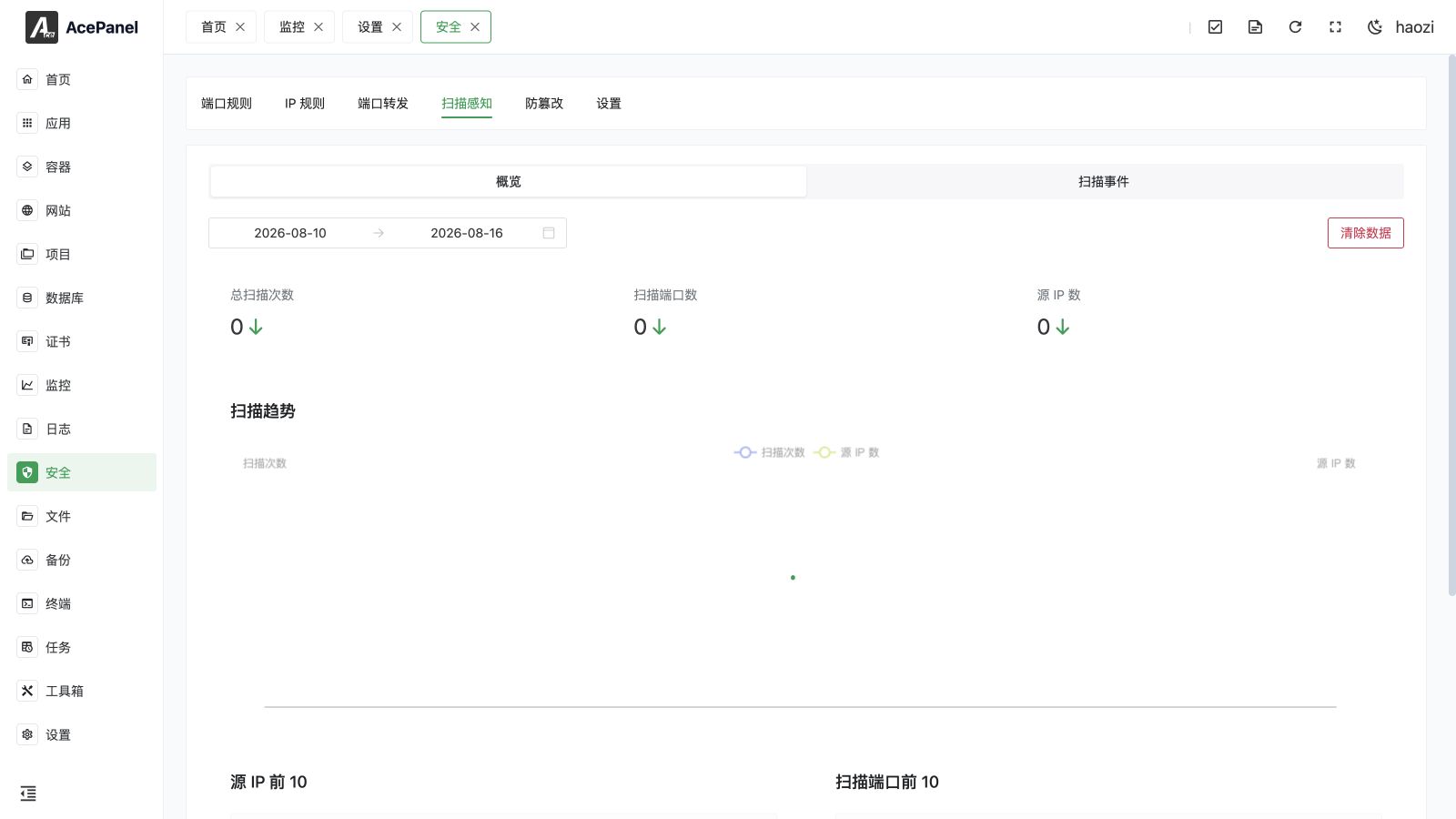
Scan Awareness uses eBPF to passively detect inbound port scans against your server, record them, and optionally block offending IP addresses automatically. Open Security > Scan Awareness.
WARNING
Scan Awareness relies on the Linux eBPF subsystem (TC ingress). It is only available on Linux servers with a recent enough kernel. On unsupported platforms the detector will simply not start, and no scan data will be collected.
How It Works
When enabled, the panel attaches a lightweight eBPF program to your network interfaces and inspects inbound packets directly in the kernel:
The program attaches at TC ingress, before the system firewall's normal drop decision. A packet can therefore appear in Scan Awareness even when firewalld or ufw successfully blocks it later. A scan record is evidence that the packet reached the network interface, not evidence that the firewall allowed it to reach a service.
- For TCP, only SYN packets (new connection attempts) are treated as potential scans.
- For UDP, response traffic from well-known service source ports (such as DNS
53/853, NTP123, DHCP67/68/546/547, HTTPS/QUIC443, mDNS5353, and IKE/IPsec500/4500) is ignored, since it is almost always a reply to your own outbound requests. - Connection attempts to ports where a service is actually listening are skipped. The detector keeps an up-to-date list of your listening ports and only records attempts to closed or unused ports as scans.
Detected events are aggregated in memory and periodically written to a dedicated database. Each unique combination of source IP, port, protocol, and day is stored once with a hit counter, so repeated probes are counted rather than duplicated. If a GeoIP database is configured on the panel, the source IP's country, region, city, and ISP are resolved and attached to each event.
Opening the Page
Scan Awareness lives inside the Security module:
- Go to Security in the main navigation.
- Open the Scan Awareness tab to view the dashboard and events.
- Open the Settings tab to configure the feature.
If Scan Awareness has not been enabled yet, the Scan Awareness tab shows a notice prompting you to enable it from the Settings tab first.
Scan Settings
All options below are configured under Security > Settings, in the Scan Awareness section. Click Save to apply your changes.
Scan Awareness
The master switch. When turned off, the eBPF detector is stopped and no new scan data is collected. Existing data is retained until cleared or aged out.
Retention Days
How long scan records are kept, in days. Default is 30 (range 1-365). Records older than the retention period are automatically removed.
Network Interfaces
Select which network interfaces the detector should monitor. This is a multi-select list of the interfaces available on the server.
- Leave it empty to let the panel auto-detect interfaces (the placeholder reads Auto detect).
- Loopback interfaces are never monitored.
See Available Interfaces below for what is shown in the list.
Auto Block
When enabled, source IPs that scan too aggressively are automatically blocked at the firewall. The following options appear only when Auto Block is on.
WARNING
Auto Block only takes effect when the system firewall is running. If the firewall is stopped, no automatic blocking occurs.
| Option | Default | Range | Description |
|---|---|---|---|
| Block Threshold | 100 | 1-100000 | Number of scan hits from a single IP within the time window that triggers a block. |
| Time Window (minutes) | 5 | 1-1440 | The rolling window over which scan hits are counted per IP. |
| Block Duration (hours) | 0 | 0-87600 | How long an auto-blocked IP stays blocked. 0 means permanent (the IP is not automatically unblocked). |
When an IP reaches the threshold within the window, it is added as a drop rule for inbound traffic. If a Block Duration is set, the IP is automatically unblocked once that duration elapses.
IP Whitelist
A list of IP addresses or CIDR ranges that are never auto-blocked. Add entries as tags. Both single IPs (for example 203.0.113.10) and CIDR ranges (for example 203.0.113.0/24) are accepted. Loopback and unspecified addresses are always treated as whitelisted.
TIP
The whitelist only protects against automatic blocking. It does not affect manual block actions or rules created elsewhere in the firewall.
Available Interfaces
The Network Interfaces selector lists the server's interfaces (excluding loopback). For each interface it shows the name together with its assigned IP addresses, or its link status (up / down) when no addresses are present.
Dashboard
The Scan Awareness tab has two views, switched by the segmented control at the top: Overview and Scan Events. A date-range picker on the toolbar controls the period shown by both views (it defaults to the last 7 days).
Overview
The Overview shows aggregate statistics and rankings for the selected date range.
Summary Cards
Three summary cards present totals for the period, each with an up/down arrow indicating whether the value increased or decreased compared with the previous period of the same length:
- Total Scans — total number of scan hits.
- Scanned Ports — number of distinct port numbers targeted.
- Source IPs — number of distinct source IP addresses.
Scan Trend
A line chart plotting two daily series over the selected range:
- Scan Count — total scan hits per day.
- Source IPs — number of distinct source IPs per day.
Top 10 Source IPs
A table of the most active scanning IPs, including:
| Column | Description |
|---|---|
| Source IP | The scanning IP address. |
| Location | Country, region, and city (resolved via GeoIP, when available). |
| Scan Count | Total scan hits from this IP. |
| Port Count | Number of distinct ports this IP targeted. |
| Last Seen | The most recent time this IP was observed. |
| Actions | A Block button to manually block this IP (see below). |
Top 10 Scanned Ports
A table of the most frequently probed ports:
| Column | Description |
|---|---|
| Port | The targeted port number. |
| Protocol | tcp or udp. |
| Scan Count | Total scan hits against this port. |
| IP Count | Number of distinct IPs that targeted this port. |
Scan Events
The Scan Events view lists individual scan records (one row per source IP / port / protocol / day) with full pagination. Each row includes the source IP, location, port, protocol, scan count, first seen, last seen, and a Block action.
You can filter the list using the toolbar inputs:
- Search IP — match by source IP (partial match supported).
- Port — match an exact port number.
- Location — match against country, region, city, or ISP (partial match supported).
Press Enter in a filter field to apply it. The page size can be set to 20, 50, or 100 rows.
Blocking an IP
In both the Top Source IPs table and the Scan Events table, the Block button creates an inbound drop rule for the selected IP. The protocol family (IPv4 or IPv6) is detected automatically from the address, and the rule covers both TCP and UDP. You are asked to confirm before the block is applied.
TIP
This manual block is independent of Auto Block. It applies immediately regardless of the threshold settings, and it ignores the IP whitelist.
Clearing Data
The Clear Data button on the toolbar removes all stored scan records. You are asked to confirm before the data is cleared. This affects only the historical scan data; your settings and any firewall rules are not changed.
DANGER
Clearing data is irreversible. All scan history, summaries, trends, and rankings are permanently deleted.
Notes
- Scan data is stored in a dedicated database and grows with the volume of probes your server receives. Longer retention periods use more disk space.
- Only inbound connection attempts to closed/unused ports are recorded; traffic to ports with a live service is not counted as a scan.
- Location and ISP information is only available when a GeoIP database is configured on the panel; otherwise these columns appear empty.
- Disabling Scan Awareness stops collection but does not delete existing data; use Clear Data to remove it.