
Node.js Project
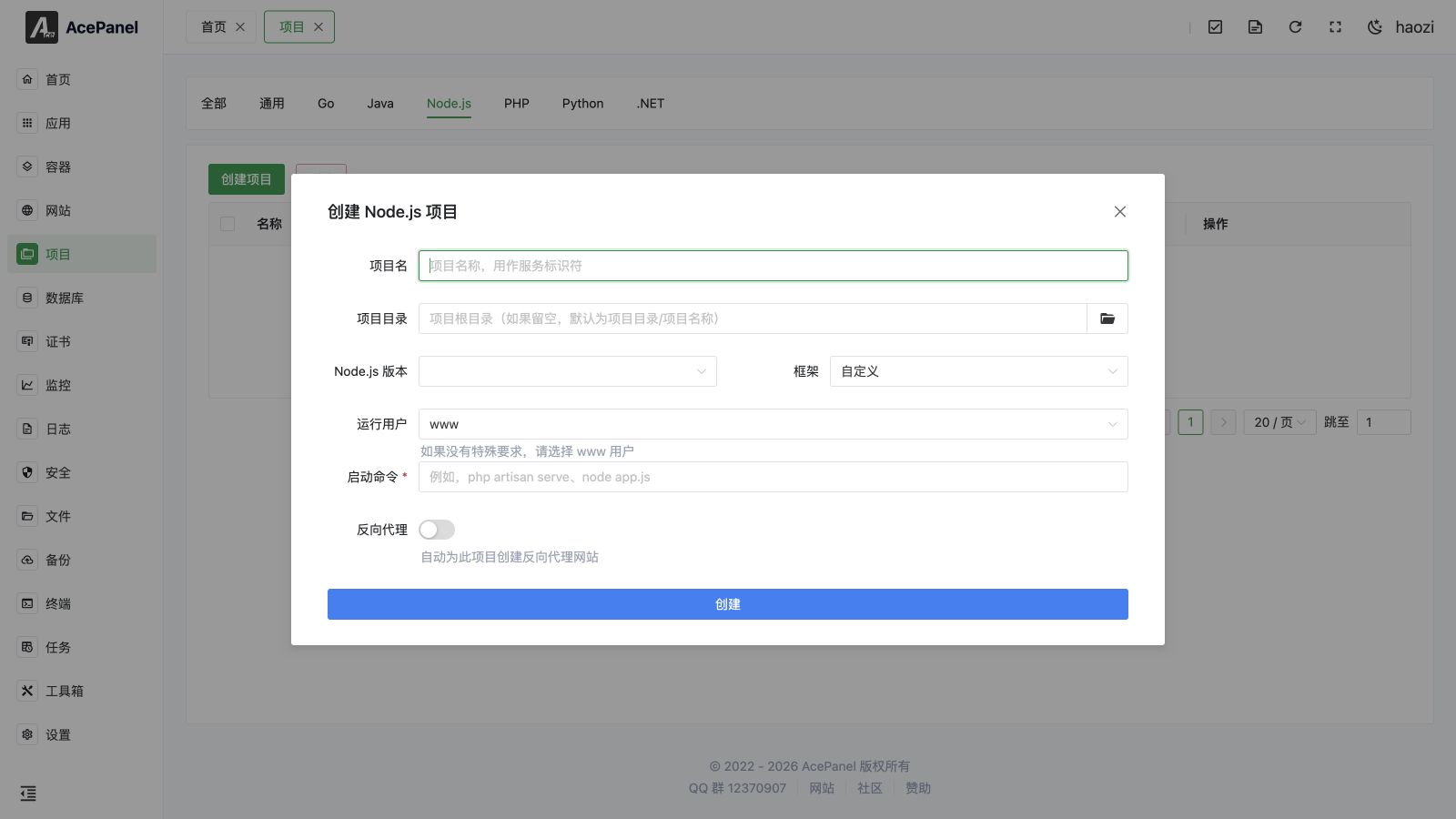
Node.js projects are used to deploy Express, Koa, NestJS, Next.js, and other Node.js applications.
Prerequisites
- Install Node.js runtime environment: Apps > Operating Environment > Node.js
- Project source code
Deployment Steps
- Upload project code to server
- Install dependencies:
cd /opt/ace/projects/myapp
npm24 install- Create the project (see Create Node.js Project below)
- Enable Reverse Proxy
Create Node.js Project
- Go to the Project page, open the Node.js tab
- Click Create Project
- Fill in configuration:
- Project Name:
myapp(used as the service identifier) - Project Directory: leave empty to default to
/opt/ace/projects/<project name>, or pick a directory - Node.js Version: select an installed Node.js version
- Framework: select a preset (Express, Koa, Fastify, NestJS, Next.js, Nuxt.js, Hapi, AdonisJS) to auto-generate the start command, or keep Custom to write it yourself
- Run User: defaults to
www(you may also chooseroot/nobodyor enter a custom user) - Start Command: auto-filled from the version and framework above, editable
- Project Name:
- Enable Reverse Proxy and fill in the Domain and Project Port to automatically create a reverse proxy website for external access
Start Command Examples
# Run directly
node24 app.js

# Use npm scripts
npm24 start

# Use npm run
npm24 run start:prod

# Set environment variables
NODE_ENV=production node24 app.js

# Specify port
PORT=3000 node24 app.js
Common Frameworks
Express
const express = require('express');
const app = express();

app.get('/', (req, res) => {
    res.send('Hello World');
});

app.listen(3000);
Start command: node24 app.js
Koa
Start command: node24 app.js
Fastify
Start command: node24 app.js
NestJS
# Build
npm24 run build
Start command: node24 dist/main.js
Next.js
# Build
npm24 run build
Start command: node24 node_modules/.bin/next start
Nuxt.js
# Build
npm24 run build
Start command: node24 node_modules/.bin/nuxt start
Hapi
Start command: node24 server.js
AdonisJS
# Build
npm24 run build
Start command: node24 server.js
Managing Projects
Each project row on the Node.js tab provides the following actions:
- Start / Stop: toggle the running state of the service
- Restart: restart the service (only shown when running)
- Reload: reload the service without a full restart (only shown when running); uses the Reload Command if configured
- Logs: open a real-time log viewer for the service output
- Edit: open the project settings (see Edit Project below)
- Delete: remove the project; a confirmation with a 5-second countdown is required
- Autostart: a switch that enables or disables starting the service on boot
The project name is used as the systemd service identifier, so it must contain only letters, numbers, underscores, and hyphens.
Edit Project
Click Edit on a project to open its settings, organized into the following tabs.
Basic Settings
- Project Name: service identifier
- Description: optional notes about the project
- Project Directory: project root directory
- Working Directory: optional, defaults to the project directory (maps to systemd
WorkingDirectory) - Run User: the user the service runs as
Runtime Settings
- Start Command: the command used to start the service (
ExecStart) - Pre-start Command: command to run before starting (
ExecStartPre) - Post-start Command: command to run after starting (
ExecStartPost) - Stop Command: custom stop command (
ExecStop) - Reload Command: custom reload command (
ExecReload)
Restart Policy:
- Restart Strategy: one of
no,always,on-failure,on-abnormal,on-abort,on-success - Restart Interval: delay before restarting, e.g.
5s,1min(RestartSec) - Max Restarts: maximum restart attempts (
StartLimitBurst) - Start Timeout (s): time allowed for startup (
TimeoutStartSec) - Stop Timeout (s): time allowed for shutdown (
TimeoutStopSec)
Other:
- Standard Output / Standard Error: where logs are sent, one of
journal,syslog,kmsg,null, or a file (append:/truncate:) - Environment Variables: key/value pairs injected into the service environment
Dependencies
Control startup order relative to other systemd units. Common services include network.target, mysqld.service, postgresql.service, redis.service.
- Requires: strong dependencies; the service fails if these are not available
- Wants: weak dependencies; the service still starts if these fail
- After: start this service after the specified services
- Before: start this service before the specified services
Resource Limits
- Memory Limit (MB): maximum memory; set to
0for no limit (MemoryLimit) - CPU Quota: CPU allocation, e.g.
50%or200%where100%equals one CPU core (CPUQuota)
Security Settings
Hardening options that enhance service isolation. Test thoroughly before enabling, as they may affect functionality.
- No New Privileges: prevent the service from gaining new privileges (
NoNewPrivileges) - Protect /tmp: give the service a private
/tmp(ProtectTmp) - Protect /home: make
/homeinaccessible (ProtectHome) - Protect System:
truemakes/usrand/bootread-only,fullalso makes/etcread-only,strictmakes the entire filesystem read-only (ProtectSystem) - Read-Write Paths: paths the service may read and write (
ReadWritePaths) - Read-Only Paths: paths the service may only read (
ReadOnlyPaths)
Process Management
AcePanel uses systemd to manage Node.js processes, automatically handling:
- Automatic restart on process crash
- Automatic startup on boot
- Log recording
Environment Variables
It is recommended to use .env files to manage environment variables:
# .env
NODE_ENV=production
PORT=3000
DATABASE_URL=mysql://localhost:3306/mydb
Load using the dotenv package:
require('dotenv').config();FAQ
Dependency Installation Failed
Try clearing cache and reinstalling:
rm -rf node_modules package-lock.json
npm24 install
Out of Memory
Increase Node.js memory limit:
NODE_OPTIONS="--max-old-space-size=4096" node24 app.jsPort Already in Use
Modify the port the application listens on, or check if another process is using it.