
User Management
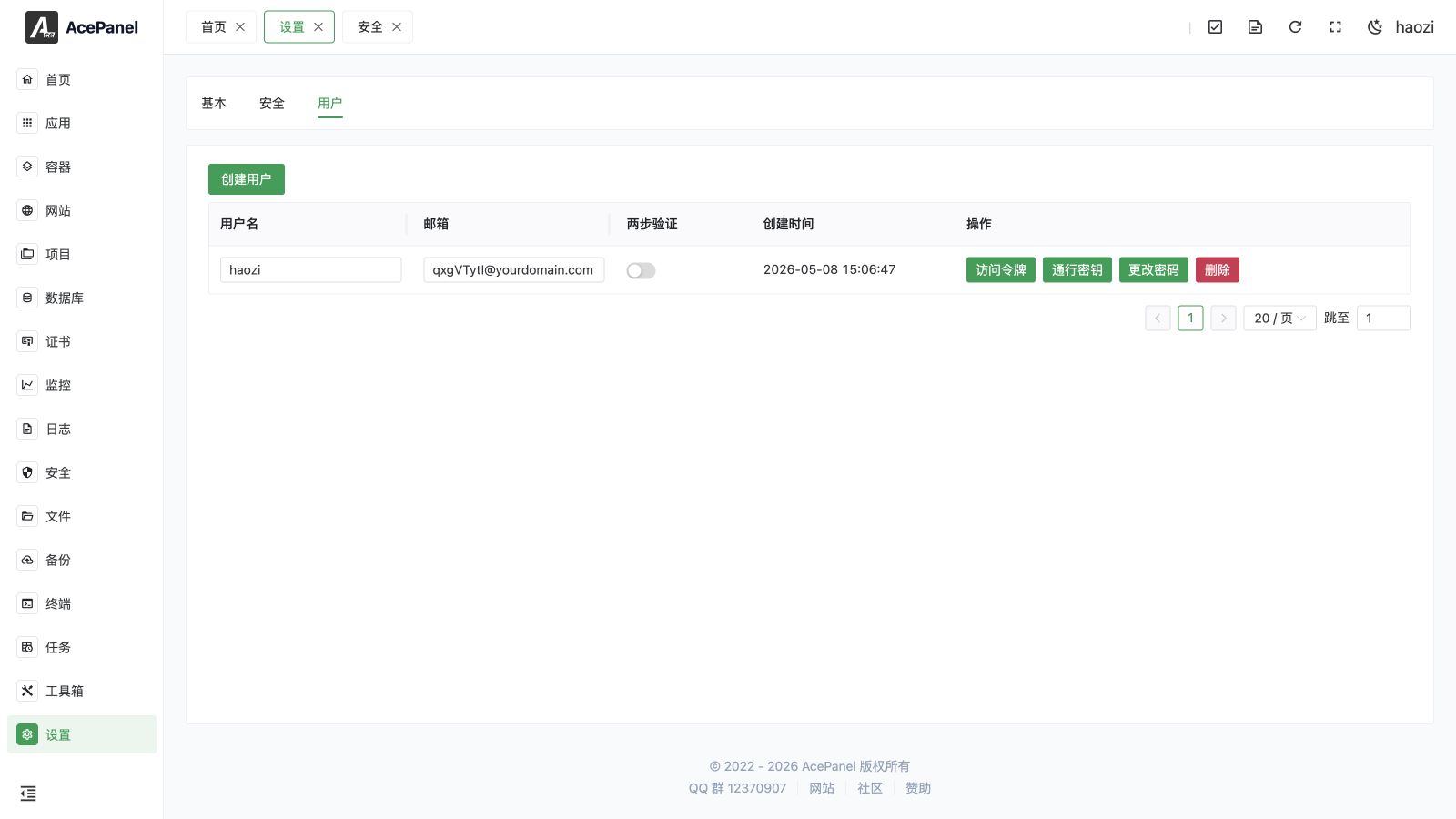
The User tab on the panel settings page is used to manage panel login users.
User List
The list displays information for all panel users:
| Field | Description |
|---|---|
| Username | Login username, can be edited directly in the table |
| User email, can be edited directly in the table | |
| 2FA | Whether TOTP two-factor authentication is enabled, toggled inline |
| Creation Time | User creation time |
Create User
Click the Create User button to add a new user:
Fill in the following information:
- Username: Login username. It must be unique and may only contain letters, numbers, underscores (
_), and hyphens (-). - Password: Login password. It must be 8-20 characters long and contain at least two of the following three character types: letters, numbers, and special characters.
- Email: User email address. It must be a valid email address.
User Operations
Access Tokens
Manage API access tokens used to call the panel API on behalf of the user.
Access tokens are also used when this server is the destination of an AcePanel-to-AcePanel migration. For a custom integration, follow the Panel API signing rules.
Click Access Tokens to open the token manager, where you can create, modify, and delete tokens. The token list shows the token ID, Creation Time, and Expiration Time.
When creating a token, you can configure:
- IP White List: Optional list of IP addresses allowed to use the token. Leave empty to allow any IP.
- Expiration Time: When the token expires. It must be in the future and no more than 10 years away.
Use the Modify action on an existing token to update its IP white list and expiration time without recreating it.
Note
The token value is only displayed once when it is created, please save it before closing the dialog.
For migration, add the source server's outbound IP address—not the address of the administrator's browser—to the allowlist. Delete temporary tokens after the migration completes.
Passkeys
Manage passkeys (WebAuthn/FIDO2) for passwordless login.
Click Passkeys to open the passkey manager, where you can register new passkeys and delete existing ones. Each passkey is registered with a Name of your choice, and the list also shows its Creation Time and Last Used time (displayed as Never until the passkey is used to log in). Only the currently logged-in user can register a passkey for their own account.
Note
Passkeys are only available when the panel is accessed over a trusted HTTPS connection (a bound domain with a trusted certificate, or HTTPS terminated by a reverse proxy).
Change Password
Change the user's login password. The new password must be 8-20 characters long and contain at least two of the following three character types: letters, numbers, and special characters. It is recommended to change passwords regularly.
Delete User
Delete the user account. After deletion, the user will no longer be able to log in to the panel.
Note
At least one user must be retained, the last user cannot be deleted.
Two-Factor Authentication
Two-factor authentication (2FA) provides additional security protection for accounts. When enabled, a dynamic verification code is required in addition to the password during login.
Enable Two-Factor Authentication
- Click the 2FA switch in the user list
- Use Google Authenticator, Microsoft Authenticator, or another app to scan the QR code (if you cannot scan it, enter the displayed URL into your app manually)
- Enter the verification code displayed in the app to confirm
Supported Authenticator Apps
- Google Authenticator
- Microsoft Authenticator
- Authy
- 1Password
- Other apps supporting TOTP
Security Recommendations
- Use strong passwords containing uppercase and lowercase letters, numbers, and special characters
- Enable two-factor authentication
- Change passwords regularly
- Do not share accounts
- Promptly delete accounts that are no longer in use