
General Project
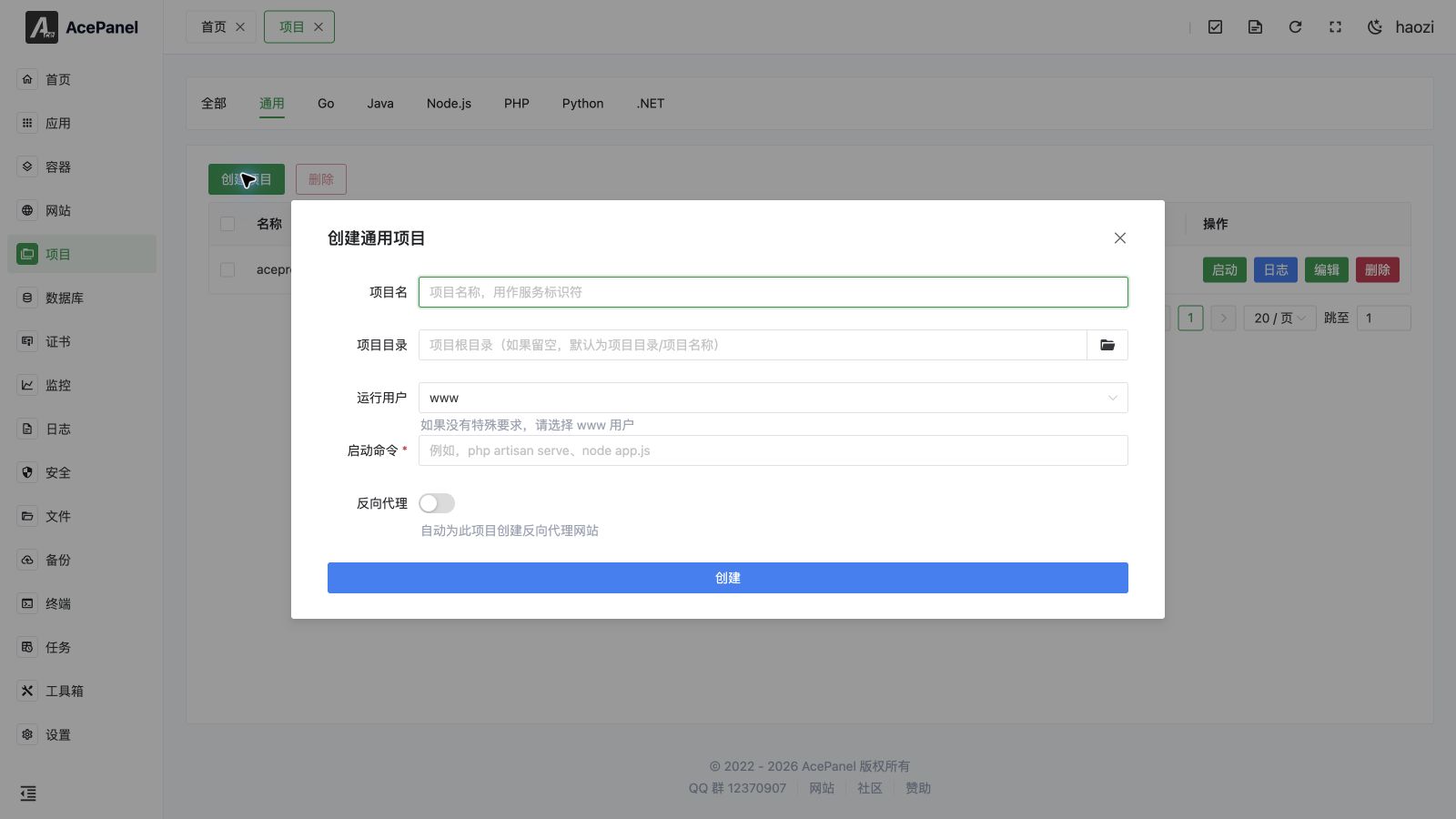
General projects are used to deploy any type of executable program, not limited to specific programming languages.
Project Types
The Projects page is organized into tabs by type: General, Go, Java, Node.js, PHP, Python and .NET. They all produce the same kind of systemd-managed service; the difference is only in the create dialog.
For the language-specific tabs, the create dialog adds a runtime Version selector (populated from the runtimes installed under Apps > Runtime Environment) and, where applicable, a Framework preset (for example Spring Boot, Express, Laravel Octane, Django, ASP.NET Core). Selecting a version and framework auto-fills the Start Command with a version-pinned binary (such as go1.24 run main.go or php8.3 artisan octane:start), which you can still edit before creating. See the dedicated pages for Go, Java, Node.js, PHP, Python and .NET projects.
The General type has no version or framework helpers: you type the Start Command yourself, which is why it can run any executable.
Use Cases
- Rust applications
- C/C++ applications
- Shell scripts
- Other compiled language applications
- Custom startup scripts
How It Works
Every project is managed as a systemd service. When you create a project, AcePanel generates a unit file at /etc/systemd/system/<name>.service (with Type=simple), so starting, stopping, restarting, reloading, autostart and log collection are all handled by systemd.
Because systemd runs the start command directly (not through a shell), the command does not support shell features such as cd, &&, pipes or inline environment variable prefixes. Use the dedicated Working Directory and Environment Variables fields instead (see below).
Creating a General Project
- Go to the Projects page
- Click Create Project
- Fill in the configuration:
- Project Name: Project identifier, also used as the systemd service name
- Project Directory: Project root directory (if left empty, defaults to the project directory setting plus the project name)
- Run User: User the service runs as (defaults to
www) - Start Command: Command to start the program
- Enable Reverse Proxy as needed to automatically create a reverse proxy website for this project
When Reverse Proxy is enabled you must also provide one or more Domain entries and the Project Port the program listens on; AcePanel creates the proxy website (listening on port 80, forwarding to http://127.0.0.1:<port>) before creating the project.
Managing Projects
After creation the project appears in the list on its type tab. The list shows each project's Status (Running, Stopped, Failed or Inactive), Type, Directory and an Autostart toggle. For each row you can:
- Start / Stop the service (the button reflects the current status)
- Restart and Reload — shown only while the project is running
- View real-time Logs (standard output / error collected by
systemd) - Edit the project (opens the tabs described under Advanced Settings)
- Delete the project — a confirmation dialog with a 5-second countdown must elapse before the action can be confirmed
- Toggle Autostart to enable or disable starting the service on boot
You can also select multiple projects with the row checkboxes and use the Delete button at the top of the list to remove them in bulk (also guarded by a 5-second countdown). Clicking a project's Directory opens the file manager at that path.
Startup Command Examples
Rust Application
# Run compiled binary
./myapp

# Run with arguments
./myapp --config config.toml --port 8080
Shell Script
# Run script
/bin/bash start.sh

# Or run directly (requires shebang and execute permission)
./start.sh
Custom Startup Script
Create start.sh:
#!/bin/bash
cd /opt/ace/projects/myapp
export ENV=production
./myapp
Startup command: /bin/bash start.sh
Environment Variables
The start command is executed directly by systemd, not through a shell, so inline prefixes like ENV=production ./myapp do not work.
To set environment variables, edit the project and add them in Runtime Settings → Environment Variables, one key/value pair per entry. AcePanel quotes the value when writing the systemd unit, so spaces and supported special characters are preserved. Do not add your own shell quoting around the value unless it is part of the value itself.
Working Directory
The project runs in the Working Directory. If left empty, it defaults to the project directory. Relative paths in the start command are resolved against this directory.
Because the start command does not run through a shell, you cannot use cd to switch directories. To run a binary from a subdirectory, set the Working Directory accordingly (or use an absolute path in the start command):
/opt/ace/projects/myapp/bin/myappPermission Settings
Ensure the executable has execute permission:
chmod +x myapp
chmod +x start.sh
Running User
By default, projects run as the www user. If the program requires special permissions, you can select a different user.
Note
Running as root user may pose security risks, please choose carefully.
Log Output
The program's standard output (stdout) and standard error (stderr) are recorded in logs, which can be viewed on the project management page.
It is recommended that programs output logs to standard output rather than writing to files for unified management.
In Runtime Settings, Standard Output and Standard Error default to journal, and can also be set to syslog, kmsg, null, or appended/truncated to a file.
Advanced Settings
Editing a project opens additional tabs that map directly to systemd directives:
- Runtime Settings: pre-start / post-start / stop / reload commands, restart policy (
no,always,on-failure,on-abnormal,on-abort,on-success), restart interval, max restarts, start/stop timeouts, and environment variables. - Dependencies: control startup order with
Requires(strong),Wants(weak),AfterandBefore. - Resource Limits: memory limit (MB) and CPU quota (e.g.
50%for half a core,200%for two cores). - Security Settings:
NoNewPrivileges, protect/tmp, protect/home,ProtectSystem(true/full/strict), and read-write / read-only path allowlists.
Signal Handling
When a project stops, a SIGTERM signal is sent. The program should handle this signal properly to achieve graceful shutdown:
// Rust example
use signal_hook::{consts::SIGTERM, iterator::Signals};

fn main() {
    let mut signals = Signals::new(&[SIGTERM]).unwrap();
    // Handle SIGTERM signal
}// C example
#include <signal.h>
void handle_sigterm(int sig) {
// Clean up resources
exit(0);
}
int main() {
signal(SIGTERM, handle_sigterm);
// ...
}