
Java Project
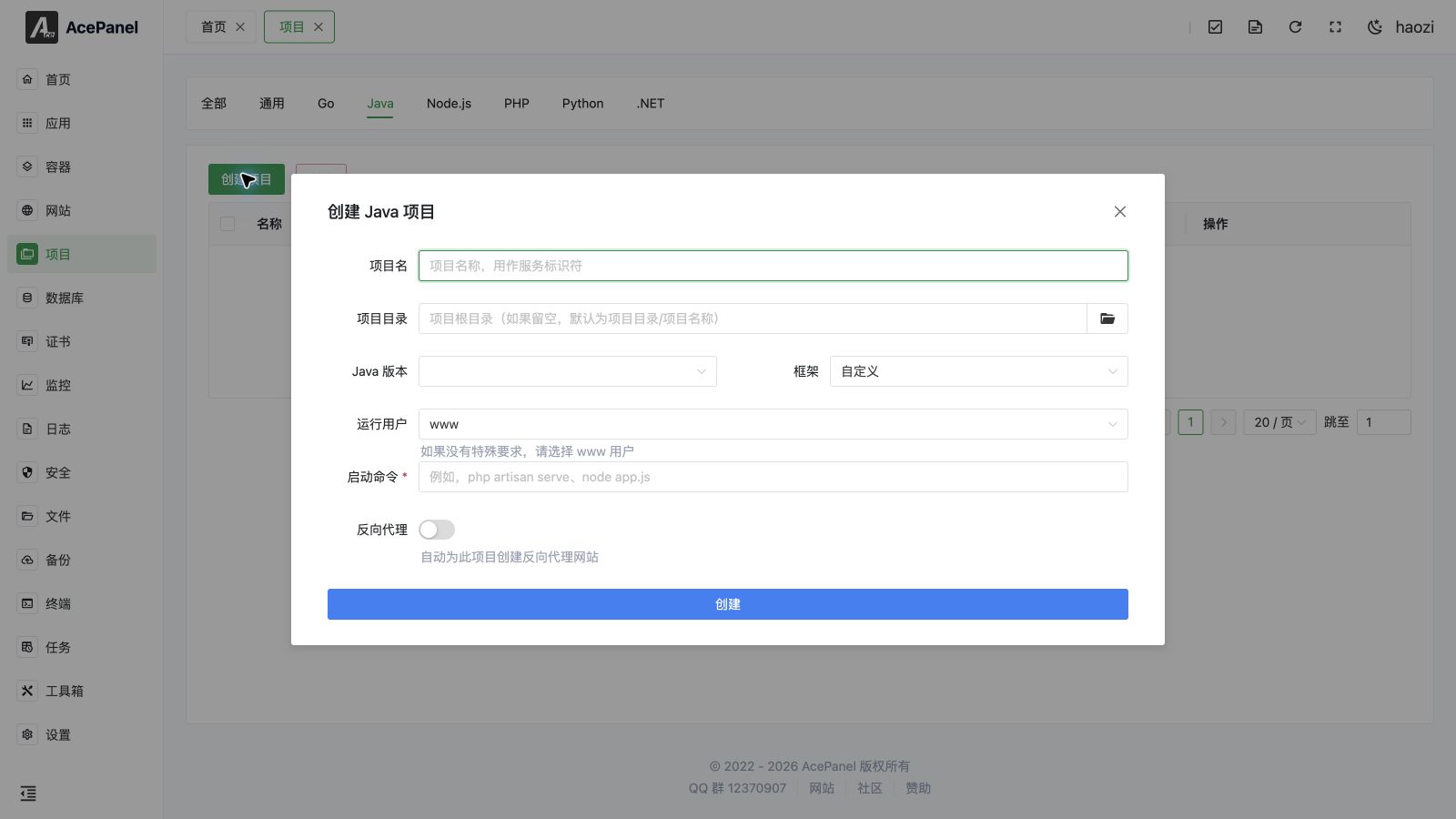
Java projects are used to deploy Spring Boot, Tomcat, and other Java applications.
Prerequisites
- Install Java runtime environment: Apps > Runtime Environment > Java (Amazon Corretto, a production-ready OpenJDK distribution)
- Packaged JAR file or WAR file
Deploy Spring Boot Application
Package Project
# Maven
mvn clean package -DskipTests

# Gradle
./gradlew build -x test
Upload and Deploy
- Upload the JAR file to the server (e.g.,
/opt/ace/projects/myapp/app.jar) - Go to the Project page, open the Java tab, and click Create Project
- Fill in the configuration:
- Project Name:
myapp(used as the service identifier) - Project Directory: leave empty to default to
/opt/ace/projects/<project name>, or pick a directory - Java Version: select an installed JDK version (the start command is generated using
java<version>, e.g.java21) - Framework: choose a preset (Spring Boot (JAR), Spring Boot (WAR), Quarkus, Micronaut, Vert.x, Dropwizard) to auto-fill the start command, or keep Custom to enter it manually
- Run User: defaults to
www(you may also chooseroot/nobodyor enter a custom user) - Start Command: auto-filled from the options above, editable (e.g.,
java21 -jar app.jar)
- Project Name:
- Enable Reverse Proxy and fill in the Domain and Project Port to automatically create a reverse proxy website for external access
Framework Presets
Selecting a Framework auto-fills the Start Command by combining java<version> with the preset's arguments. Choosing Custom leaves the command empty so you can write it yourself. The following presets are available:
| Framework | Generated Command (with java21) |
|---|---|
| Custom | (empty, enter manually) |
| Spring Boot (JAR) | java21 -jar app.jar |
| Spring Boot (WAR) | java21 -jar app.war |
| Quarkus | java21 -jar quarkus-run.jar |
| Micronaut | java21 -jar app.jar |
| Vert.x | java21 -jar app.jar |
| Dropwizard | java21 server config.yml |
The generated command is only a starting point. Rename the artifact to match your build output (e.g. myapp-1.0.0.jar) and append any JVM parameters or application arguments before saving.
Start Command Examples
# Basic startup
java21 -jar app.jar

# Specify configuration file
java21 -jar app.jar --spring.profiles.active=prod

# Set JVM parameters
java21 -Xms512m -Xmx1024m -jar app.jar

# Specify port
java21 -jar app.jar --server.port=8080
JVM Parameter Recommendations
# Recommended production environment configuration
java21 \
  -Xms512m \
  -Xmx1024m \
  -XX:+UseG1GC \
  -XX:MaxGCPauseMillis=200 \
  -jar app.jar
Common parameter descriptions:
| Parameter | Description |
|---|---|
-Xms | Initial heap memory size |
-Xmx | Maximum heap memory size |
-XX:+UseG1GC | Use G1 garbage collector |
-XX:MaxGCPauseMillis | Maximum GC pause time |
Multiple JDK Versions
AcePanel supports installing multiple JDK versions side by side, with binaries under /opt/ace/server/java/{version}/bin/. Each installed version exposes a java{version} command (e.g. java21) so you can pin a project to a specific JDK.
On a Java runtime environment's management page, click Set as CLI Default Version to symlink that version's java, javac, jar, and jshell binaries into /usr/local/bin, making them the default unversioned commands.
Manage Project
After creation, each project appears as a row on the Project page (filter by the Java tab) showing its name, type, run status (Running / Stopped / Failed), autostart state, and directory. The following actions are available per row:
- Start / Stop: start or stop the service immediately
- Restart: restart a running service (shown only when running)
- Reload: reload a running service without a full restart (shown only when running)
- Logs: open a real-time log viewer for the service
- Autostart: toggle whether the service starts automatically on boot
- Edit: open the project editor (see below)
- Delete: remove the project and its systemd unit; this requires a 5-second confirmation
You can also select multiple projects and use the top Delete button for bulk deletion (also guarded by a 5-second confirmation).
Edit Project
The Edit dialog organizes the systemd unit settings into tabs:
- Basic Settings: project name, description, project directory, working directory, and run user
- Runtime Settings: start command, pre-start / post-start / stop / reload commands, restart strategy, restart interval, max restarts, start/stop timeouts, standard output / standard error targets (
journal,syslog,kmsg,null, or a file), and environment variables - Dependencies: systemd ordering and dependency directives (
Requires,Wants,After,Before), e.g.mysqld.service,redis.service - Resource Limits: memory limit (MB,
0for unlimited) and CPU quota (e.g.50%,200%) - Security Settings:
NoNewPrivileges,ProtectHome,ProtectSystem,/tmpprotection, and read-write / read-only path lists
Saving updates the underlying systemd unit at /etc/systemd/system/<project name>.service and reloads it. Java projects include SuccessExitStatus=143, so a normal SIGTERM shutdown is not reported as an application failure.
When the project is updated, AcePanel keeps the custom systemd settings configured in the editor. Review the effective unit after moving a project from another server, because AcePanel rewrites the project directory and runtime command for the destination.
Process Management
AcePanel uses systemd to manage Java processes, automatically handling:
- Automatic restart on process crash (per the configured restart strategy)
- Automatic startup on boot (when autostart is enabled)
- Log recording
Configuration File
Spring Boot configuration file application.yml example:
server:
  port: 8080

spring:
  datasource:
    url: jdbc:mysql://localhost:3306/mydb
    username: root
    password: your_password
FAQ
Out of Memory
Increase JVM heap memory:
java21 -Xms1g -Xmx2g -jar app.jarPort Conflict
Modify startup port:
java21 -jar app.jar --server.port=8081Slow Startup
Check if there are external dependency connection timeouts, or limit JIT compilation to the first tier to speed up startup:
java21 -XX:TieredStopAtLevel=1 -jar app.jarAvoid the legacy
-noverifyflag. It is deprecated and prints a warning on the modern Corretto builds AcePanel installs (e.g. Corretto 21). Prefer Application Class Data Sharing (-XX:+AutoCreateSharedArchive -XX:SharedArchiveFile=app.jsa) if you need faster cold starts.