
Redis Data Management
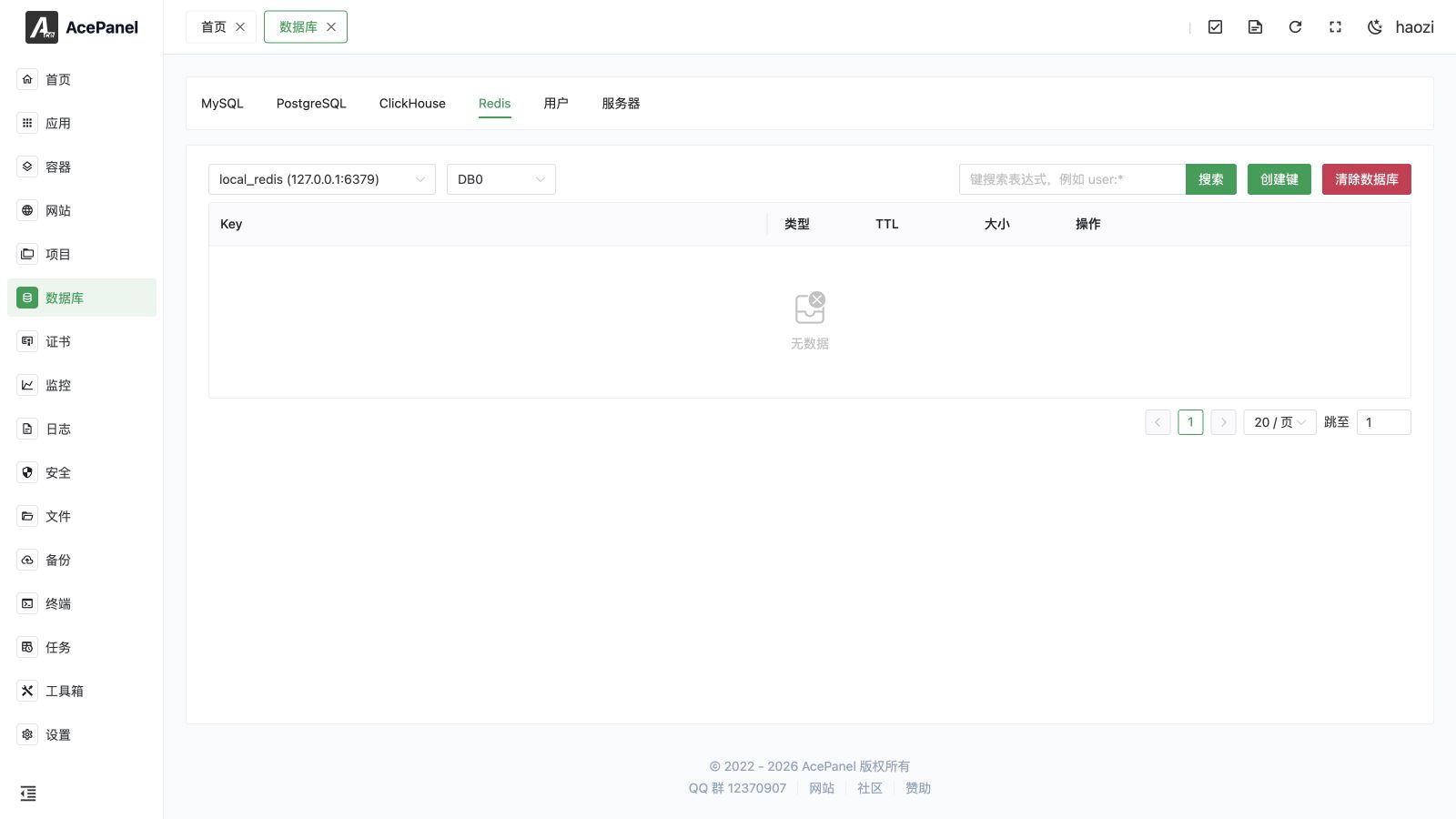
The Redis data management page lets you browse and edit Redis keys online: select a database, list and search keys, view/create/update/delete keys, set a key's TTL, and clear the whole database.
Prerequisites
Redis data management works against a database server of type Redis. Before using it, make sure a Redis server is available on the Database > Server tab:
- After installing the local Redis (or Valkey) app, AcePanel automatically adds a built-in local server (
local_redis/local_valkey). - For a remote Redis instance, add it on the Server tab. Redis servers do not use a username; only the address, port, and password are required.
Opening the Page
Go to the Database page and switch to the Redis tab. Unlike the relational database tabs, Redis is managed entirely from this data view rather than from the database list.
Selecting a Server and Database
At the top of the page there are two selectors:
- Server: Choose the Redis server to operate on. Each option is shown as
name (host:port). The first available server is selected automatically. - Database: Choose the logical database to browse, shown as
DB0,DB1, and so on. The number of databases is read from the server'sdatabasesconfiguration (16 by default), so the list usually ranges fromDB0toDB15.
Switching the server resets the selection back to DB0 and reloads the key list.
Key List
The key list of the selected database is shown in a paginated table with the following columns:
- Key: The key name.
- Type: The Redis data type, shown as a colored tag — one of
string,list,set,hash, orzset. - TTL: The remaining time to live.
Permanent— the key never expires (TTL is-1).Expired— the key no longer exists (TTL is-2).- Otherwise, the remaining seconds, e.g.
120s.
- Size: The approximate memory used by the key, reported by Redis
MEMORY USAGEand shown in a human-readable unit (such as KB or MB). - Actions: View, TTL, Rename, and Delete buttons for each key.
Pagination supports page sizes of 20, 50, 100, and 200 keys per page (20 by default).
TIP
Keys are enumerated with the Redis SCAN command, which is safe to run on production instances and does not block the server.
Searching Keys
Use the search box (placeholder user:*) to filter keys by a glob-style pattern, then click Search or press Enter. The pattern follows Redis MATCH syntax, for example:
user:*— all keys that start withuser:session:??—session:followed by exactly two characters- Leave it empty to list all keys (equivalent to
*).
Viewing a Key
Click View on a row to open the key details dialog. The dialog shows:
- Type: The key's data type (read-only).
- Key: The key name (read-only).
- Value: The key's value.
- TTL: The remaining time to live.
The value is rendered as text according to the type:
- string — the raw string value.
- list / set — a JSON array of the elements.
- hash — a JSON object of field/value pairs.
- zset — a JSON object of member/score pairs.
Note
For very large values (collections with more than 5000 elements, or strings longer than 5000 characters), the value is not loaded and is shown as data is too long, can't display to avoid pulling huge payloads into the browser.
Creating or Updating a Key
Click Create Key to open the key editor. Fill in the form and click Submit:
- Type: Select one of
String,List,Set,ZSet, orHash. - Key: The key name. Setting an existing key name overwrites that key.
- Value: The value to store. The expected format depends on the type:
- String — plain text.
- List / Set — a JSON array, e.g.
["a", "b", "c"]. - ZSet — a JSON object mapping member to score, e.g.
{"alice": "10", "bob": "20"}. - Hash — a JSON object mapping field to value, e.g.
{"name": "alice", "age": "20"}.
- TTL: Expiration in seconds. Use
-1(or any value that is not greater than 0) for no expiration; a positive value sets the key to expire after that many seconds.
The value is required, and the type must be one of the five supported types.
Note
When you save a non-string key (list, set, zset, or hash), the existing key with the same name is deleted first and then rebuilt from the value you provide. The save therefore replaces the whole collection rather than appending to it.
TIP
The View dialog is read-only — the type and key fields are disabled and there is no save action there. To change a value, use Create Key and enter the same key name to overwrite it.
Setting a Key's TTL
Click TTL on a row to open the TTL dialog. The key name is shown read-only; enter the new TTL in seconds and click Submit:
- A value of
-1removes the expiration and makes the key permanent (RedisPERSIST). - A positive value sets the key to expire after that many seconds (Redis
EXPIRE).
The minimum accepted value is -1.
Renaming a Key
Click Rename on a row to change a key's name. The current name is shown read-only; enter the new name and click Submit (Redis RENAME).
Note
If a key with the new name already exists, it is overwritten.
Deleting a Key
Click Delete on a row and confirm to remove a single key from the current database.
Clearing the Database
Click Clear DB to remove all keys in the currently selected database (Redis FLUSHDB). A confirmation is required before it runs.
Warning
Clearing the database permanently deletes every key in the selected database. This operation cannot be undone! Make sure you have selected the correct database and backed up any important data beforehand.
FAQ
Cannot Connect to the Redis Server
- Confirm the selected server is of type Redis and that its host, port, and password are correct.
- Confirm the Redis service is running and reachable from the panel host.
- Check the server status on the Database > Server tab.
Failed to Save a Non-String Key
- For list and set types, the value must be a valid JSON array.
- For zset, the value must be a JSON object of
{member: score}pairs. - For hash, the value must be a JSON object of field/value pairs.
A Key Shows as Expired
A TTL of Expired means the key has already expired and no longer exists in Redis. Refresh the list to remove it from the view.