
Terminal
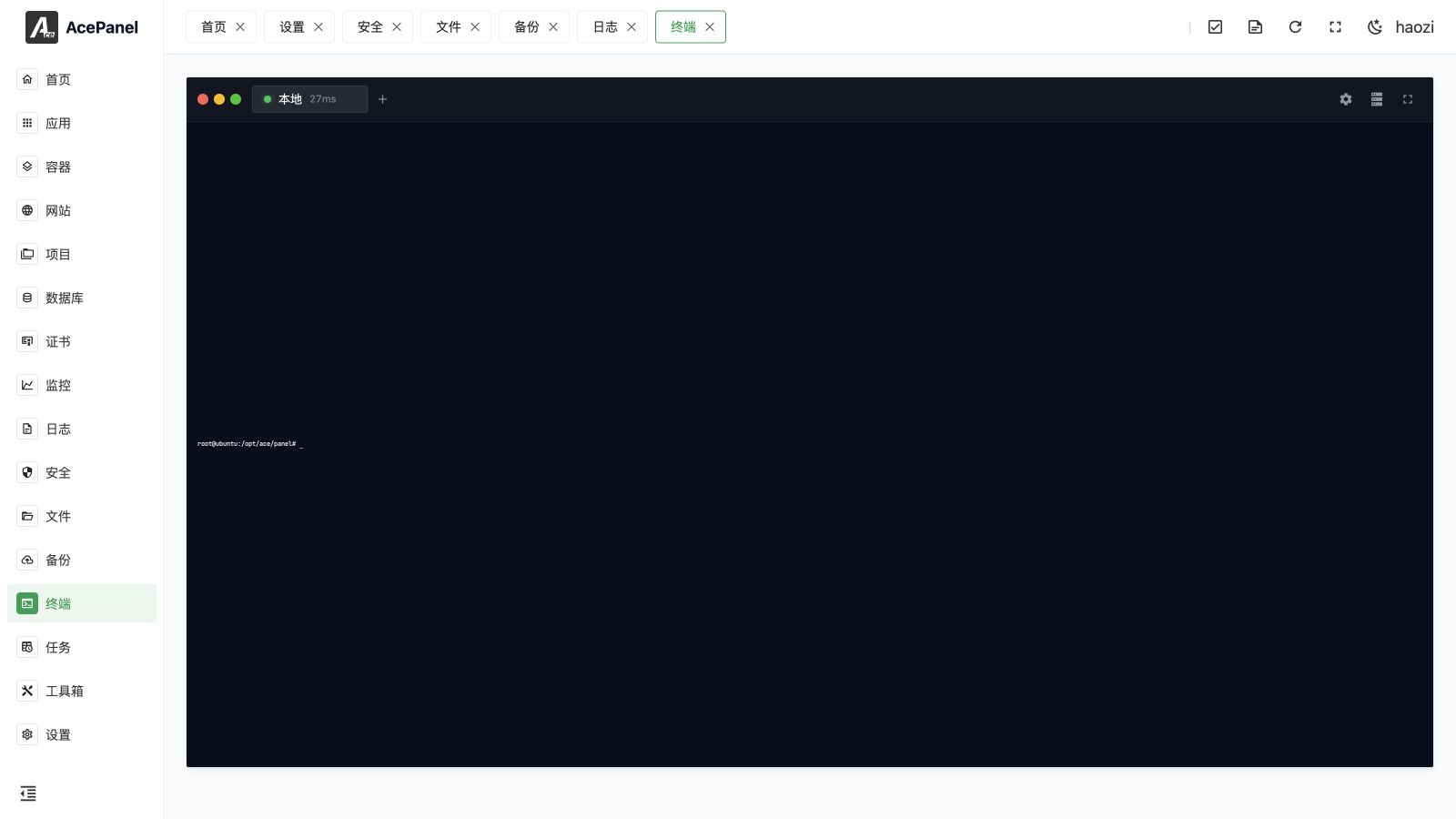
The terminal module provides a Web-based SSH terminal, allowing you to connect to servers and execute commands directly in the browser.
Terminal Page
Create Host
Click the Create Host button to add an SSH connection:
Configuration Items
- Name: Connection name for identification (defaults to the host when left empty)
- Host: Server IP address or domain name
- Port: SSH port, default 22
- Authentication Method: Password or private key
- Username: SSH username
- Password: Login password (shown only when using password authentication)
- Private Key: SSH private key content (shown only when using private key authentication)
- Passphrase: Passphrase protecting the private key, leave empty if the key has none (shown only when using private key authentication)
- Remarks: Optional remarks
Authentication Methods
| Method | Description |
|---|---|
| Password | Authenticate using username and password |
| Private Key | Authenticate using an SSH private key |
Recommendation
Production environments are recommended to use key authentication for better security.
Connect to Server
- Click the server icon in the top-right toolbar to open the Hosts drawer
- Click a host card to open a terminal tab for it
- Alternatively, click the + button in the tab bar and pick a host from the dropdown
- Start executing commands
Each connected tab shows a status indicator and the current connection latency (in milliseconds).
Terminal Features
Multiple Tabs
Supports opening multiple terminal tabs simultaneously for easy switching between sessions.
Copy and Paste
- Copy: Automatically copies when text is selected, or use
Ctrl+Shift+C(Cmd+Con macOS) - Paste: Right-click to paste, or use
Ctrl+Shift+V(Cmd+Von macOS)
TIP
In a non-HTTPS context the clipboard API is unavailable, so use Ctrl+V to paste instead.
Fullscreen Mode
Click the fullscreen button to enter fullscreen mode for more terminal space.
Font Settings
You can adjust the terminal font size from the settings popover (10–32), or hold Ctrl and scroll the mouse wheel over the terminal to zoom in and out.
Local Terminal
By default, a Local tab opens a Bash session on the current server, allowing you to operate it directly without configuring a host.
Remote Hosts
You can add multiple remote hosts for convenient management of multiple servers:
- Open the Hosts drawer and click Create Host
- Fill in the remote server information
- After saving, click the host card to connect
Keepalive
Enable keepalive for hosts or sessions that pass through idle connection timeouts. It sends periodic SSH traffic to keep an otherwise healthy connection open; it does not recover a server, network, or authentication failure.
SFTP File Transfer
Open the transfer view to work with two file panes. Each pane can represent the AcePanel server or any configured remote SSH host, so you can transfer between local and remote storage or between two remote hosts without downloading files through your desktop.
- Select the host for the left and right panes.
- Browse each pane to the source and destination directory.
- Select one or more files or directories and start the transfer in the required direction.
- Follow the queue, current file, transferred size, speed, and progress.
- Cancel a queued or running item when necessary. Both panes refresh after completion.
Directories are copied recursively. The transfer view always uses a dark theme so filenames, status, and progress remain readable beside terminal sessions.
Transfer boundaries
A cancelled transfer can leave a partial file or directory at the destination. Verify its size or checksum before retrying or using it. Moving large trees between two remote hosts still passes through the panel's transfer process and consumes network, CPU, and disk resources.
Terminal and SSH Settings
This page manages interactive terminal sessions, saved remote hosts, and SFTP. To change the server's SSH daemon port, authentication methods, root-login policy, password, or host keys, use Toolbox > SSH.
Security Recommendations
- Use strong passwords or key authentication
- Change the default SSH port
- Restrict IP addresses that can access SSH
- Regularly change passwords or keys
- Log in with a non-root user
FAQ
Connection Timeout
- Check if the server IP and port are correct
- Check if the firewall allows SSH connections
- Check if the SSH service is running normally
Authentication Failed
- Check if the username and password are correct
- Check if the key format is correct
- Check if the user has SSH login permissions
Chinese Character Garbled
- Check the server's locale settings
- Ensure the server encoding is UTF-8