
Server Management
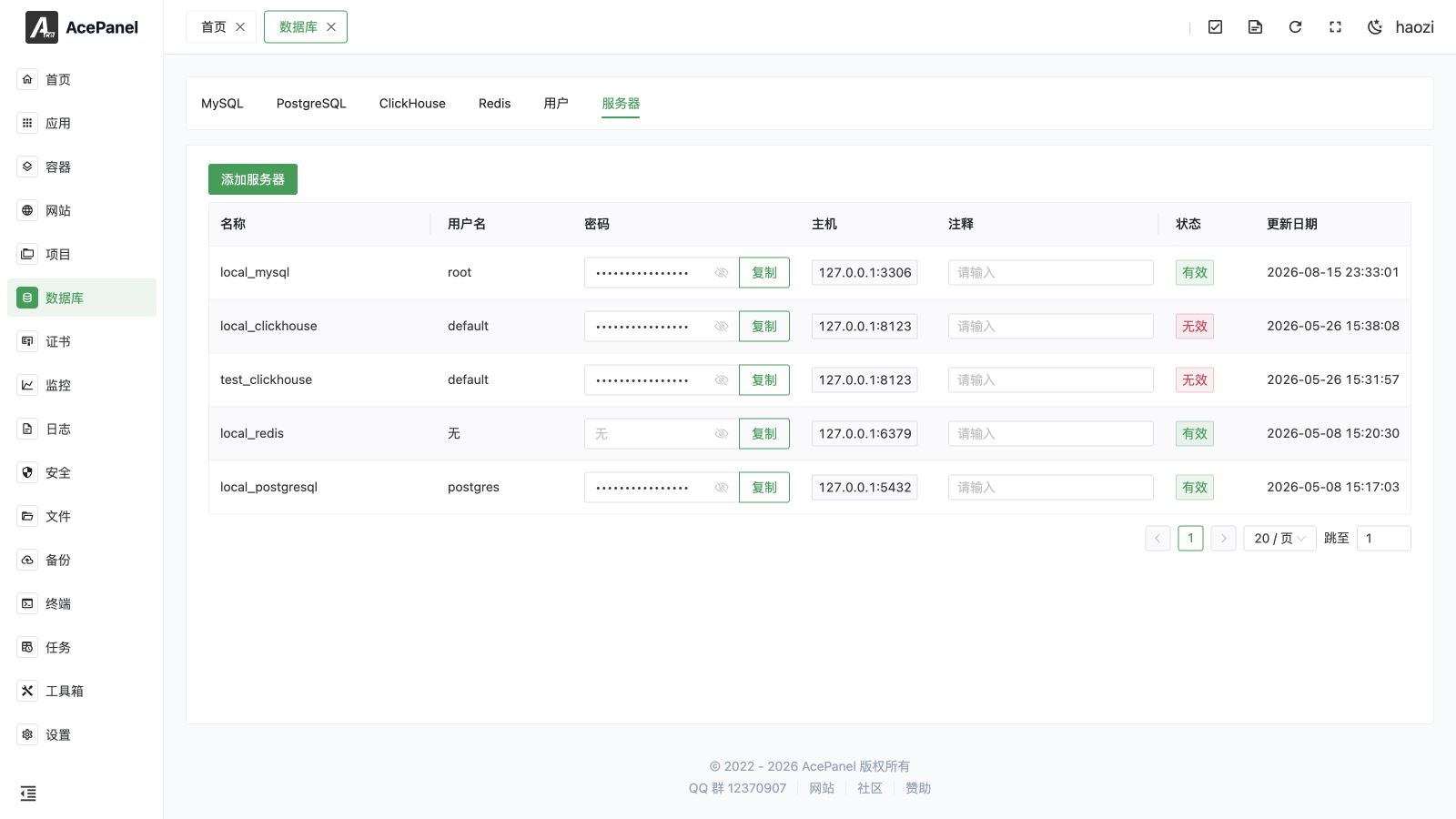
The server management page is used to manage database server connections, supporting both local and remote database servers. Supported database types are MySQL, PostgreSQL, ClickHouse, MongoDB, SQLite, Elasticsearch, and Redis.
Server List
Go to Database > Server tab to view the server list.
The list displays the following information:
- Name: Server name
- Username: Administrator username (shows None when not set)
- Password: Administrator password (hidden by default, with a copy button)
- Host: Server address and port
- Comment: Remarks (editable inline)
- Status: Connection status (Valid/Invalid)
- Update Date: Last update time
- Actions: Terminal, sync, modify, delete
Local Server
After installing the corresponding database software, AcePanel will automatically add built-in local servers. These servers cannot be deleted directly; to remove one, uninstall the corresponding app:
- local_mysql: Local Percona/MySQL/MariaDB server
- local_postgresql: Local PostgreSQL server
- local_redis: Local Redis server
- local_valkey: Local Valkey server
- local_clickhouse: Local ClickHouse server
- local_mongodb: Local MongoDB server
- local_elasticsearch: Local Elasticsearch server
- local_opensearch: Local OpenSearch server
Add Remote Server
- Click the Add Server button
- Fill in the configuration:
- Type: Select database type (MySQL/PostgreSQL/ClickHouse/MongoDB/SQLite/Elasticsearch/Redis). This selector is hidden when you open the dialog from a type-specific tab.
- Name: Server name (for identification, only letters, digits,
-and_are allowed) - Host: Server address. For SQLite, this becomes a File Path field instead, where you pick the database file.
- Port: Database port
- Username: Administrator username (not shown for Redis and SQLite)
- Password: Administrator password (not shown for SQLite)
- Comment: Remarks
- Click Submit
Remote Server Use Cases
- Connect to cloud databases (such as Alibaba Cloud RDS, Tencent Cloud CDB)
- Connect to database services in containers
- Connect to databases on other servers
- Database read-write separation architecture
Server Operations
Terminal
Click the Terminal button to open the database command line terminal, where you can directly execute SQL statements. The terminal launches the native client for the selected server type, automatically passing the connection parameters (host, port, username, and password) stored in the panel:
| Type | Client launched | Notes |
|---|---|---|
| MySQL | mysql | Connects with the configured username, password, host, and port. |
| PostgreSQL | psql | When a password is set, PGPASSWORD is used; when no password is set, it falls back to su - postgres -c 'psql'. |
| Redis | redis-cli | The -a password flag is added only when a password is set. |
| ClickHouse | clickhouse-client | Always connects on the native TCP port 9000, not the HTTP port 8123 shown in the port table below. |
| MongoDB | mongosh | Connects via a mongodb:// URI against the admin database. |
| SQLite | sqlite3 | Opens the database file directly using the configured file path. |
| Elasticsearch | curl | Runs curl .../_cat/indices?v to list indices; this is a read-only HTTP request, not an interactive shell. |
Sync
Click the Sync button to synchronize database users (excluding their passwords) to the panel. When users are created directly in the database, you can use this function to sync them to the panel.
TIP
Sync is available for MySQL, PostgreSQL, and ClickHouse servers. It is not shown for Redis, MongoDB, SQLite, and Elasticsearch, which do not support panel user management.
Modify
Click the Modify button to modify server connection information, such as password, host address, etc.
Delete
Click the Delete button to delete the server configuration. A 5-second confirmation countdown is required before the deletion takes effect.
Note
Deleting the server configuration will not delete the actual database service, it only removes the server management from the panel. Built-in local servers cannot be deleted here; uninstall the corresponding app instead.
Connection Test
After adding or modifying a server, the system will automatically test the connection. If the connection fails, please check:
- Whether the server address and port are correct
- Whether the username and password are correct
- Whether the firewall allows the connection
- Whether the database service is running normally
- Whether the database user is allowed to connect from the current host
Default Ports
| Database | Default Port |
|---|---|
| Percona/MySQL/MariaDB | 3306 |
| PostgreSQL | 5432 |
| Redis | 6379 |
| ClickHouse | 8123 |
| MongoDB | 27017 |
| Elasticsearch | 9200 |
| SQLite | File path |