
Project
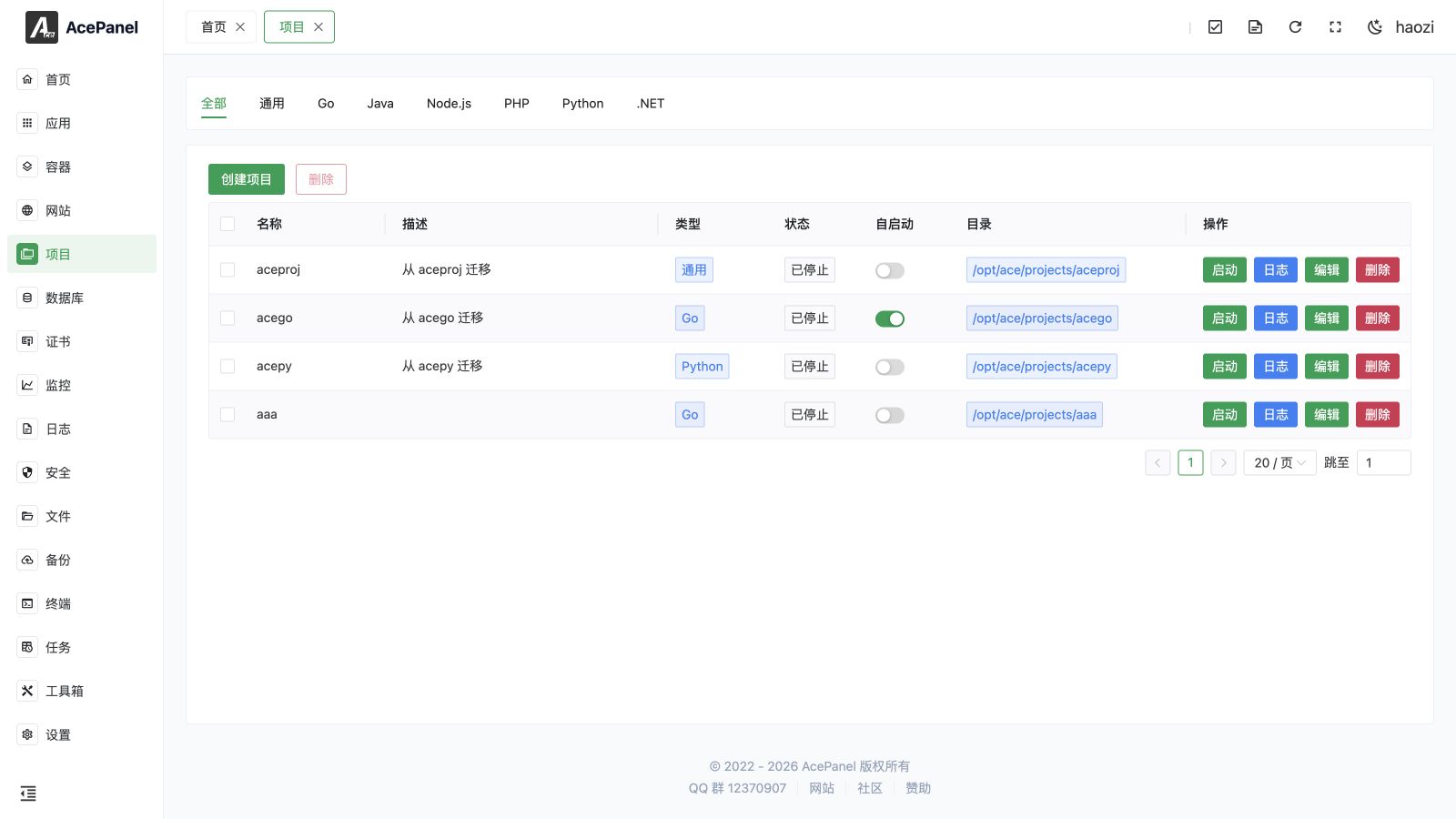
The project module is used to manage backend applications, supporting multiple languages including Go, Java, Node.js, PHP, Python, .NET, etc. Projects run as system services, supporting automatic restart, auto-start on boot, and other features.
Project Types
| Type | Description | Use Cases |
|---|---|---|
| Go | Go language projects | Gin, Echo, Fiber frameworks |
| Java | Java projects | Spring Boot, Tomcat, etc. |
| Node.js | Node.js projects | Express, Koa, NestJS, etc. |
| PHP | PHP projects | Laravel Octane, Swoole, etc. |
| Python | Python projects | Django, Flask, FastAPI, etc. |
| .NET | .NET projects | ASP.NET Core, Blazor, gRPC |
| General | Other types of projects | Any executable program |
Project vs Website
| Feature | Project | Website |
|---|---|---|
| Run Mode | Independent process | Depends on Web server |
| Process Management | Auto restart, auto-start on boot | Managed by Web server |
| Use Cases | Backend services, APIs | Traditional Web applications |
| External Access | Requires reverse proxy | Direct access |
Create Project
- Go to the Project page
- Click Create Project
Configuration Items
- Project Name: Project identifier, used as service name (letters, numbers, underscores, and hyphens only)
- Project Directory: Directory where project files are located. If left empty, defaults to the configured project path joined with the project name (e.g.
/opt/ace/projects/<project name>) - Run User: System user to run the project, default www (you may also choose
root/nobody, or type a custom user) - Start Command: Command to start the project
- Reverse Proxy: Whether to automatically create a reverse proxy website
Type-specific Helper Fields
When you open the create dialog from a language-specific tab (Go, Java, Node.js, PHP, Python, or .NET), additional helper fields appear to assist you in composing the Start Command:
- Version selection: Pick an installed runtime version for the chosen language. Only versions actually installed under Apps > Runtime Environment are listed.
- Framework: Select a framework preset. Choosing a preset (anything other than Custom) auto-fills the Start Command in the form
<runtime><version> <preset command>(for examplepython3.12 -m flask run --host=0.0.0.0). The generated command remains fully editable. - Go Run Mode (Go only): Choose between Source Code and Binary.
- Source Code: Select a Go Version and an Entry File (e.g.
main.go,cmd/server/main.go); the start command becomesgo<version> run <entry file>. - Binary: The start command points to the compiled binary at
<project directory>/main.
- Source Code: Select a Go Version and an Entry File (e.g.
These helper fields only influence the generated Start Command; the panel ultimately stores the command itself, so you can always override it manually.
Reverse Proxy Options
When Reverse Proxy is enabled, two extra inputs appear:
- Domain: One or more domains for the reverse proxy website (at least one is required).
- Project Port: The local port your application listens on. The created website listens on port
80and proxies tohttp://127.0.0.1:<project port>.
The reverse proxy website is created first; if it fails, the project is not created.
Project Management
The project list displays the following information:
- Name: Project name
- Description: Project description
- Type: Project type (Go/Java/Node.js, etc.)
- Status: Service state — one of Running (active), Stopped (inactive), Failed (failed), or Inactive (default/unknown)
- Auto Start: Whether to auto-start on boot (toggled directly from the list)
- Directory: Project directory
- Actions: Start, stop, restart, logs, etc.
Project Operations
- Start: Start the project
- Stop: Stop the project
- Restart: Restart the project (only shown when running)
- Reload: Reload the project without a full restart (only shown when running)
- Logs: View project runtime logs
- Edit: Modify project configuration
- Delete: Delete the project (requires a 5-second confirmation countdown)
- Bulk Delete: Select multiple projects with the row checkboxes, then use the Delete button above the list to remove them at once (also requires a 5-second confirmation countdown)
Edit Project
Click the Edit button in the project list to modify project configuration. The edit dialog contains multiple tabs:
Basic Settings
Configure basic project information:
- Project Name: Project identifier, used as service name
- Description: Project description information
- Project Directory: Directory where project files are located
- Working Directory: Working directory when the program runs, defaults to project directory
- Run User: System user to run the project
Run Settings
Configure project runtime parameters:
- Start Command: Command to start the project
- Pre-start Command: Command to run before starting (optional)
- Post-start Command: Command to run after starting (optional)
- Stop Command: Custom stop command (optional)
- Reload Command: Custom reload command (optional)
- Restart Policy: No restart, always restart, restart on failure, on abnormal, on abort, or on success
- Restart Interval: Wait time between restarts
- Max Restart Count: Maximum number of consecutive restarts
- Start Timeout: Timeout for waiting for service to start
- Stop Timeout: Timeout for waiting for service to stop
- Standard Output: How to handle standard output
- Standard Error: How to handle standard error
- Environment Variables: Set environment variables for project runtime
Dependencies
Select systemd units from the dependency selectors to control startup order:
- Requires: Strong dependencies, if these services are unavailable, the project will fail
- Wants: Weak dependencies, if these services fail, the project will still start
- After: Start this project after the specified services
- Before: Start this project before the specified services
Common services: network.target, mysqld.service, postgresql.service, redis.service
Resource Limits
Set resource limits to prevent services from consuming too many system resources:
- Memory Limit: Limit the maximum memory used by the project, 0 means unlimited
- CPU Quota: Limit CPU usage, 100% = 1 CPU core
Security Settings
Security options to enhance service isolation:
- No New Privileges: Prevent the process from gaining new privileges
- Protect /tmp: Create a private /tmp directory for the service
- Protect /home: Restrict access to the /home directory
- Protect System: Set read-only protection level for system directories
true: /usr, /boot are read-onlyfull: + /etc is read-onlystrict: Entire filesystem is read-only
- Read-Write Paths: Paths the service can read and write
- Read-Only Paths: Paths the service can only read
Use the path selectors for read-write and read-only paths instead of entering path lists manually.
Note
Security settings may affect certain features. Please test thoroughly before enabling.
Process Management
Projects use systemd for process management, with the following features:
- Auto Restart: Automatically restart after abnormal process exit
- Auto Start on Boot: Automatically start the project when the system boots
- Log Management: Automatically record standard output and error output
Next Steps
- Go Project - Deploy Go applications
- Java Project - Deploy Java applications
- Node.js Project - Deploy Node.js applications
- PHP Project - Deploy PHP applications
- Python Project - Deploy Python applications
- .NET Project - Deploy .NET applications
- General Project - Deploy other types of applications