
Container Management
Containers are the core concept of Docker, being running instances of images. Through the container management page, you can create, start, stop, and manage containers.
Container List
Go to the Container page, which displays the container list by default.
The list displays the following information:
- Container Name: Name of the container
- Status: Running status switch
- Image: Image used by the container
- Ports: Port mapping (host port -> container port)
- Running Status: Detailed running status information
- Actions: Terminal, logs, rename, etc.
Inspect and Edit a Container
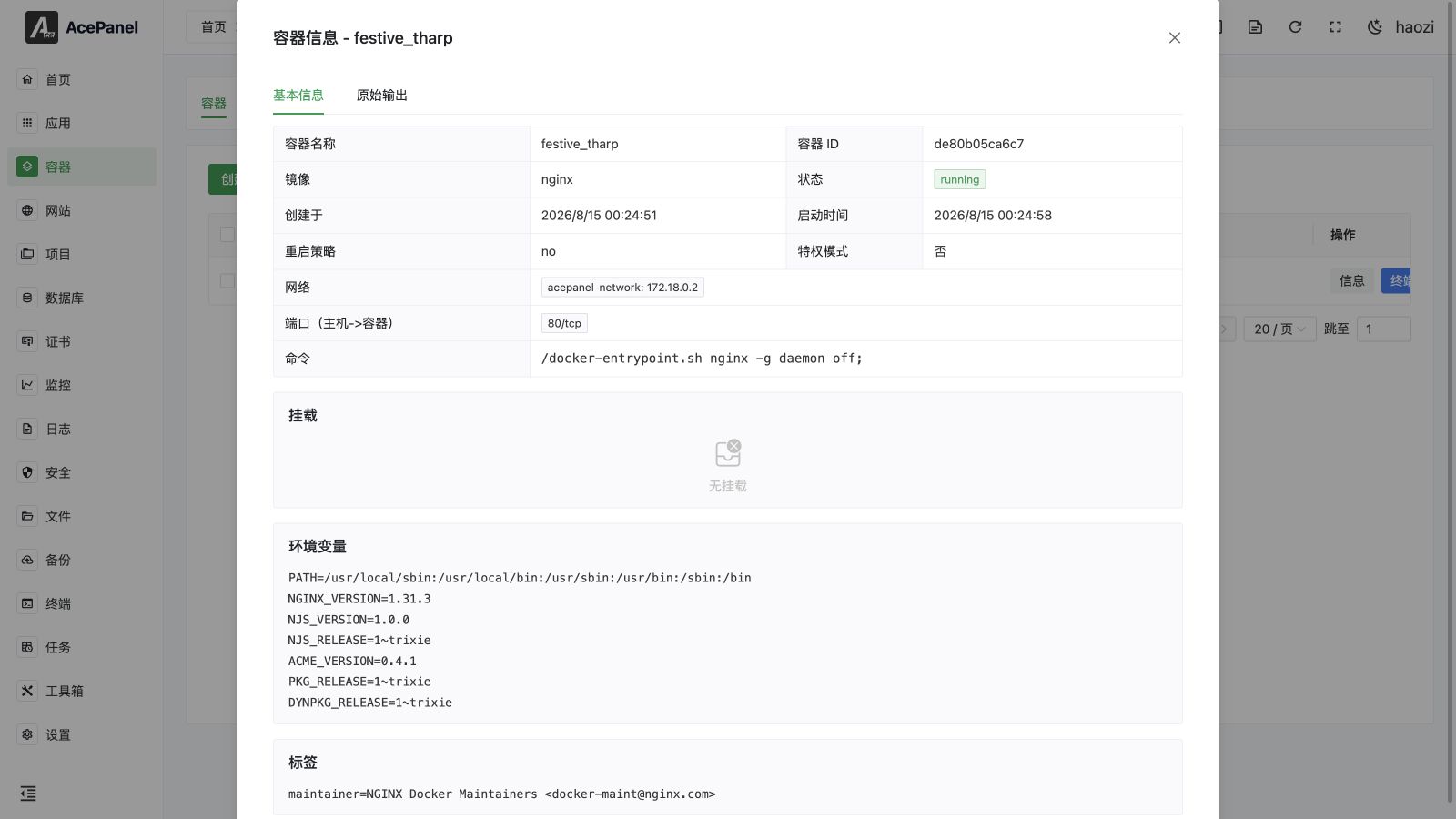
Click a container name or Details to open its information dialog. It shows the effective image, command, state, restart policy, ports, mounts, environment variables, labels, networks, resource settings, and the raw Docker/Podman inspect result. Use the raw view when the summarized fields are not enough for troubleshooting.
Use Edit to change a supported setting on an existing container. Review mounts, ports, and environment variables before saving because recreating a container can interrupt the service. Data stored only in the writable container layer can be lost when a container is replaced; keep persistent data in a volume or host mount.
Continuous adjacent port mappings are combined in the list to make ranges easier to read. Open the details dialog to inspect the exact underlying mappings.
Create Container
Click the Create Container button to open the creation dialog.
Basic Settings
- Container Name: Optional, auto-generated if left empty
- Image: Docker image name, e.g.,
nginx,mysql:8.4,your_username/your_image:tag - Restart Policy: Restart behavior after container exits
- None: Do not auto restart
- Always: Always restart
- On failure: Restart on failure (defaults to 5 retries)
- Unless stopped: Restart unless manually stopped
The Container Options section at the bottom of this tab provides the following switches:
TTY (-t): Allocate a pseudo-TTY
STDIN (-i): Keep STDIN open
Auto Remove: Automatically delete container when stopped
Privileged: Grant container full system privileges (use with caution)
Init Process: Run an init process in the container to handle signals and reap child processes
Read-Only: Mount the container root filesystem read-only
Network
The Network tab includes the network, static IP, hostname, network aliases, DNS servers, and extra host entries. A static IP requires a custom network with a subnet; aliases apply to custom networks. The hostname can contain up to 64 characters and is generated automatically when left empty.
Use an extra-host entry such as example.com:192.168.1.10 to add a container-side host mapping. Review the selected network mode before configuring ports or addresses.
Port Mapping
The Port Mode offers two options:
- Map Ports: Manually map container ports to host ports
- Expose All: Automatically map all exposed ports in the image to random host ports
In Map Ports mode, each rule contains an optional bind IP, a host port range (start/end), a container port range (start/end), and a protocol (TCP or UDP). To map a single port, set the start and end values to the same number.
For example, mapping host port 8080 to container port 80 means setting the host start/end to 8080 and the container start/end to 80.
Volume Mounts
Mount host directories or data volumes to the container. Each mount consists of a host path, a container path, and an access mode (Read-Write or Read-Only). Use absolute paths for host directories.
For example, mounting the host's /opt/ace/data directory to the container's /data directory.
The Volumes tab also supports tmpfs mounts with a container path and mount options.
Resource Limits
Limit the resources the container can use. Set a value to 0 for no limit:
- Memory (MB): Maximum memory the container can use, in MB
- CPU Cores: Number of CPU cores the container can use (e.g.,
0.5means half a core) - CPU Shares: Relative CPU weight (default
1024); higher values get more CPU time when competing
Additional controls include Shm Size (MB) for /dev/shm and Ulimits with soft and hard limits. A shared-memory size of 0 uses the container engine's default.
Environment
In the Environment tab you can set the following:
- Environment Variables: Container environment variables in
KEY=VALUEform - Startup Commands: Override the image's default Command (CMD) and Entrypoint (ENTRYPOINT), with each argument entered separately
- Working Directory and User: Override the image defaults; leave empty to keep them
- Container Labels: Custom labels attached to the container in
KEY=VALUEform
Advanced Settings
Set the stop signal and timeout, a health-check command with interval/timeout/start period/retry count, added or dropped capabilities, security options, device mappings, and kernel parameters. Device mappings include the host path, container path, and permissions.
Submit the Operation
Before submitting, choose how the operation runs:
- Foreground keeps the dialog open and streams image-pull and container-creation output.
- Background creates a panel task. You may leave the page and follow the result under Tasks > Panel Tasks.
These modes are not interchangeable: foreground output belongs to the current browser operation, while a background operation is owned by the task queue.
Container Operations
Batch Operations
After selecting multiple containers, you can perform batch operations:
- Start: Start selected containers
- Stop: Stop selected containers
- Restart: Restart selected containers
- Force Stop: Force stop selected containers
- Pause: Pause selected containers
- Resume: Resume paused containers
- Delete: Delete selected containers
Single Container Operations
- Terminal: Open the container's terminal to execute commands inside the container (available only when the container is running)
- Logs: View container runtime logs
- Rename: Modify container name
- More: A dropdown with Start, Stop, Restart, Force Stop, Pause, Resume, and Delete actions
The real-time log viewer shows its connection state and can load older lines, search the loaded text, jump between matches, toggle wrapping, copy all loaded output, and enter full screen. Search covers only the history already loaded in the dialog. See Logs for the shared viewer behavior.
Cleanup Containers
Click Cleanup Containers to delete all stopped containers and free up system resources.
Note
The cleanup operation cannot be undone. Please ensure stopped containers are no longer needed.