
SSH
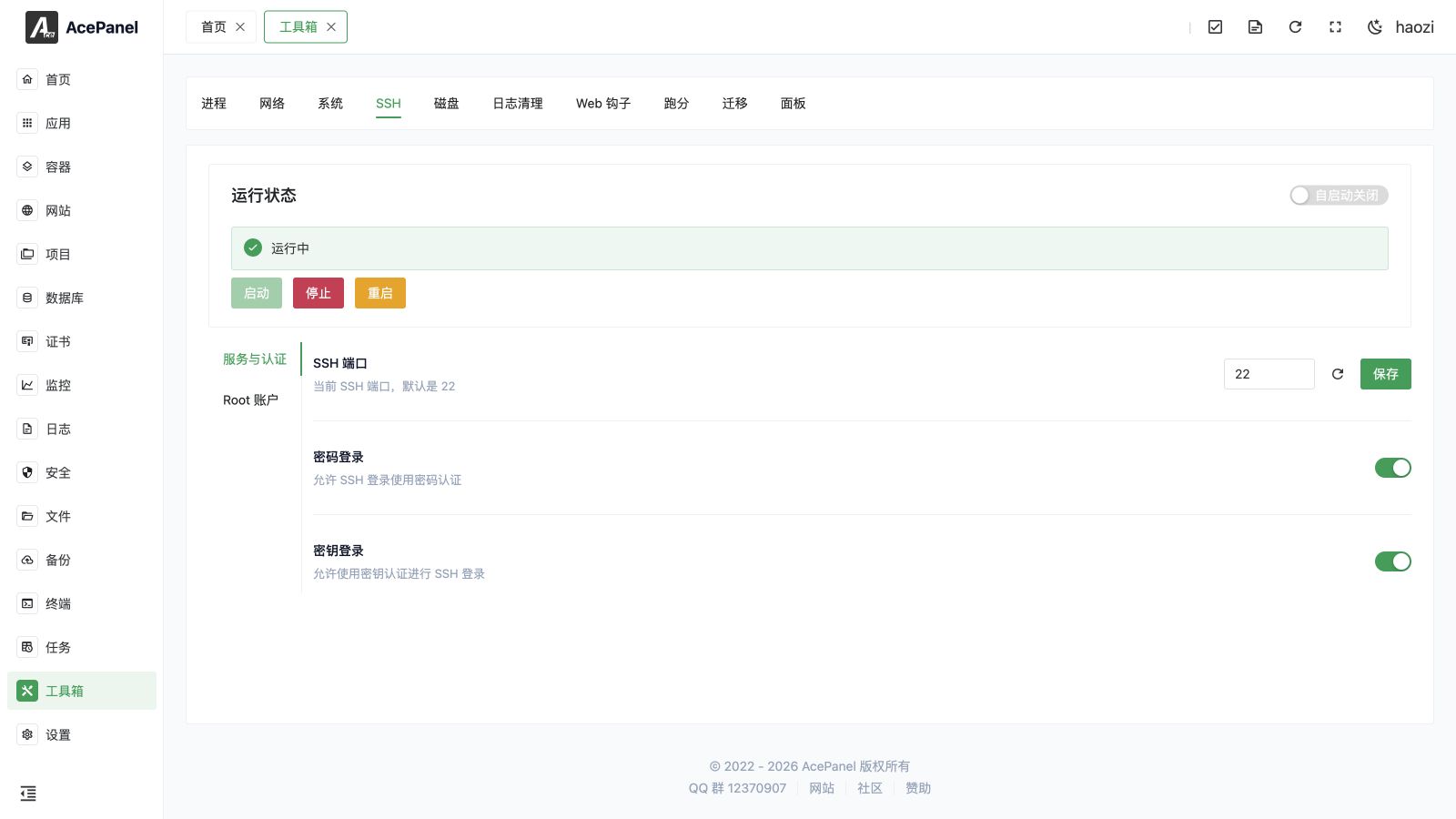
The SSH page is used to manage the server's SSH service configuration, including service status, authentication methods, and Root account settings.
This page changes the SSH daemon. It is different from the top-level Terminal, which opens local or remote terminal tabs and transfers files through SFTP.
The page is laid out as a service status card at the top, followed by two tabs on the left:
- Service & Auth: SSH port and authentication method settings
- Root Account: Root user login policy, password, and SSH key
The sections below are organized to match this layout.
Running Status
Displays the current status of the SSH service and provides the following operations:
- Start: Start the SSH service
- Stop: Stop the SSH service
- Restart: Restart the SSH service
- Autostart: Toggle whether the SSH service starts automatically on boot
Warning
After stopping the SSH service, you will not be able to remotely connect to the server via SSH. Please ensure you have other ways to access the server (such as VNC, out-of-band management) before proceeding.
Service & Auth
SSH Port
Modify the port that the SSH service listens on, default is 22. The port accepts any value between 1 and 65535. You can click the refresh icon to generate a random port (in the 10000–65535 range), then click the Save button to apply it. Saving will automatically restart the SSH service.
Before modifying the port, allow the new TCP port in Security > Port Rules and in the provider security group. Then:
- Click the Save button
- Ensure the firewall has allowed the new port
- Test connection using the new port
- Close the old port after confirming the connection works
Note
Before modifying the port, please ensure the new port is allowed in the firewall, otherwise you may be unable to connect.
Password Login
Control whether password authentication is allowed for SSH (PasswordAuthentication).
Before disabling it, add a tested key for the account you will use and keep the current session open until a fresh key-authenticated session succeeds.
- Enabled: Allow password login
- Disabled: Prohibit password login, only key authentication allowed
Key Login
Control whether SSH key authentication is allowed (PubkeyAuthentication).
- Enabled: Allow key login
- Disabled: Prohibit key login
Security Recommendation
It is recommended to enable key login and disable password login to effectively prevent brute force attacks.
Root Account
Root Login Policy
Control how the Root user can log in via SSH (maps to the PermitRootLogin directive):
- Allow SSH login (
yes): Root can log in via SSH - Disable SSH login (
no): Root cannot log in via SSH - Only allow key login (
prohibit-password): Root can only log in using keys - Only allow key login with predefined commands (
forced-commands-only): Root can only run commands authorized viaauthorized_keys
Changing the root policy or both authentication methods can lock every administrator out. Keep a provider console or another verified sudo-capable account available.
Reset Root Password
Reset the Root user's password.
- Enter the new password and click the Reset button (you can click the refresh icon to generate a random password)
- It is recommended to use a complex password containing uppercase and lowercase letters, numbers, and special characters
- Refreshing the page will clear the password input field
Root SSH Key
Manage the Root user's SSH key. The panel prefers an ed25519 key (falling back to a 4096-bit rsa key) stored under /root/.ssh, and automatically adds the public key to authorized_keys.
- View Key: Display the Root user's private key. If no key exists yet, one is generated automatically on first view
- Download: Download the private key file
- Regenerate: From the key dialog, generate a new key pair
Security Recommendation
It is recommended to use key login and disable password to significantly improve server security.