
Log Cleanup
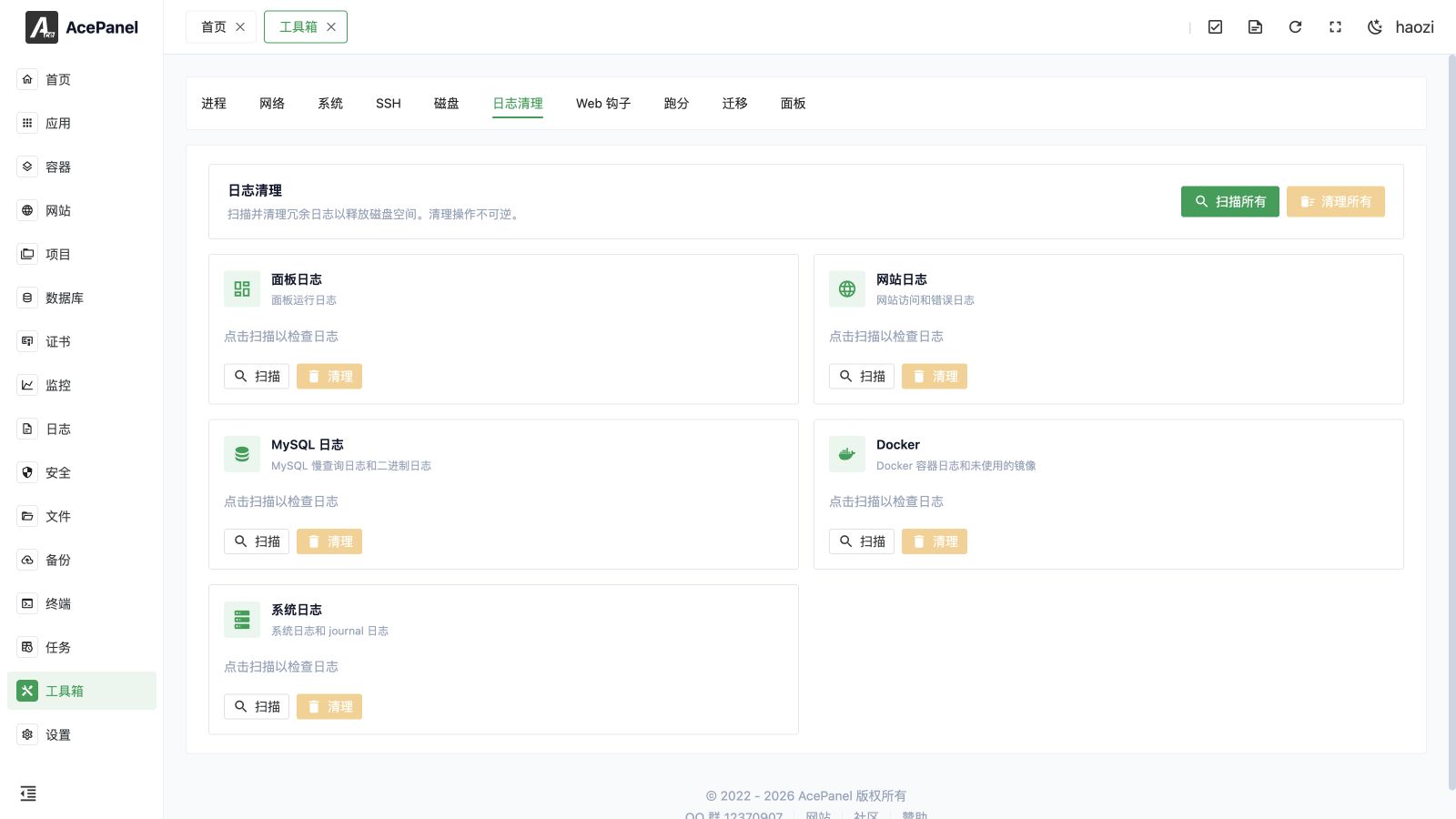
The log cleanup feature is used to scan and clean up log files generated by the system and applications to free up disk space. In the panel it appears under the toolbox as Log Cleaner.
Feature Overview
The top of the page provides batch operation buttons:
- Scan All: Scan all types of logs
- Clean All: Clean selected items across the scanned log types
Scanning is read-only: it reports the matching items, count, and estimated reclaimable space. Scanned items are selected by default; deselect any items you want to keep. Cleaning removes or vacuums the selected items and reports the actual result. Scan again if new logs were written after the previous result.
Log Types
Panel Logs
Log files generated by panel operation.
- Click Scan to check log size
- Click Clean to delete log files
Scheduled Task Logs
Scan and clean execution logs for scheduled tasks separately from panel runtime logs. Expand the results and select the files to remove; this does not delete the scheduled-task definitions.
Website Logs
Website access logs and error logs, including:
- Access logs (access.log)
- Error logs (error.log)
- Individual logs for each website for the active Web server
Tip
Website logs are usually the largest type of logs, it is recommended to clean them regularly.
MySQL Logs
Log files for Percona/MySQL/MariaDB databases:
- Slow query log (
mysql-slow.log) - Binary log (binlog,
mysql-bin.*)
Note
Binary logs are used for data recovery and master-slave replication, please confirm they are no longer needed before cleaning.
Docker
Docker and Podman related logs and unused resources:
- Container logs (Docker and Podman)
- Unused images
- Unused images are listed separately from container log files; select that item to request image pruning
System Logs
System-level log files:
- systemd journal logs
- System logs under
/var/log(syslog,messages,auth.log,secure, and any/var/log/*.logfiles) - Kernel logs (
kern.log,dmesg) - Login records (
btmp,wtmp)
Journal retention
The systemd journal is not deleted entirely. Cleaning runs journalctl --vacuum-time=1d, so only entries from the most recent day are kept.
/var/log/lastlog is not included in cleanup. Current log files are truncated so running services can continue writing; rotated log files can be removed.
Usage
- Click the Scan button for each type to view log space usage
- Expand the scan results and select the items to clean
- Click the Clean button to delete logs
Or:
- Click Scan All to scan all logs at once
- Review each type and deselect any items to keep
- Click Clean All to clean the selected items across types
Notes
- Cleanup operations are irreversible, please confirm logs are no longer needed
- Log cleanup targets panel logs, scheduled-task logs, website logs, MySQL slow-query and binary logs, Docker container logs and unused images, and system log or journal data. It does not delete website content, database tables, active container volumes, or normal business files.
- Download logs first when they may be needed for an incident, audit, failed backup, or security investigation.
- In production environments, retain the recent logs needed for troubleshooting