
.NET Project
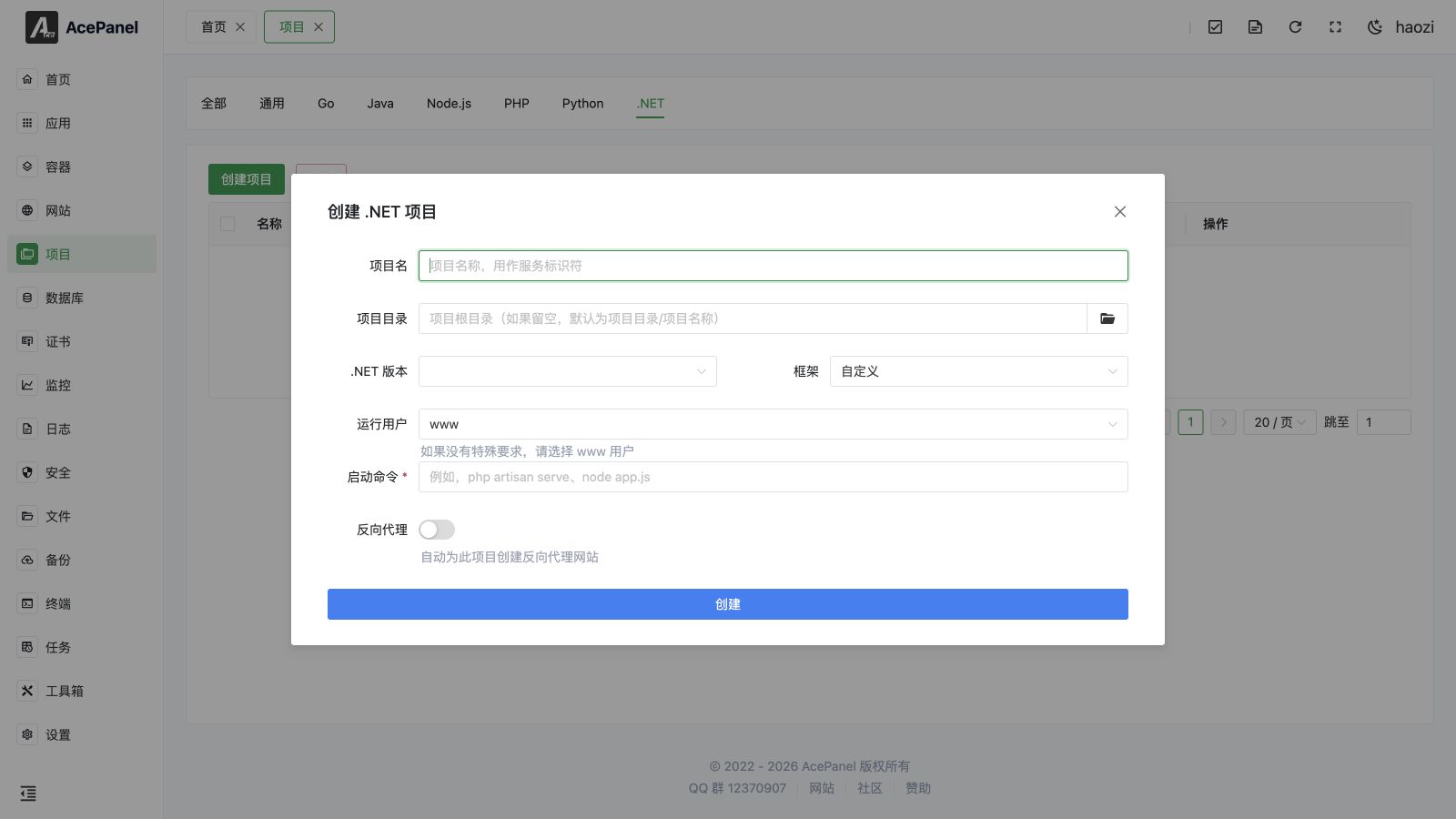
.NET projects are used to deploy applications built with the .NET runtime, such as ASP.NET Core Web/API, Blazor Server, gRPC, and Worker Service applications. .NET is treated as a first-class project type, so the panel manages your application as a systemd service and can optionally create a reverse proxy website for it in one step.
Prerequisites
- Install the .NET runtime environment: Apps > Runtime Environment > .NET
- The published output or source code of your .NET project
TIP
You can install more than one .NET version. When creating a project you pick which installed version is used to run it, so different projects can run on different .NET versions side by side.
Create .NET Project
- Go to the Project page and open the .NET tab
- Click Create Project
- Fill in the configuration:
- Project Name: e.g.
myapp. Used as thesystemdservice identifier, so it may only contain letters, numbers, underscores, and hyphens. - Project Directory: leave empty to default to
/opt/ace/projects/<project name>, or click the folder button to pick a directory. - .NET Version: select an installed .NET version. The list shows entries such as
.NET 8.0.100; only versions that are actually installed appear here. - Framework: select a framework preset (see the table below). Choosing a preset auto-fills the Start Command.
- Run User: defaults to
www(you may also chooseroot/nobody, or type a custom user). Usewwwif you have no special requirements. - Start Command: auto-filled from the selected version and framework, and fully editable.
- Project Name: e.g.
- Optionally enable Reverse Proxy and fill in the Domain and Project Port to automatically create a reverse proxy website (listening on port 80, proxying to
http://127.0.0.1:<project port>) for external access. - Click Create.
Framework Presets
When you select a .NET version and a framework, the start command is generated in the form dotnet<version> <preset command>. For example, with .NET 8.0.100 and the ASP.NET Core Web preset the command becomes dotnet8.0.100 run.
| Framework | Generated command part |
|---|---|
| Custom | (empty — enter the command yourself) |
| ASP.NET Core Web | run |
| ASP.NET Core API | run |
| Blazor Server | run |
| gRPC Service | run |
| Worker Service | run |
TIP
All presets except Custom use dotnet run, which is convenient for getting started. For production it is recommended to publish your project first (dotnet publish) and run the resulting DLL directly, for example dotnet8.0.100 /opt/ace/projects/myapp/myapp.dll. Just edit the Start Command field accordingly. Choose Custom when you want to enter the command from scratch.
Start Command Examples
The version number in dotnet<version> matches the installed .NET version you selected (e.g. dotnet8.0.100).
# Run from source (the default behavior of all presets)
dotnet8.0.100 run

# Run a published application (recommended for production)
dotnet8.0.100 myapp.dll

# Run with the URLs / environment specified inline
dotnet8.0.100 myapp.dll --urls "http://0.0.0.0:5000"

# Set environment variables
ASPNETCORE_ENVIRONMENT=Production dotnet8.0.100 myapp.dll
Managing a Project
After creation the project appears in the list on the .NET tab. For each project you can:
- Start / Stop the service
- Restart and Reload (shown only while the project is running)
- View real-time Logs
- Edit the project (see below)
- Delete the project (with a confirmation countdown)
- Toggle Autostart to enable or disable starting the service on boot
You can also select multiple projects and use the bulk Delete button.
Editing
The Edit dialog exposes the underlying systemd service configuration, including the working directory, start command, run user, restart policy, environment variables, resource limits (memory / CPU quota), security hardening options (such as NoNewPrivileges, ProtectHome, ProtectSystem), and unit dependencies. Changes are written back to the service unit file.
Setting the Default CLI Version
If you need the dotnet command available directly in the terminal, go to Apps > Runtime Environment > .NET, open the installed version, and click Set as CLI Default Version. This links that version's dotnet binary into the system path so dotnet resolves to it on the command line.
Notes
- The .NET runtime must be installed before creating a project; otherwise no version will be available to select.
- Application logs are written to the system journal and can be viewed via the Logs button on the project list.
- For web applications, make sure your app listens on the port you configured for the reverse proxy (and binds to
0.0.0.0or127.0.0.1rather than onlylocalhost), so the proxy can reach it. - Prefer publishing your project and running the DLL in production instead of
dotnet run, and use environment variables or configuration files for settings rather than hardcoding them.