
Statistics
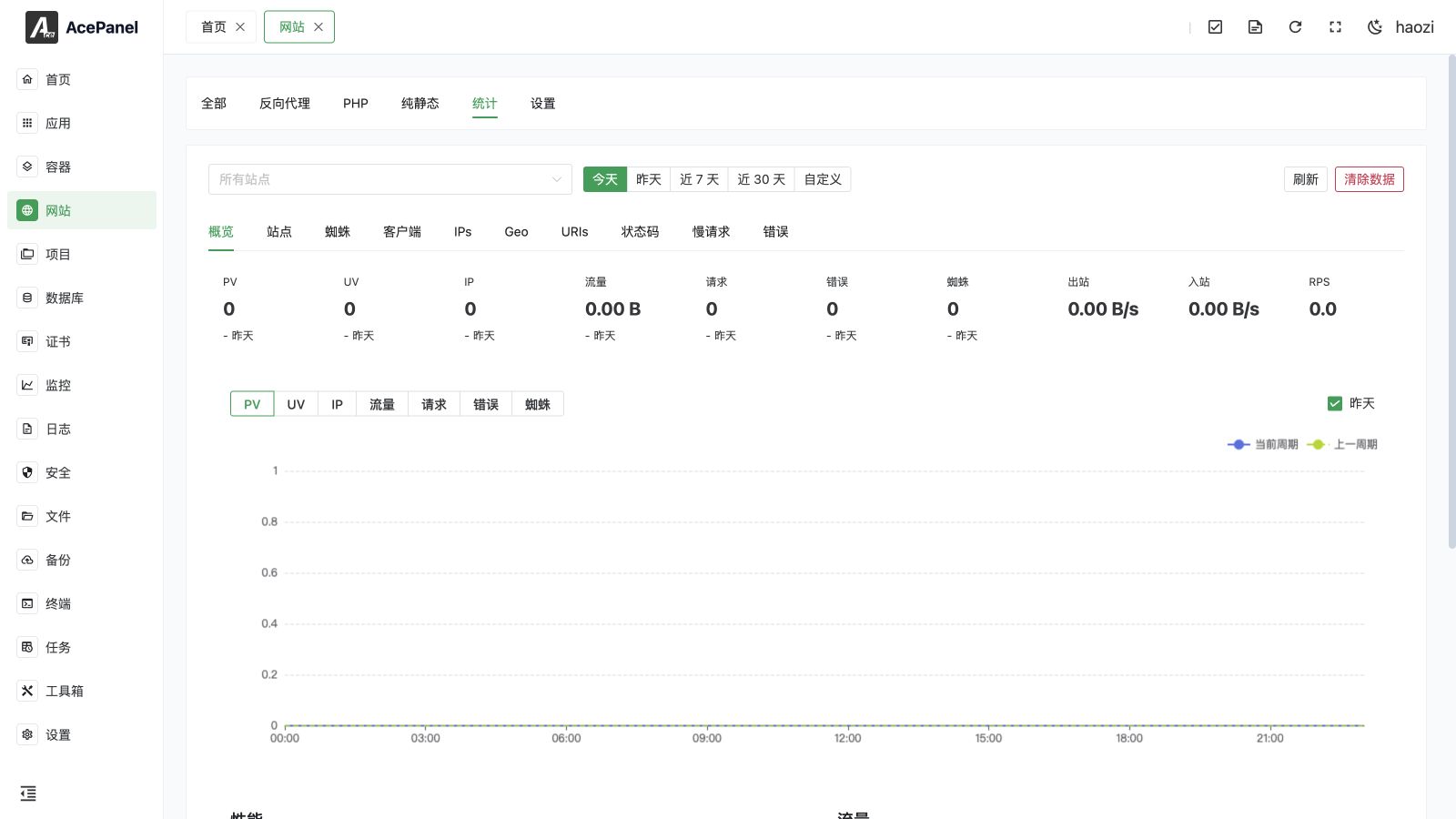
The Statistics module provides traffic analytics for your websites: overview metrics, real-time traffic, and aggregated rankings by site, spider, client, IP, location, URI, slow URI, and status code.
TIP
Statistics uses access logs sent by the active Web server to the panel. The Statistics feature and its settings are available with Nginx, OpenResty, and Caddy. They are not shown for Apache or OpenLiteSpeed.
Statistics Page
- Go to the Website page
- Click the Stats tab
The page is shared across all the analysis tabs and provides a common toolbar at the top.
Toolbar
The toolbar applies to every tab below it:
- Site selector: Filter statistics to one or more websites. Leave it empty to include All Sites. The site list is populated automatically from your existing websites.
- Time range presets: Choose Today, Yesterday, Last 7 Days, Last 30 Days, or Custom. The Custom option opens a date-range picker so you can select any start and end date.
- Refresh: Reload the data in the current tab.
- Clear Data: Delete all collected statistics data (see Clear Data).
TIP
When the selected range includes today, the figures combine data already written to the database with the latest in-memory counters that have not yet been flushed, so today's numbers update continuously.
Overview
The Overview tab summarizes traffic for the selected range and compares it with the previous period (for example, Today is compared with Yesterday, and Yesterday with the Day Before Yesterday; other ranges are compared with the equivalent Previous Period).
Summary Cards
Each card shows the total for the current period and the percentage change versus the previous period:
| Metric | Description |
|---|---|
| PV | Page views |
| UV | Unique visitors |
| IP | Unique IP addresses |
| Bandwidth | Outbound traffic |
| Requests | Total requests |
| Errors | Requests that returned an error status |
| Spiders | Requests identified as search engine crawlers |
Three additional cards show real-time values, polled every 5 seconds:
- Outbound: Current outbound traffic per second
- Inbound: Current inbound traffic per second
- RPS: Requests per second
The real-time values are averaged over the last few seconds of activity.
Trend Chart
A line chart plots the selected metric over time. Use the buttons above the chart to switch between PV, UV, IP, Bandwidth, Requests, Errors, and Spiders. Single-day ranges are plotted by hour; multi-day ranges are plotted by day. Toggle the checkbox to overlay the previous period for comparison.
Performance Chart
Plots QPS (requests per second per time slot) and the Average Response Time (in milliseconds) over the selected range.
Traffic Chart
Plots Outbound and Inbound traffic over the selected range, with totals shown in the legend.
Sites
The Sites tab lists every website with its aggregated metrics for the selected range. Columns are sortable:
| Column | Description |
|---|---|
| Site | Website name |
| PV | Page views |
| UV | Unique visitors |
| IP | Unique IP addresses |
| Outbound | Outbound traffic |
| Inbound | Inbound traffic |
| Requests | Total requests |
| Errors | Error requests |
| Spiders | Crawler requests |
Spiders
The Spiders tab ranks search engine crawlers (such as Googlebot or Bingbot) by request count for the selected range. A bar chart shows the top crawlers, and the table lists each spider with its request count and the percentage of total crawler requests. Up to 50 spiders are returned.
Clients
The Clients tab breaks down visitors by client software:
- Browsers: A pie chart of the top browsers by request count
- OS: A bar chart of the top operating systems by request count
- A detail table listing each Browser / OS combination with its request count
IPs
The IPs tab lists the most active visitor IP addresses for the selected range (paginated):
| Column | Description |
|---|---|
| IP | Visitor IP address |
| Location | Country, region, and city resolved from the IP |
| ISP | Internet service provider |
| Requests | Total requests from the IP |
| Bandwidth | Traffic generated by the IP |
An ISP Distribution bar chart shows the top ISPs above the table.
TIP
Location and ISP information is resolved using a GeoIP database. If no GeoIP database is configured, these fields will be empty or shown as Unknown. See the GeoIP settings under the panel settings to configure a database.
Geo
The Geo tab visualizes the geographic distribution of requests. Switch the dimension with the toggle:
- Country: Renders an interactive world map (zoom and pan supported) where color intensity reflects request volume.
- Region: Renders a horizontal bar chart of the top regions.
A table below the chart lists each country or region with its request count and bandwidth. Entries that cannot be resolved are shown as Unknown.
URIs
The URIs tab lists the most requested paths for the selected range (paginated). Columns are sortable:
| Column | Description |
|---|---|
| URI | Requested path |
| Requests | Total requests |
| Bandwidth | Traffic for the URI |
| Errors | Error requests for the URI |
Status Codes
The Status Codes tab summarizes responses by status class:
- Cards for 2xx, 3xx, 4xx, and 5xx show the total and its share of all responses.
- A stacked area chart plots the four status classes over the selected range.
Slow Requests
The Slow Requests tab helps locate slow endpoints. Set a Threshold (in milliseconds) to list only URIs whose average response time exceeds it; the default threshold is 100 ms. Results are paginated and the columns are sortable:
| Column | Description |
|---|---|
| URI | Requested path |
| Requests | Total requests |
| Avg Response Time | Average response time in milliseconds |
| Bandwidth | Traffic for the URI |
| Errors | Error requests for the URI |
Errors
The Errors tab shows individual error log entries (status codes in the 4xx–5xx range). Use the Status Code dropdown to filter by a specific code (400, 401, 403, 404, 405, 429, 500, 502, 503, 504) or show All. Results are paginated.
| Column | Description |
|---|---|
| Time | When the request occurred |
| Site | Website name |
| URI | Requested path |
| Method | HTTP method |
| Status | HTTP status code |
| IP | Client IP address |
| User-Agent | Client user agent string |
Expand a row to view the recorded request body. The body is only available when Record Request Body is enabled in the statistics settings; otherwise the row shows that no request body was recorded.
Clear Data
Click the Clear Data button in the toolbar and confirm to permanently delete all collected statistics, including the overview totals, all dimension rankings, and the error logs. This action also resets the in-memory counters and cannot be undone.
Statistics Settings
Statistics settings live under the website Settings tab, in the Statistics sub-tab (shown with Nginx, OpenResty, or Caddy).
- Go to the Website page
- Click the Settings tab
- Open the Statistics sub-tab
WARNING
Changes to the buffer and key-limit options below take effect only after restarting the panel. The retention days take effect on the next cleanup cycle.
| Setting | Default | Range | Description |
|---|---|---|---|
| Data Retention Days | 30 | 1–365 | How long statistics and error logs are kept. Older data is cleaned up automatically. |
| Error Buffer Max Size | 10000 | 100–1000000 | Maximum number of error log entries buffered in memory before they are written to the database. |
| UV Max Keys | 1000000 | 1000–100000000 | Maximum number of keys tracked for unique-visitor counting. |
| IP Max Keys | 500000 | 1000–100000000 | Maximum number of distinct IP addresses tracked. |
| Detail Max Keys | 50000 | 1000–100000000 | Maximum number of keys tracked for detailed dimensions (URI, client, etc.). |
| Record Request Body | On | — | When enabled, the request body of error requests is captured and shown in the Errors tab. |
TIP
The key-limit settings cap memory usage on very high-traffic sites. Raising them increases accuracy at the cost of more memory; the defaults are suitable for most servers.
Notes
- Statistics require Nginx, OpenResty, or Caddy; the feature is hidden for other Web servers.
- Geographic and ISP data depend on a configured GeoIP database.
- Statistics data occupies disk space; the longer the retention period, the more space is used. Adjust the retention days to suit your needs.
- Today's figures include both saved data and live counters, so they continue to change throughout the day.