
Elasticsearch Data Management
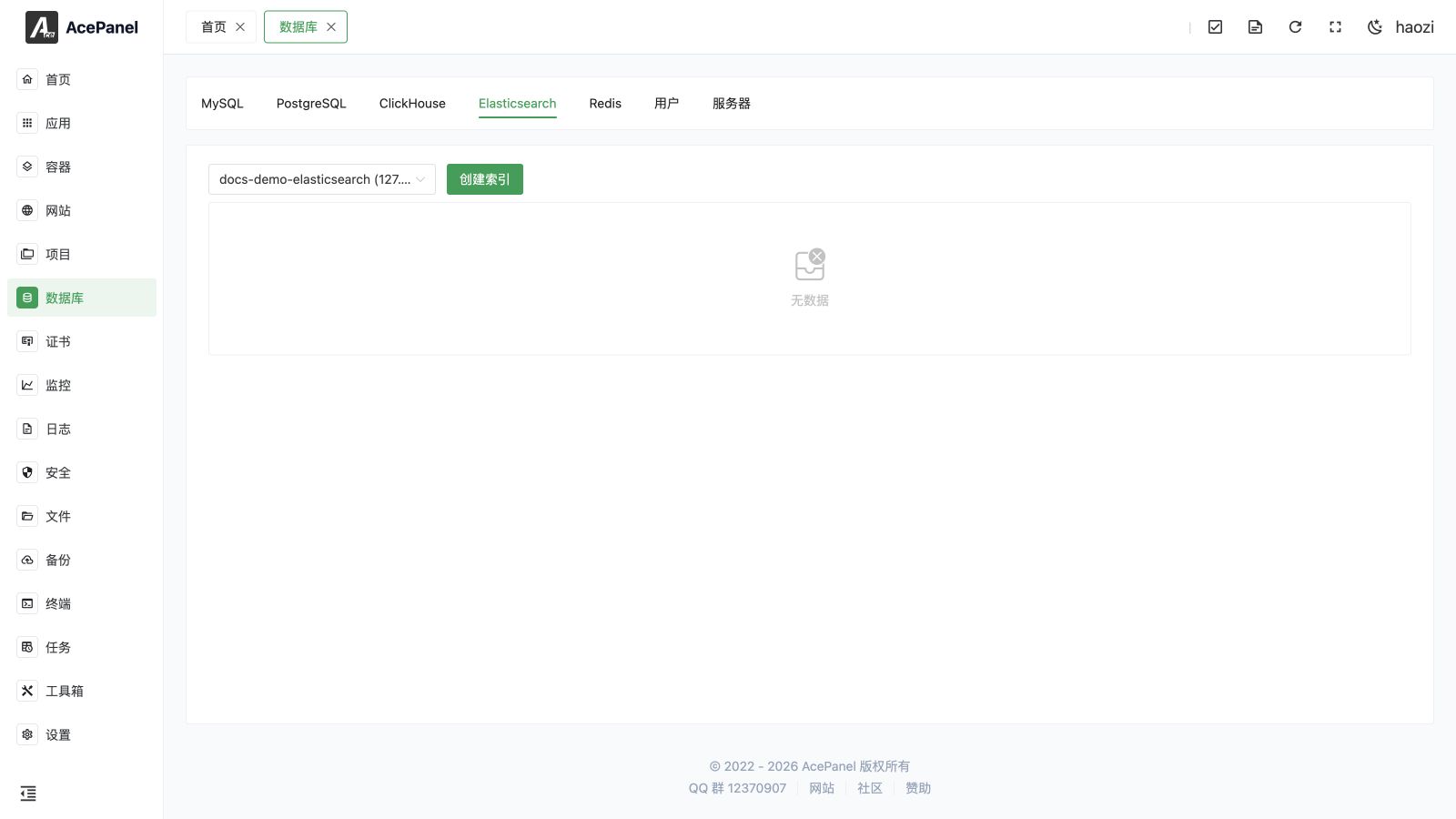
The Elasticsearch data management page lets you manage Elasticsearch (or OpenSearch) data online: list indices, create and delete indices, browse documents page by page, run search queries, and view, create, update, and delete documents.
Prerequisites
Elasticsearch data management works against a database server of type Elasticsearch. Before using it, make sure such a server is available on the Database > Server tab:
- For a remote instance, add it on the Server tab. Only the address, port, and (optionally) a username and password are required. If both a username and password are set, the panel connects with HTTP basic authentication; otherwise it connects without credentials.
- The panel talks to Elasticsearch over its REST API, so any OpenSearch-compatible server also works.
Opening the Page
Go to the Database page and switch to the Elasticsearch tab. Unlike the relational database tabs, Elasticsearch is managed entirely from this data view rather than from the database list.
Selecting a Server
At the top of the page there is a Server selector. Choose the Elasticsearch server to operate on; each option is shown as name (host:port). The first available server is selected automatically. Switching the server reloads the index list and clears the current selection.
Index List
When no index is selected, the page shows the list of indices on the selected server in a table with the following columns:
- Index Name: The index name.
- Health: The index health, shown as a colored tag —
green(success),yellow(warning), orred(error). - Documents: The number of documents in the index.
- Size: The store size of the index in a human-readable unit.
- Actions: Browse and Delete buttons for each index.
TIP
System indices (names beginning with a dot, such as .kibana) are hidden from this list.
Creating an Index
When you are viewing the index list, click Create Index to open the create dialog. Enter the Index Name and click Submit. The index is created with default settings; you can add mappings and settings later through your own Elasticsearch tooling if needed.
Deleting an Index
Click Delete on an index row and confirm to remove it.
Warning
Deleting an index permanently removes the index and every document it contains. This operation cannot be undone! Make sure you have selected the correct index and backed up any important data beforehand.
Browsing Documents
Click Browse on an index row to open that index's documents. A tag at the top shows the current index (Index: <name>), and a Back to Indices button returns you to the index list.
Documents are shown in a paginated table with the following columns:
- ID: The document
_id. - Source: The document
_source(its JSON body). - Actions: View and Delete buttons for each document.
Pagination supports page sizes of 20, 50, 100, and 200 documents per page (20 by default).
Searching Documents
While browsing an index, use the search box (placeholder field:value) to filter documents, then click Search or press Enter. The query uses Elasticsearch query string syntax, for example:
status:active— documents whosestatusfield equalsactivetitle:elasticsearch AND views:>100— combine clauses withAND/OR- Leave it empty to list all documents in the index.
Viewing or Updating a Document
Click View on a document row to open the document dialog. It shows:
- ID: The document
_id(read-only for an existing document). - Document (JSON): The document body, pretty-printed as formatted JSON.
You can edit the JSON in this dialog and click Submit to save your changes back to the same document. Because the ID is fixed, saving from the View dialog updates the existing document in place.
Creating a Document
While browsing an index, click Create Document to open the document dialog in create mode. Fill in the form and click Submit:
- ID: Optional. Leave it empty to let Elasticsearch generate an ID automatically, or enter a specific ID to create the document with that ID.
- Document (JSON): The document body as a JSON object. This field is required.
TIP
Creating a document without an ID adds a new document with an auto-generated ID. Creating or saving a document with a specific ID writes to that exact document, replacing it if it already exists.
Deleting a Document
Click Delete on a document row and confirm to remove that single document from the current index.
Warning
Deleting a document permanently removes it from the index. This operation cannot be undone!
FAQ
Cannot Connect to the Elasticsearch Server
- Confirm the selected server is of type Elasticsearch and that its host and port are correct.
- If the server requires authentication, confirm both the username and password are set on the server.
- Confirm the Elasticsearch (or OpenSearch) service is running and reachable from the panel host.
- Check the server status on the Database > Server tab.
Failed to Create or Update a Document
- Make sure the Document (JSON) body is valid JSON.
- Confirm the target index exists and that the document structure matches the index mapping.
An Index Does Not Appear in the List
System indices whose names start with a dot are intentionally hidden. If a user index is missing, refresh the page and confirm it exists on the selected server.