
Website
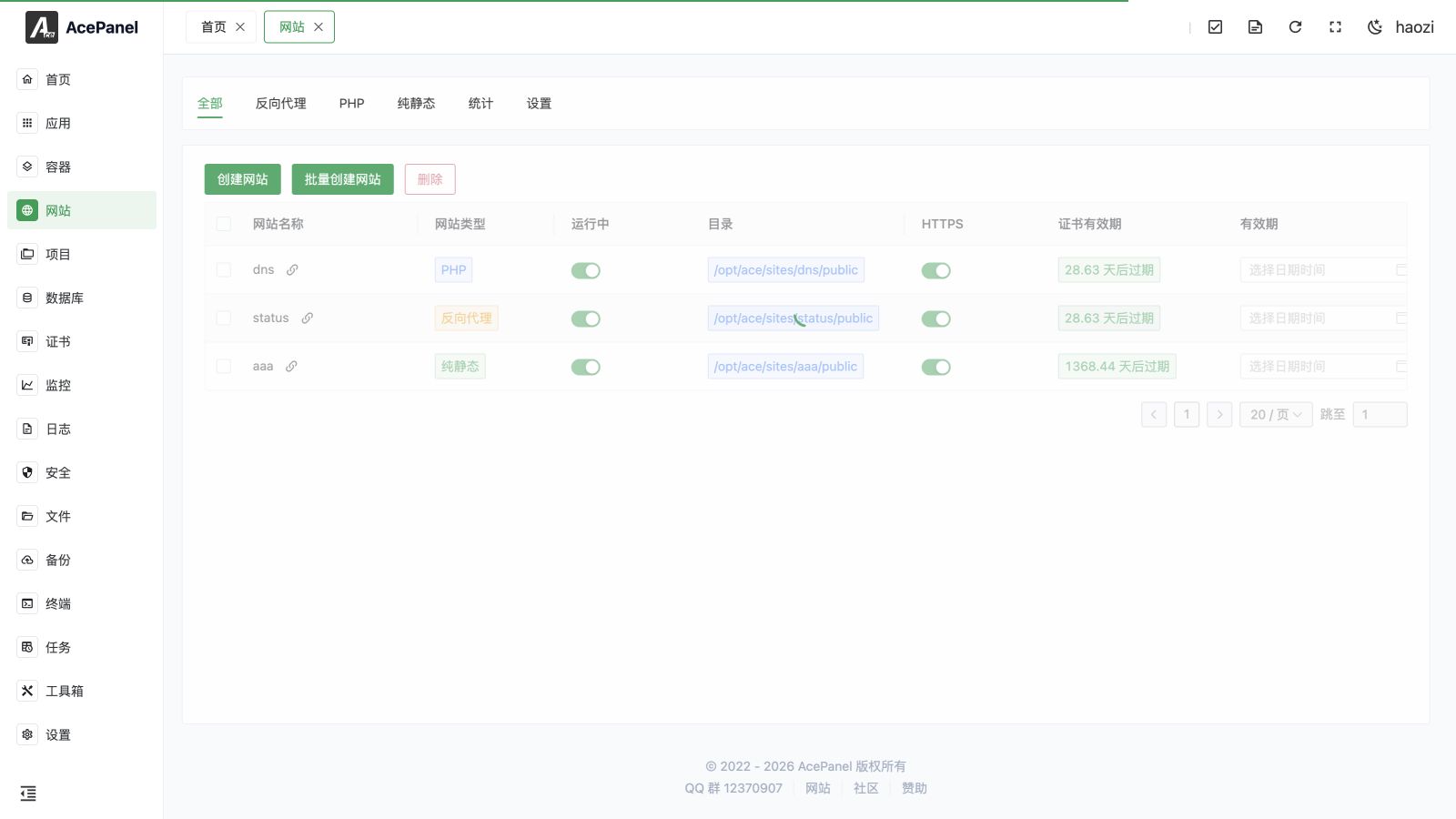
The website module is used to manage site configurations on the Web server. AcePanel supports three types of websites: reverse proxy, PHP, and static.
Prerequisites
Before using the website feature, you need to install a Web server first:
- Go to Apps > Native Applications
- Install Nginx, OpenResty, Apache, OpenLiteSpeed, or Caddy
Web Server Features
Website types are available across the supported Web servers, but some settings depend on the active server:
| Panel feature | Nginx / OpenResty | Apache | OpenLiteSpeed | Caddy |
|---|---|---|---|---|
| Access statistics | Supported | Not exposed | Not exposed | Supported |
| Default site selection | Supported | Not exposed | Not exposed | Supported |
| Explicit IPv6 listen controls | Supported | Not exposed | Supported | Not exposed |
| LSCache settings | Not exposed | Not exposed | Supported | Not exposed |
This table describes AcePanel's controls, not every feature the underlying server supports. The editor shows settings appropriate to the active server. PHP sites use LSAPI under OpenLiteSpeed; see PHP runtime management.
On OpenLiteSpeed, Advanced Settings > LSCache controls caching for an individual site. Configure OpenLiteSpeed's real-IP handling on its application management page. Website and running-directory fields provide a directory picker, including directory creation.
Switch Web Servers
Back up site configurations before switching the active Web server. After the new server is selected, the CLI can rebuild all website configurations for it:
acepanel website rebuildThe rebuild reads the previous server's configuration and migrates shared settings such as domains, directories, HTTPS, PHP version, upstreams, proxies, redirects, and basic authentication where supported. Rewrite rules, custom configs, rate limits, and real-IP settings are not migrated. The old configuration directory is removed after a successful rebuild, so keep your own backup and reapply these settings using the new server's syntax. Unsupported explicit IPv6 listeners are also removed.
Review the command's output and verify each site afterward. Opening a website's editor does not automatically rebuild it for a different server.
Website Types
| Type | Description | Use Cases |
|---|---|---|
| Reverse Proxy | Forward requests to backend services | Node.js, Go, Java applications |
| PHP | Run PHP programs | WordPress, Laravel, etc. |
| Static | Host static files | HTML, Vue/React build outputs |
Website List
In addition to All, Reverse Proxy, PHP, and Pure Static, the page provides Stats and Settings tabs.
The website list displays the following information:
- Website Name: Unique identifier for the site
- Website Type: Reverse Proxy, PHP, or Pure Static
- Running: Whether the site is enabled
- Directory: Directory where website files are located
- HTTPS: Whether HTTPS is enabled
- Certificate expiration: SSL certificate expiration time
- Expiration: Site expiration time; the site is automatically stopped when it expires
- Remark: Custom remarks
- Actions: Edit, delete, etc.
Search and Sort
Use the list's keyword search to find websites. Columns with a sorting control can be sorted by clicking their headers; the same pattern is available in other resource lists.
Domain names must be unique across websites. Remove a domain from its existing website before binding it to another one.
Create Website
- Go to the Website page
- Select the website type tab (Reverse Proxy/PHP/Static)
- Click Create Website
- Fill in the website information
- Click Create
Common Configuration Items
- Name: Unique identifier for the website, only letters, numbers, hyphens, and underscores are allowed; cannot be changed after creation
- Domain: Bound domain names, multiple can be added (paste comma/space/newline-separated values to add them in bulk)
- Port: Listening port, default 80
- Remark: Optional remarks
Type-specific items:
- Reverse Proxy: requires a Proxy Target (e.g.,
http://127.0.0.1:3000) - PHP: requires selecting a PHP Version, and optionally creating a Database (database name/user/password) together with the site
- PHP / Pure Static: support customizing the website Directory (defaults to
website directory/website name/publicwhen left empty)
Website Management
Click the Edit button of a website to enter the management page, which is organized into tabs:
- Domain & Listening: modify bound domains and listening ports
- Basic Settings: website directory, run directory, default index files
- Upstreams / Proxies: configure backend upstreams and proxy behavior (reverse proxy sites only)
- HTTPS: bind SSL certificates, HTTP redirect, HSTS, OCSP, TLS versions
- Rewrite: set rewrite rules (PHP sites only)
- Redirects: configure redirect rules
- Advanced Settings: access statistics, log settings, rate limiting, real IP, and basic authentication
- Custom Configs: add custom configuration snippets (site-scoped or shared)
- Access Log / Error Log: view the site's logs in real time
Change the Website Type
An existing reverse-proxy, PHP, or pure-static website can be converted to either of the other two types. AcePanel keeps its name, domains, listen addresses, directory, files, HTTPS association, expiration, and other shared fields. It removes the old type-specific Web-server configuration and generates a new configuration for the selected type.
Back up the site before converting it. Upstreams and proxy rules, PHP runtime and rewrite settings, and static-only behavior must be reviewed or configured again after the change. AcePanel tests the generated Web-server configuration before applying it and displays the active Web server's concrete error when validation fails.
Batch Creation
Click Bulk Create Website to create multiple websites at once, suitable for scenarios requiring rapid deployment of multiple sites.
Delete Website
When deleting a website, a 5-second confirmation countdown is required. You can choose whether to also delete the website directory and delete the local database with the same name. Bulk deletion removes the website directory but keeps the same-name database. AcePanel also removes the website from certificates associated with it and deletes a matching tamper-protection rule.
Next Steps
- Reverse Proxy - Learn how to create reverse proxy websites
- PHP Website - Learn how to create PHP websites
- Static Website - Learn how to create static websites
- Website Settings - Configure default site, IPv6 listening, error pages, and statistics