
Scheduled Tasks
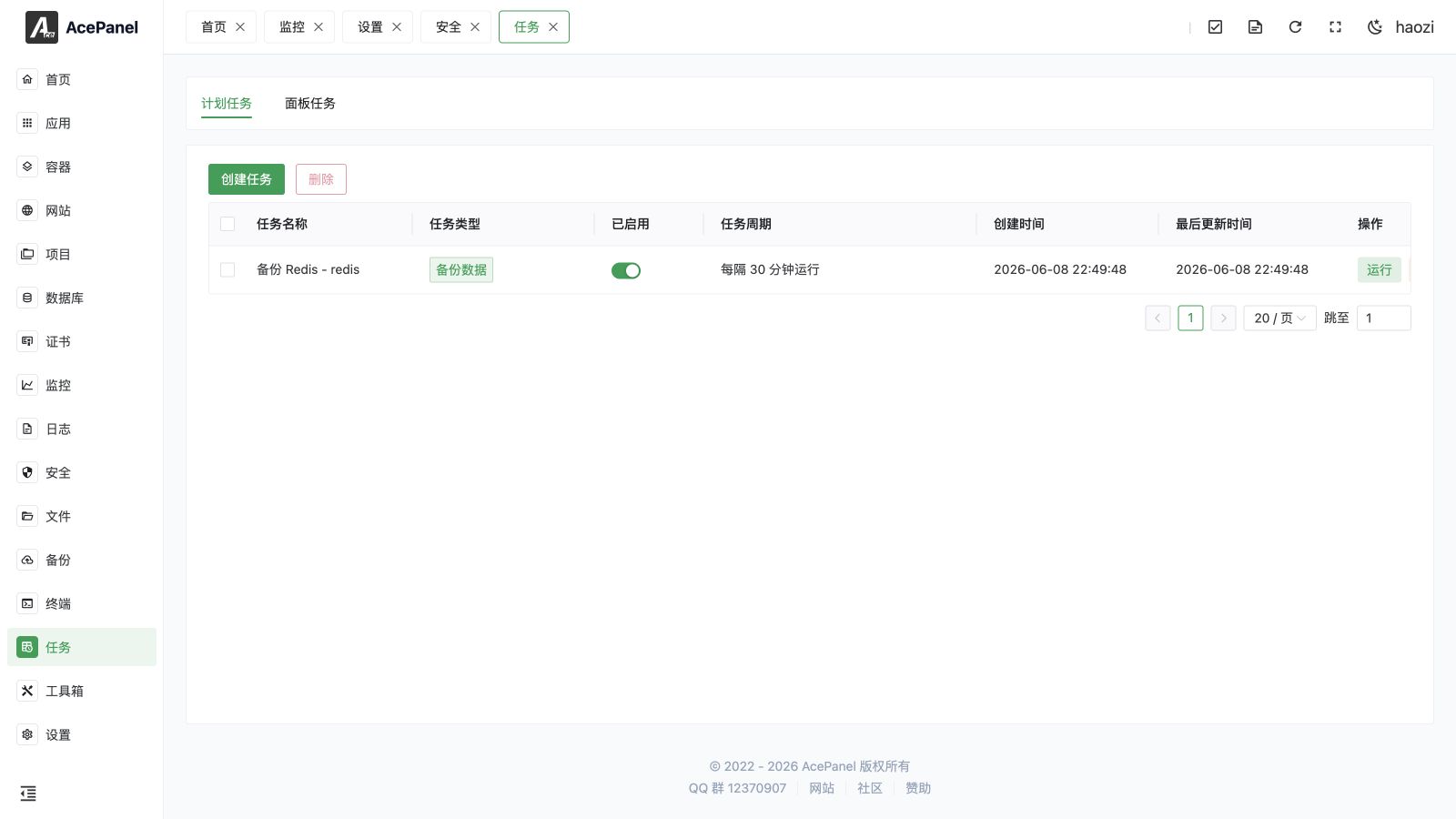
Scheduled tasks are used to set up tasks that execute at specified times, such as scheduled backups, scheduled script execution, etc.
Task List
Go to the Tasks page, which displays the scheduled task list by default.
The list displays the following information:
- Task Name: Task name
- Task Type: Run Script/Backup Data/Log Rotation/Access URL/Sync Time
- Enabled: Whether enabled
- Task Schedule: Execution schedule
- Created At: Creation time
- Last Updated: Last modification time
- Actions: Run, view logs, edit, delete
Create Task
Click the Create Task button to create a new scheduled task.
Task Types
| Type | Description |
|---|---|
| Run Script | Execute a Shell script |
| Backup Data | Scheduled backup of a website, directory, MySQL, PostgreSQL, ClickHouse, Redis, or Valkey data to the chosen storage |
| Log Rotation | Scheduled rotation of website or container logs |
| Access URL | Send an HTTP request (GET/POST/PUT/DELETE/PATCH/HEAD) to a URL, with optional headers, body, timeout, retries, and ignore certificate |
| Sync Time | Synchronize the server time |
For Backup Data and Log Rotation tasks you can also set a Retention Count to keep only the most recent backups/archives and automatically clear older ones, and select the target Storage.
Process Lock
Enable Process Lock to prevent duplicate execution: if the previous run is still in progress, the current run is skipped.
Execution Schedule
Multiple schedule settings are supported:
- Every Second: Execute once every second
- Every N Seconds: Execute every N seconds
- Every Minute: Execute once every minute
- Every N Minutes: Execute every N minutes
- Every N Hours: Execute every N hours
- Every N Days: Execute every N days
- Hourly: Execute at a specified minute every hour
- Daily: Execute at a specified time each day
- Weekly: Execute on specified day and time each week
- Monthly: Execute on specified date and time each month
- Yearly: Execute on specified month, date, and time each year
- After Reboot: Execute once after the server reboots (
@reboot) - Custom: Use Cron expression
Cron Expression
Cron expression format: minute hour day month weekday
*    *    *    *    *
│    │    │    │    │
│    │    │    │    └── Day of week (0-7, both 0 and 7 are Sunday)
│    │    │    └─────── Month (1-12)
│    │    └──────────── Day of month (1-31)
│    └───────────────── Hour (0-23)
└────────────────────── Minute (0-59)
Six-field expressions are also supported for second-level scheduling, where the leading field is the second (second minute hour day month weekday). For example, */10 * * * * * runs every 10 seconds.
Common examples:
| Expression | Description |
|---|---|
0 2 * * * | Every day at 2 AM |
0 */6 * * * | Every 6 hours |
0 0 * * 0 | Every Sunday at midnight |
0 0 1 * * | First day of every month at midnight |
*/5 * * * * | Every 5 minutes |
Don't know how to write it? Just describe your requirements clearly to an AI and let it generate one for you.
Shell Task Examples
Clean Temporary Files
find /tmp -type f -mtime +7 -deleteRestart Service
systemctl restart nginxSync Time
ntpdate ntp.aliyun.comTIP
For server time synchronization you no longer need a hand-written shell command. Use the dedicated Sync Time task type instead, which runs the panel's own acepanel sync-time command and syncs against the time server configured in the panel.
Task Operations
Enable/Disable
Control whether the task is enabled via the switch. Disabled tasks will not execute.
Execute Immediately
Click the Run button to execute the task immediately without waiting for the scheduled time.
View Logs
Click the Logs button to view the task execution logs.
Edit Task
Click the Edit button to modify the task configuration.
Delete Task
Click the Delete button to delete the task.
Bulk Delete
Select multiple tasks using the checkboxes in the list, then click the Delete button at the top of the page to delete all selected tasks at once.
Panel Tasks
The Tasks page has two tabs: Scheduled Tasks (the cron list described above) and Panel Tasks. Switch to the Panel Tasks tab to see the background task queue, which records long-running operations triggered by the panel (such as backups, restores, and other queued jobs).
The list displays the following information:
- Task Name: Task name
- Status: Waiting / Running / Completed / Failed
- Creation Time: When the task was created
- Completion Time: When the task finished
- Actions: View logs, delete
A task's Logs can be viewed once it has started running, and a task can only be deleted after it has finished (status is Completed or Failed); waiting and running tasks cannot be deleted.
TIP
If task logs fail to load, disable any ad blockers in your browser.
Notes
- Task execution time is based on the server timezone
- Long-running tasks may affect the next execution; enable Process Lock to skip overlapping runs
- Regularly check task execution status via the Logs button