
User Management
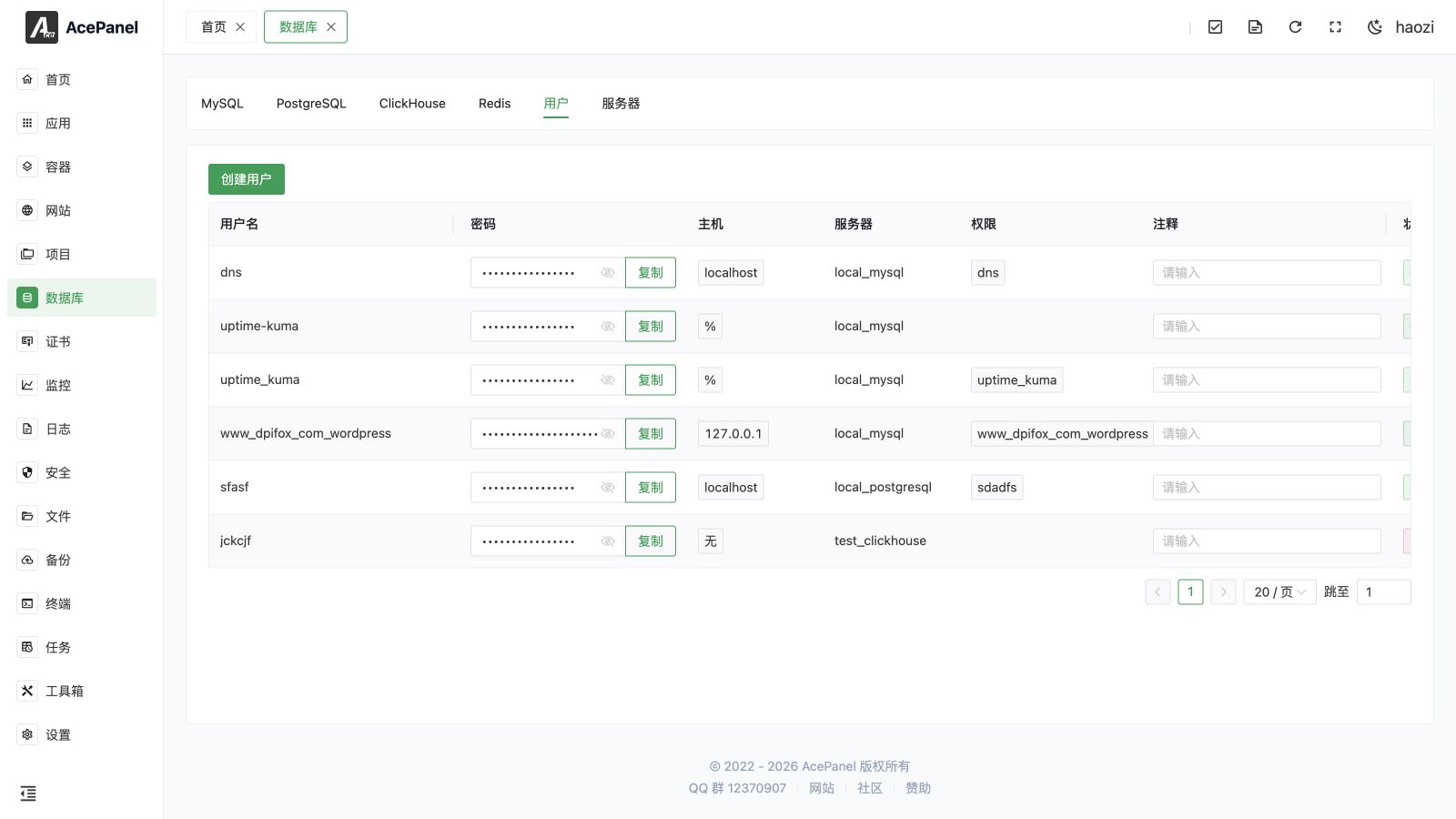
The user management page is used to create and manage database users and set user permissions.
User List
Go to Database > User tab to view the user list. The User tab shows a single list covering all servers (MySQL, PostgreSQL and ClickHouse), regardless of the currently selected database type.
The list displays the following information:
- Username: Database username
- Password: User password (click to reveal, then copy)
- Host: Allowed connection host (MySQL only; empty for other engines)
- Server: The database server it belongs to
- Privileges: Databases the user has permissions for
- Comment: Remarks (editable inline)
- Status: Connectivity status (Valid / Invalid)
- Update Date: Last update time
- Actions: Modify, delete
Create User
- Click the Create User button
- Fill in the configuration:
- Server: Select database server (only MySQL, PostgreSQL and ClickHouse servers are listed)
- Username: Database username (
rootandadminare not allowed) - Password: User password (a Generate button creates a random 16-character password)
- Host: Allowed connection host, shown only when a MySQL server is selected (see Host Settings)
- Privileges: Database names the user can access (see below)
- Comment: Optional remark
- Click Submit
TIP
Privileges are entered as a list of database names. If a database in the list does not exist, it is created automatically and the user is granted access to it.
Host Settings
When you select a MySQL server, a Host dropdown appears with the following options:
| Option | Description |
|---|---|
| Local (localhost) | Only allow local connections |
| All (%) | Allow connections from any host |
| Specific | Enter a custom host (e.g. 192.168.1.%, 192.168.1.100) |
Security Notice
Production environments are not recommended to use % to allow connections from any host. Should be restricted to specific IP addresses or subnets.
Modify User
Click the Modify button on the right side of the user to:
- Modify password
- Modify privileges (database access)
- Modify comment
The connection host cannot be changed after the user is created.
Delete User
Click the Delete button on the right side of the user. A confirmation dialog appears with a 5-second countdown before the Confirm button becomes clickable, to prevent accidental deletion. Once confirmed, the user is removed.
Note
After deleting a user, applications using that user to connect to the database will not work properly.
Permission Explanation
User management is available for MySQL (including MariaDB and Percona), PostgreSQL and ClickHouse servers. Other engines (MongoDB, SQLite, Redis, Elasticsearch) do not expose a user management entry.
MySQL / MariaDB / Percona Permissions
When creating or modifying a user, you list the databases to grant permissions on:
- Listed databases: User can only access the listed databases
- Empty list: User has no database permissions
PostgreSQL / ClickHouse Permissions
PostgreSQL and ClickHouse permission management is more fine-grained, allowing different permissions for databases, schemas, tables, etc. The panel only supports granting database-level access permissions.
Password Security
- Use strong passwords containing uppercase and lowercase letters, numbers, and special characters
- Password length recommended 16 characters or more
- Use different database users for different applications
- Change passwords regularly