
DNS Configuration
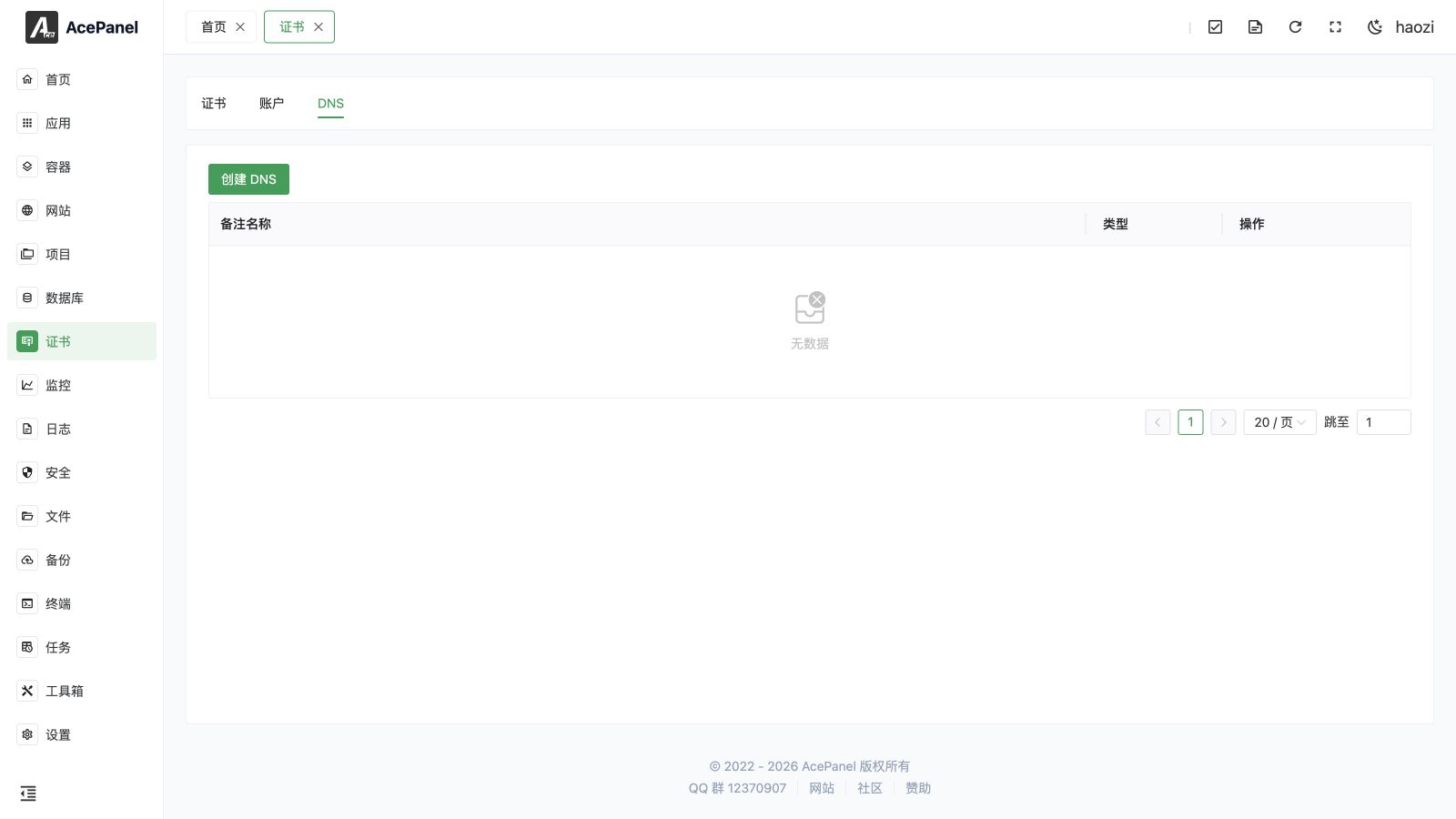
The DNS configuration page is used to manage DNS APIs for applying certificates through DNS verification.
DNS List
Go to Certificate > DNS tab to view the DNS configuration list.
The list displays the following information:
- Note Name: Configuration name
- Type: DNS provider type
- Actions: Modify, delete
Create DNS Configuration
- Click the Create DNS button
- Enter a Comment Name
- Select DNS provider
- Fill in API credentials
- (Optional) Set the DNS Server used for the propagation check (defaults to
8.8.8.8) - (Optional) Enable Skip DNS Verification for intranet environments, in which case AcePanel waits 60 seconds for propagation instead of polling the DNS server
- Click Submit
Supported DNS Providers
Domestic Providers
| Provider | Required Credentials |
|---|---|
| Aliyun | Access Key, Secret Key |
| Tencent Cloud | SecretId, SecretKey |
| Huawei Cloud | AccessKeyId, SecretAccessKey |
| West.cn | Username, API Password |
International Providers
| Provider | Required Credentials |
|---|---|
| CloudFlare | API Key |
| Gcore | API Key |
| Porkbun | API Key, Secret Key |
| NameSilo | API Token |
| ClouDNS | Auth ID, Auth Password |
ClouDNS Sub Auth ID
ClouDNS also supports a Sub Auth ID. To use it, fill in the Auth ID field with a sub- prefix (for example sub-12345).
Obtaining API Credentials
Alibaba Cloud
- Log in to Alibaba Cloud console
- Go to AccessKey Management
- Create AccessKey
- Record AccessKey ID and AccessKey Secret
Security Notice
It is recommended to create a sub-account and only grant DNS management permissions. Avoid using the main account AccessKey.
Tencent Cloud
- Log in to Tencent Cloud console
- Go to Access Management > API Key Management
- Create key
- Record SecretId and SecretKey
Cloudflare
- Log in to Cloudflare console
- Go to My Profile > API Tokens
- Create Token, select Edit zone DNS template
- Record the generated Token and fill it into the API Key field
DNS Verification Principle
- When applying for a certificate, the CA requires adding a specific TXT record in the domain DNS
- AcePanel automatically adds the verification record through DNS API
- CA verifies the TXT record exists
- Certificate is issued after verification passes
- AcePanel automatically deletes the verification record
DNS Alias (CNAME Delegation)
DNS Alias lets you complete DNS-01 validation for a domain by writing the _acme-challenge TXT record on a different (delegated) domain, instead of on the domain being certified. This is useful when:
- The domain you want a certificate for is hosted on a DNS provider that AcePanel does not support, but you control another domain that is supported.
- You want to keep ACME automation credentials scoped to a single dedicated zone for security reasons.
To use it, first add a permanent CNAME record at your DNS provider that points the challenge name of the original domain to the delegated record. For example, to delegate validation of example.com:
_acme-challenge.example.com. CNAME _acme-challenge.delegated.com.Then, when applying for or editing a certificate (not on the DNS configuration page), select the DNS provider that manages the delegated domain and fill in the DNS Alias mapping:
- Original domain: the domain being certified, for example
example.comor*.example.com - Alias record: the full delegated record name the TXT value will be written to, for example
_acme-challenge.delegated.com
AcePanel will then write the verification TXT record to the alias record on the delegated zone, and the CA will follow the CNAME to validate it. When matching the mapping, AcePanel first looks up the exact domain you entered; for a wildcard entry it also falls back to the bare domain (the *. prefix is stripped), so a single example.com mapping can cover *.example.com as well.
Use Cases
DNS verification is suitable for:
- Applying for wildcard certificates (*.example.com)
- Server port 80 is not accessible
- Intranet servers
- Origin servers behind CDN
- Domains whose DNS provider is not directly supported, by delegating validation to a supported zone (see DNS Alias)
FAQ
Verification Failed
- Check if API credentials are correct
- Check if API permissions are sufficient
- Check if the domain is managed by that DNS provider
DNS Propagation Delay
DNS records need some time to propagate after being added, usually ranging from a few minutes to a few hours. AcePanel polls the configured DNS Server every few seconds for up to about 10 minutes waiting for the record to appear before notifying the CA. If your records propagate slowly or the server is on an intranet that cannot be resolved publicly, enable Skip DNS Verification so AcePanel waits a fixed 60 seconds instead of polling. If verification still fails, you can retry later.