
Image
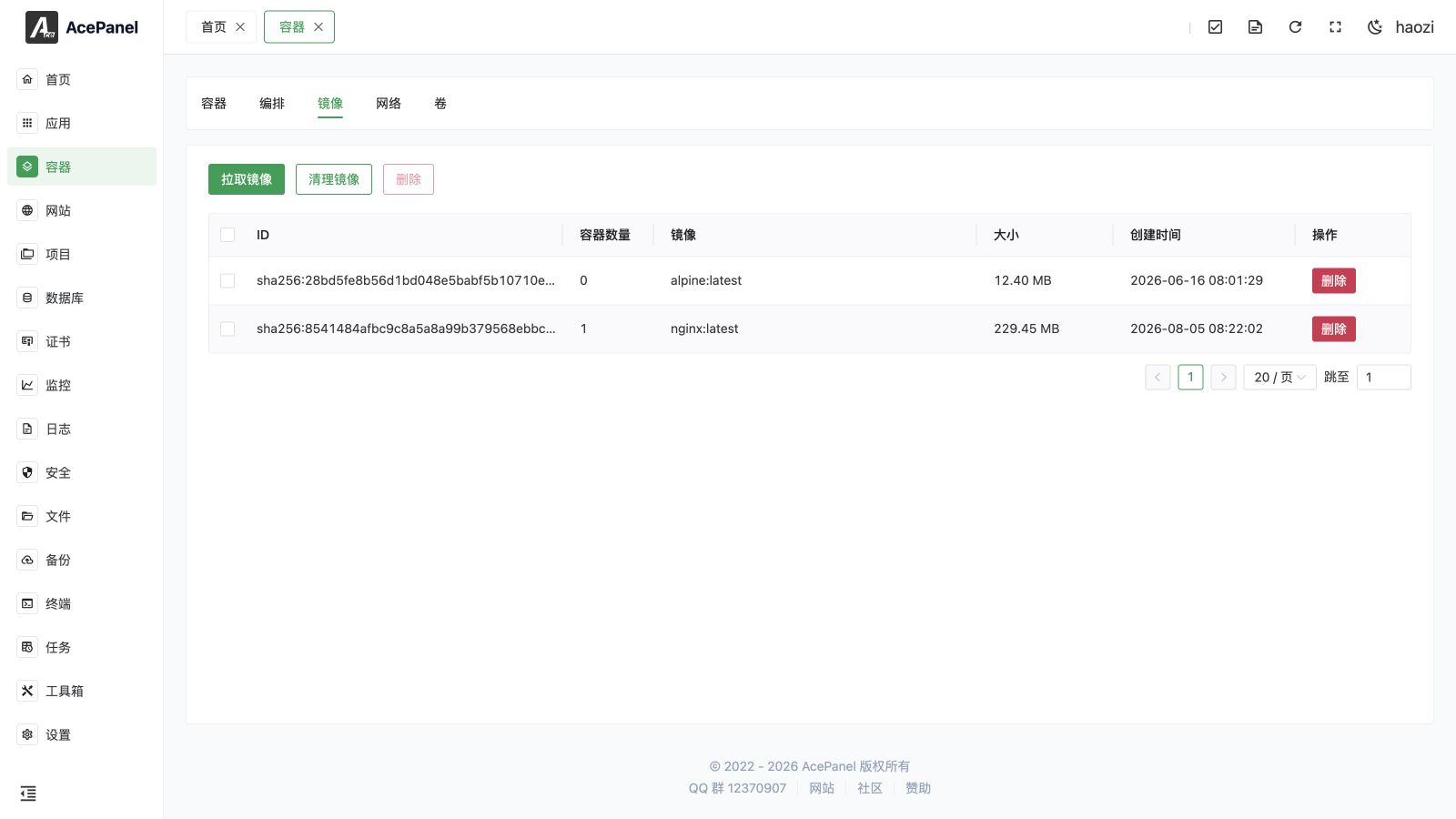
Images are templates for containers, containing all files and configurations needed to run applications. Through the image management page, you can pull, view, and delete local images.
Image List
Go to Container > Image tab to view the local image list.
The list displays the following information:
- ID: Image ID
- Container Count: Number of containers using this image
- Image: Image name and tag
- Size: Disk space occupied by the image
- Created Time: Image creation time
- Actions: Delete, etc.
Pull Image
- Click the Pull Image button
- Enter the image name, e.g.,
docker.io/php:8.3-fpm,mysql:8.4 - (Optional) Enable Authentication and fill in the Username and Password to pull from a private registry that requires login
- Choose Foreground or Background, then submit
In foreground mode, the dialog streams every image layer and overall progress and provides a cancel action for the active pull. In background mode, AcePanel submits a task that continues after you leave the page; open Tasks > Panel Tasks for its status and log.
Image name format: [registry_address/]image_name[:tag]
nginx- Pull the latest tag of the official nginx imagenginx:1.28- Pull a specific versionmysql:8.4- Pull MySQL version 8.4registry.cn-hangzhou.aliyuncs.com/xxx/yyy:latest- Pull from Alibaba Cloud image registry
Note
Pulling Docker Hub images from servers in China may be slow. It is recommended to configure an image accelerator or use domestic image sources.
Pull on Container Creation
Besides pulling images manually from this page, AcePanel can also pull an image automatically while you create a container. When you submit the Create Container form, the panel first checks whether the image you specified already exists locally:
- If the image is already present, the container is created right away.
- If the image is missing, a pull dialog opens and downloads it automatically, showing the same real-time layer-by-layer progress as a manual pull. Once the pull finishes, the container is created.
This means you do not have to pull an image in advance before creating a container that uses it.
Delete Image
Click the Delete button in the Actions column to delete a single image. You can also check multiple images and click the top Delete button to remove them in bulk.
Note
Deletion is forced, so an image can be removed even when it is referenced by stopped containers. If a running container is still using the image, you need to remove that container first before deleting the image.
Clean Images
Click Cleanup Images to delete all unused images and free up disk space.
The cleanup operation will delete all images that are not used by any container, including dangling images. Images created and managed by AcePanel are preserved and will not be removed.
Image Sources
Docker Hub
Docker's official image registry, containing a large number of official and community images.
Common official images:
nginx- Web servermysql/mariadb- Databaseredis- Cachepostgres- PostgreSQL databasenode- Node.js runtime environmentpython- Python runtime environment
Domestic Image Sources
- Alibaba Cloud:
registry.cn-hangzhou.aliyuncs.com - Tencent Cloud:
ccr.ccs.tencentyun.com - Huawei Cloud:
swr.cn-north-4.myhuaweicloud.com
Private Registry
If you have a private image registry, you can directly use the full image address to pull.