
Security and Firewall
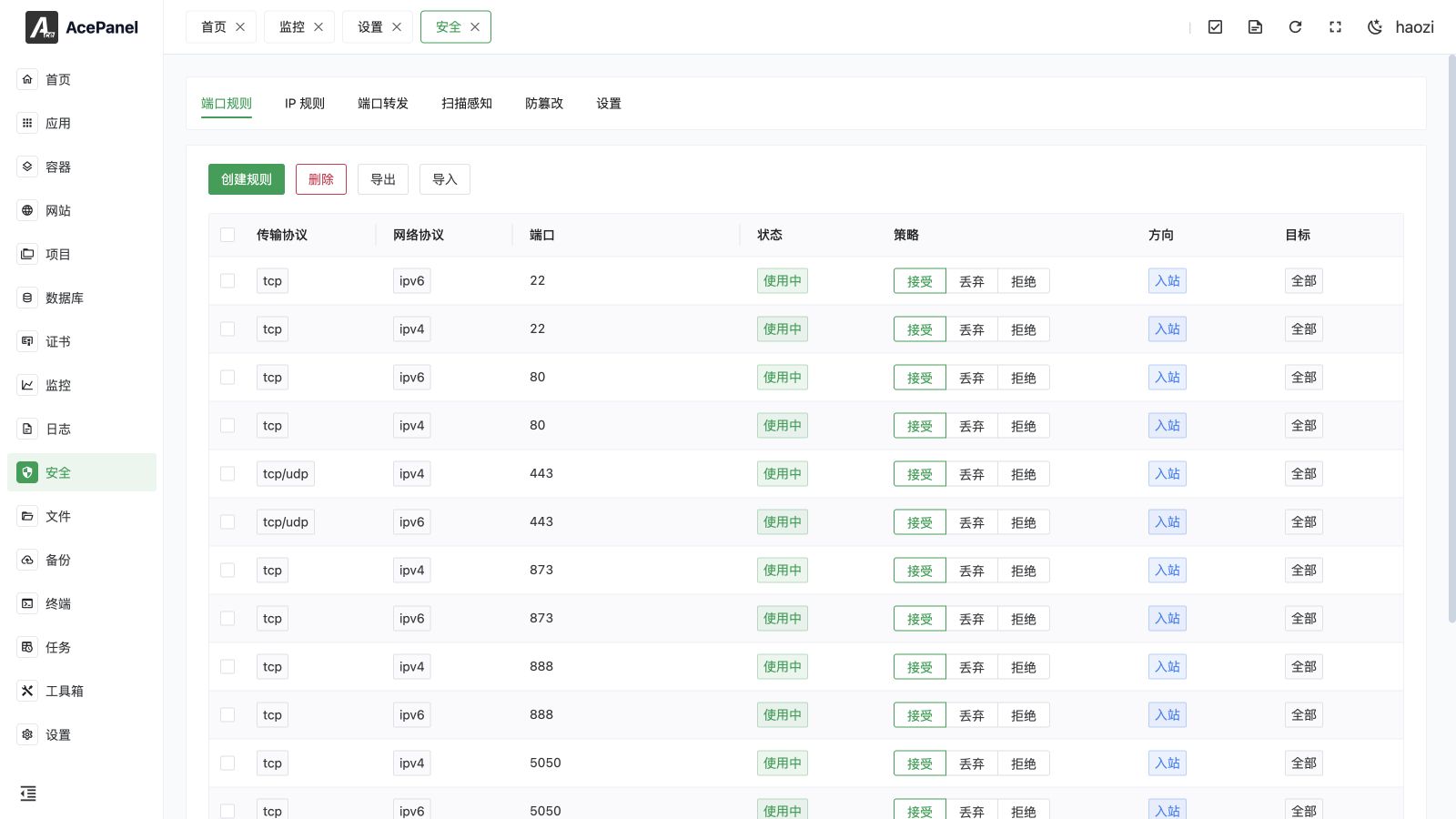
Open Security to manage the system firewall, scan awareness, and tamper protection. The firewall pages automatically detect firewalld or ufw and provide port rules, IP rules, and port forwarding.
Supported Firewalls
The panel auto-detects the installed firewall. It prefers firewalld, and falls back to ufw if firewalld is not available. All operations described here are translated into the corresponding firewalld or ufw commands behind the scenes.
Firewall Page
The firewall page is organized into tabs:
| Tab | Description |
|---|---|
| Port Rules | Manage rules that open or restrict specific ports / port ranges |
| IP Rules | Manage IP-based allow/deny rules (blacklist / whitelist) |
| Port Forwarding | Manage port forwarding (port mapping) rules |
| Scan Awareness | Network scan detection and statistics |
| Tamper Protection | Protect selected files and record blocked changes |
| Settings | Turn the firewall on/off, allow/deny ping, and scan settings |
Settings
Open the Settings tab to control the firewall master switch and related options.
- System Firewall: Master switch for the firewall. Turning it on starts and enables the firewall service; turning it off stops and disables it. Changes take effect immediately.
- Allow Ping: Controls whether the server responds to ICMP ping requests. Disable it to make the server invisible to ping probes.
WARNING
Make sure the port used by the panel and your SSH port are allowed before restricting traffic, otherwise you may lock yourself out of the server.
The Settings tab also contains the Scan Awareness options. Scan Awareness detection and statistics are covered separately and are out of scope for this page.
Port Rules
Open the Port Rules tab to manage rules for specific ports or port ranges. This view lists only port-based rules; whole-range IP rules are shown under the IP Rules tab.
Rule List
Each rule shows the following columns:
| Column | Description |
|---|---|
| Transport Protocol | TCP, UDP, or TCP/UDP. Shows None when no protocol applies |
| Network Protocol | IPv4 or IPv6 (the address family). Shows None when not set |
| Port | A single port (e.g. 80) or a range (e.g. 8000-9000) |
| Status | Whether the port is currently in use: In Use or Not Used |
| Strategy | Accept, Drop, Reject, or Mark |
| Direction | Inbound or Outbound |
| Target | The source/destination address the rule applies to; shows All when empty |
Port Usage Lookup
When a rule's status shows In Use, click the status tag to open a popover listing the processes currently occupying that port. For each process the panel displays:
- Name: the process name
- PID: the process ID
- Command: the full command line of the process
This makes it easy to identify what is listening on a port before changing or removing a rule. The lookup uses the system ss tool together with /proc information, so it is only available on Linux servers.
Create Rule
Click the Create Rule button and fill in the form:
- Transport Protocol:
TCP,UDP, orTCP/UDP(defaultTCP) - Network Protocol:
IPv4orIPv6(defaultIPv4) - Start Port: Beginning of the port range, 1–65535 (default
80) - End Port: End of the port range, 1–65535 (default
80). For a single port, set Start Port and End Port to the same value. The End Port is automatically raised to match if it is lower than the Start Port - Target: One or more source addresses the rule applies to. Leave empty to apply to all addresses. Accepts a single IP or a CIDR range, e.g.
172.16.0.1or172.16.0.0/16. You can add multiple entries; one rule is created per entry - Strategy:
Accept,Drop, orReject(defaultAccept) - Direction:
InboundorOutbound(defaultInbound)
| Strategy | Behavior |
|---|---|
| Accept | Allow the traffic |
| Drop | Silently discard the traffic with no response |
| Reject | Discard the traffic and return a rejection response to the sender |
Use the strategy control in a rule row to switch directly between Accept, Drop, and Reject. The new policy is applied immediately; confirm that the panel and SSH ports remain reachable before changing a remote-management rule.
TIP
To open a port for public access, create an Inbound rule with the Accept strategy and leave the Target empty.
Delete Rule
- Single delete: Click Delete on a rule's row and confirm.
- Batch delete: Select one or more rows using the checkboxes, click the Delete button at the top, and confirm. The selected rules are removed together.
Import and Export
Use Export to download the rules as an XLSX workbook. Import validates an XLSX file and shows the rows to be added. Review address family, direction, protocol, port ranges, targets, and strategies before confirming; an imported blocking rule can disconnect the current session.
IP Rules
Open the IP Rules tab to manage IP-based allow and deny rules (whitelist / blacklist). Unlike port rules, these apply to a source address across all ports.
Rule List
| Column | Description |
|---|---|
| Transport Protocol | TCP, UDP, or TCP/UDP. Shows None when unset |
| Network Protocol | IPv4 or IPv6. Shows None when unset |
| Strategy | Accept, Drop, Reject, or Mark |
| Direction | Inbound or Outbound |
| Target | The IP address or range the rule applies to |
Create Rule
Click Create Rule and fill in the form:
- Transport Protocol:
TCP,UDP, orTCP/UDP(defaultTCP) - Network Protocol:
IPv4orIPv6(defaultIPv4) - IP Address: One or more IP addresses or ranges, e.g.
172.16.0.1or172.16.0.0/16. You can add multiple entries; one rule is created per entry - Strategy:
Accept,Drop, orReject(defaultAccept) - Direction:
InboundorOutbound(defaultInbound)
Whitelist vs. Blacklist
- Whitelist: Use the
Acceptstrategy to explicitly allow trusted IPs. - Blacklist: Use the
DroporRejectstrategy to block unwanted IPs.
Delete Rule
Both single-row deletion (the Delete button on a row) and batch deletion (select rows, then click Delete at the top) are supported. Each action requires confirmation.
Port Forwarding
Open the Port Forwarding tab to manage port forwarding (port mapping) rules. A forwarding rule redirects traffic arriving on a local port to a target IP and port.
Rule List
| Column | Description |
|---|---|
| Transport Protocol | TCP, UDP, or TCP/UDP |
| Port | The source port that receives traffic |
| Target IP | The destination IP traffic is forwarded to |
| Target Port | The destination port traffic is forwarded to |
Create Forwarding
Click the Create Forwarding button and fill in the form:
- Transport Protocol:
TCP,UDP, orTCP/UDP(defaultTCP) - Target IP: The destination IP address (default
127.0.0.1) - Source Port: The incoming port to forward, 1–65535 (default
8080) - Target Port: The destination port to forward to, 1–65535 (default
80)
For example, forwarding source port 8080 to 127.0.0.1:80 sends all traffic that reaches port 8080 to the local service listening on port 80.
Delete Forwarding
Both single-row deletion (the Delete button on a row) and batch deletion (select rows, then click Delete at the top) are supported. Each action requires confirmation.
FAQ
A Port Is Open but the Service Is Still Unreachable
- Confirm the firewall is enabled in the Settings tab.
- Check that an Inbound Accept rule exists for the port under Port Rules.
- Use the Status column's port usage lookup to confirm a process is actually listening on the port.
- Make sure no IP Rule is blocking the source address.
Locked Out After Changing Rules
- Always keep your SSH port and the panel port allowed before adding restrictive rules.
- If you lose access, log in through your provider's console (VNC/serial) and adjust or disable the firewall directly.
Rules Do Not Take Effect
- Verify which firewall backend is in use (
firewalldorufw); the panel manages whichever is installed. - Ensure the firewall service is running via the System Firewall switch in Settings.