
Panel Tasks
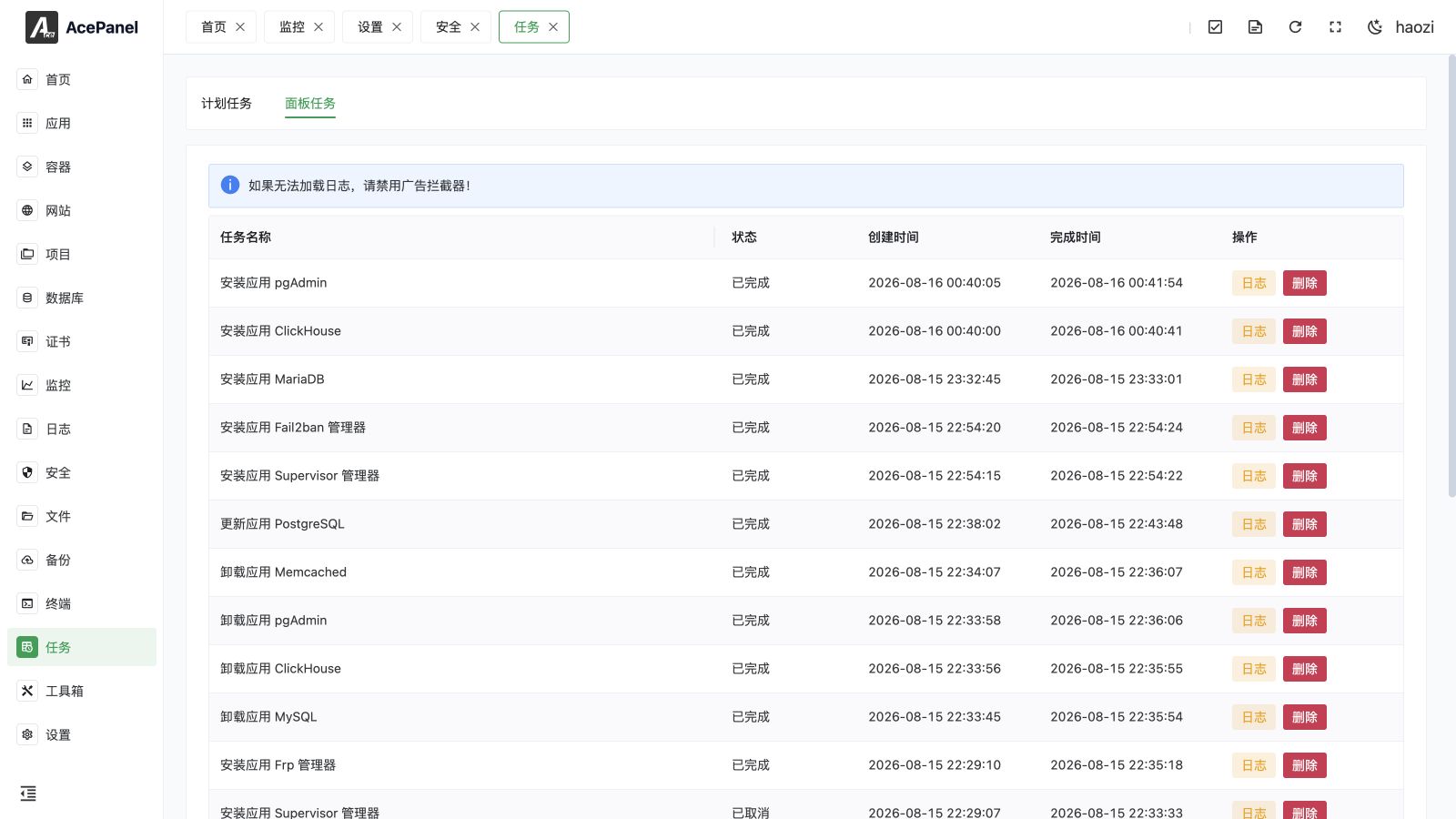
Panel Tasks contains long-running work submitted to AcePanel's queue, including application and runtime changes, backups and restores, file compression and extraction, and background container operations.
The Tasks page has two tabs: Scheduled Tasks (shown by default) and Panel Tasks. This page only covers Panel Tasks. For time-based jobs such as scheduled backups or scripts, see Scheduled Tasks.
Task Window
The task icon in the top-right header refreshes its running status automatically. Click it to open the panel-task window without leaving the current page. The window shows active tasks, live logs, and cancellation controls; an empty state appears when no tasks are running.
File compression, extraction, and remote downloads also open task-queue windows. Minimize or close a window to continue working; use Cancel to stop a waiting or running task. Closing the window does not cancel the operation. Finished task records remain available on the Panel Tasks page.
Task List
Go to Tasks > Panel Tasks tab to view the panel task list.
The list displays the following information:
- Task Name: Task description
- Status: Waiting/Running/Completed/Failed/Canceled
- Creation Time: Task creation time
- Completion Time: Task end time
- Actions: View logs, cancel, delete
Task Status
| Status | Description |
|---|---|
| Waiting | Task is queued and not yet started |
| Running | Task is being executed |
| Completed | Task executed successfully |
| Failed | Task execution failed |
| Canceled | A waiting or running task was cancelled |
Common Task Types
Application Installation
Installation tasks are created when installing applications:
- Install app Nginx
- Install app MySQL
- Install app Docker
Application Uninstallation
Uninstallation tasks are created when uninstalling applications:
- Uninstall app MariaDB
- Uninstall app Redis
Application Update
Update tasks are created when updating an installed application:
- Update app Gitea
- Update app Grafana
Environment Installation
Tasks are created when installing, uninstalling, or updating runtime environments:
- Install environment PHP 8.4
- Install environment Node.js 20
- Update environment Go 1.24
View Logs
Click the Logs button to view detailed execution logs of the task, including:
- Command output
- Error messages
Logs are streamed in real time. The viewer can load history, search loaded text, jump between matches, toggle wrapping, copy, and enter full screen. The Logs button is unavailable while a task is still waiting. See Logs for the shared viewer behavior.
Cancel Task
Waiting and running tasks provide Cancel. Cancelling a waiting task removes it from execution. Cancelling a running task asks the worker to stop and runs the task's cleanup action when one is defined.
Cancellation is not a rollback. A pull, restore, extraction, or installer may already have written files or changed a service. Read the log and inspect the affected resource before retrying.
Logs are very useful for troubleshooting task failure causes.
Tip
If logs fail to load, disable any ad blockers in your browser.
Delete Task
Only finished, failed, or canceled tasks can be deleted. Cancel a waiting or running task first.
Tip
Deleting a task only removes the record from the list, it does not affect installed applications or environments.
Handling Task Failures
If a task fails:
- Click Logs to view error messages
- Troubleshoot the problem based on error messages
- Re-execute the operation after resolving the issue
Common failure causes:
- Network issues causing download failures
- Insufficient disk space
- Missing dependencies
- Port already in use
Interrupted Tasks After a Restart
Tasks interrupted during a graceful panel shutdown can be marked Canceled. On startup, any task still recorded as Running is marked Failed, covering work interrupted before its status could be saved. Check the log and the affected resource before retrying an interrupted operation.
Clearing Stuck Tasks
In rare cases a task may appear stuck in the Waiting or Running state and block new tasks of the same kind. You can force-clear the queue from the server command line:
acepanel clear-taskThis marks all waiting and running tasks as Failed so the queue is unblocked. See CLI Tool for details, and use this only under guidance.
Notes
- Installation tasks may take a long time, please be patient
- You can close the browser while tasks are executing
- If a task is unresponsive for a long time, you can refresh the page to check the status
- It is recommended to regularly clean up completed task records
- Submitting an identical task while a previous one is still waiting or running is rejected; wait for the previous task to finish first