
Process Management
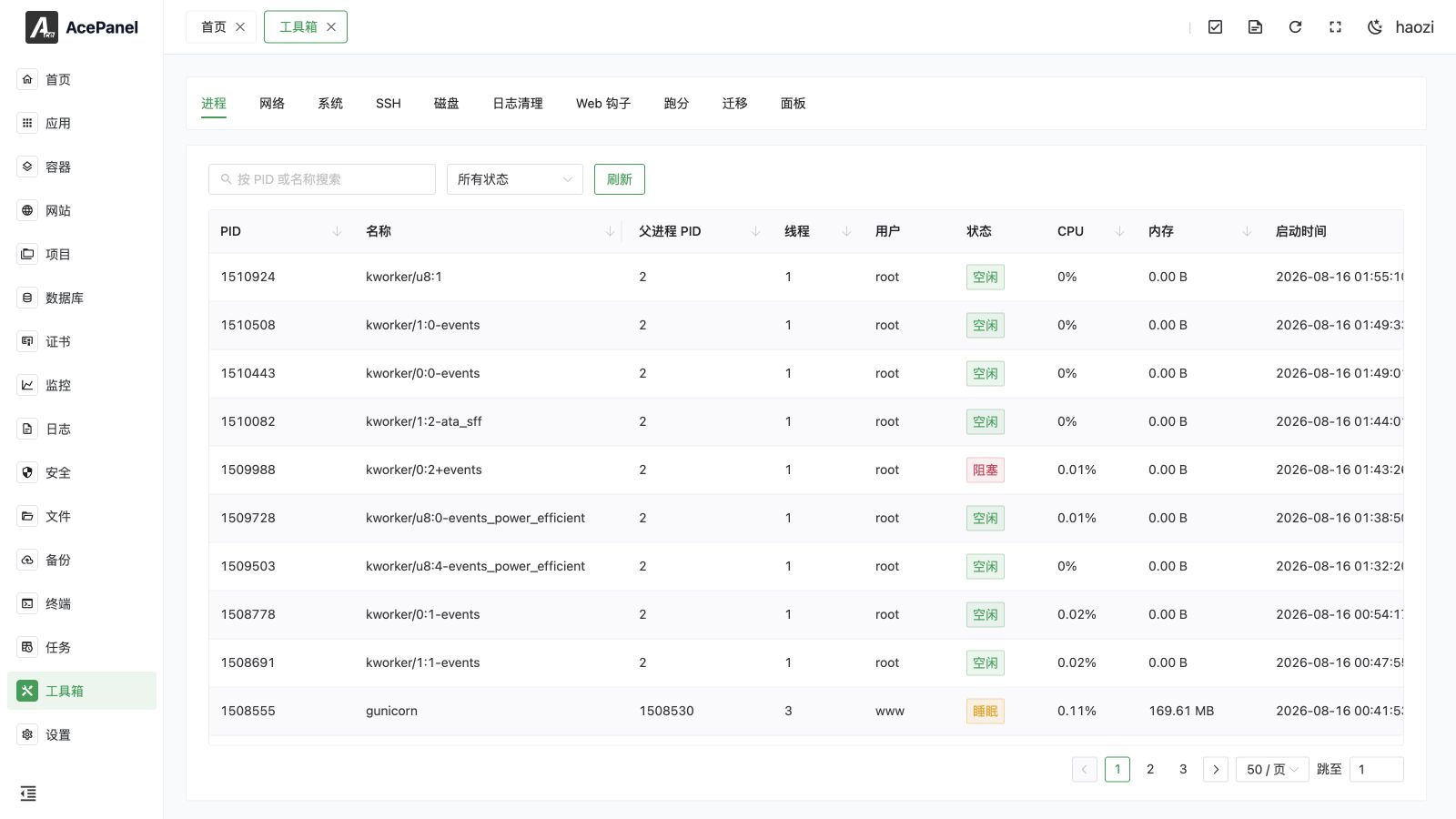
The process management page is used to view and manage processes running on the system.
Process List
The page displays all running processes in a table format.
The list displays the following information:
- PID: Process ID
- Name: Process name
- Parent PID: PID of the parent process
- Threads: Number of threads
- User: User running the process
- Status: Process status
- CPU: CPU usage
- Memory: Memory usage
- Start Time: Process start time
Process Status
| Status | Description |
|---|---|
| Running | Process is executing |
| Sleeping | Process is waiting for an event |
| Blocked | Process is blocked |
| Idle | Kernel thread is idle |
| Stopped | Process has stopped |
| Waiting | Process is in uninterruptible wait |
| Locked | Process is in a locked state |
| Zombie | Process has ended but not been reaped |
Search and Filter
- Search: Search by PID or process name
- Status Filter: Filter processes by status (All Status, Running, Sleeping, Stopped, Idle, Zombie, Waiting, Locked)
- Refresh: Reload the process list to fetch the latest data
The table columns PID, Name, Parent PID, Threads, CPU, Memory and Start Time can be clicked to sort the list.
The list is paginated. The page size can be set to 50, 100, 200 or 500 entries per page (50 by default), and a quick jumper is available to navigate directly to a specific page.
Process Operations
Left-click (or right-click) on a process to open the operation menu:
- View Details: View detailed process information
- Terminate (SIGTERM): Send SIGTERM signal (graceful termination)
- Kill (SIGKILL): Send SIGKILL signal (force kill)
- Stop (SIGSTOP): Pause the process
- Continue (SIGCONT): Resume a paused process
- Interrupt (SIGINT): Send SIGINT signal (equivalent to Ctrl+C)
- Hang Up (SIGHUP): Send SIGHUP signal
- User Signal 1 (SIGUSR1): Send the SIGUSR1 user-defined signal
- User Signal 2 (SIGUSR2): Send the SIGUSR2 user-defined signal
Use SIGTERM first so the process can close listeners and flush data. SIGKILL cannot be handled and can leave partial writes, stale locks, or an unclean database. SIGSTOP, SIGHUP, SIGUSR1, and SIGUSR2 have application-specific effects; send them only when the service documents the expected behavior.
You can also double-click a process to open its details directly.
Sending any signal (including Terminate and Kill) first pops up a confirmation dialog showing the signal name and the target PID. The signal is only sent after you confirm.
Process Details
The details dialog shows the following basic information:
| Field | Description |
|---|---|
| PID | Process ID |
| Parent PID | PID of the parent process |
| Name | Process name |
| User | User running the process |
| Status | Process status |
| Threads | Number of threads |
| CPU | CPU usage |
| Memory (RSS) | Resident set size (physical memory in use) |
| Virtual Memory | Virtual memory size |
| Swap | Amount of memory swapped out |
| Disk Read | Bytes physically read from storage for the process |
| Disk Write | Bytes physically written to storage for the process |
| Start Time | Process start time |
| Executable Path | Path to the executable file |
| Working Directory | Current working directory |
| Command Line | Full command line used to start the process |
Below the basic information, the following sections are available as collapsible panels (each is only shown when the process has corresponding data):
- Environment Variables: Environment variables of the process
- Open Files: Files currently opened by the process
- Network Connections: Network connections of the process, listed as
local address:port -> remote address:port (status)
Common Processes
| Process | Description |
|---|---|
| nginx | Nginx web server |
| php-fpm | PHP FastCGI process manager |
| mysqld | MySQL database service |
| postgres | PostgreSQL database service |
| dockerd | Docker daemon |
| ace | AcePanel panel process |
Notes
- Ending critical system processes may cause system instability
- Ending the panel process will make the panel inaccessible
- It is recommended to only end processes that are confirmed to be useless